22
2 HARDWARE OVERVIEW
2@
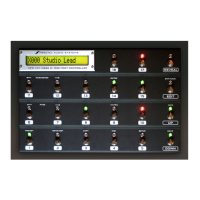
FASLINK II Connector — This allows you to connect the FM3 with one or two FC-6 or FC-12 foot controllers.
FASLINK™ uses a standard XLR cable for 2-way communication and also powers the rst FC without an
external “wall wart” adapter. (See your FC Owner’s Manual for more on daisy chaining and other options.)
NOTE: The FASLINK II port on the FM3 is designed for our FC Series of foot controllers and is NOT compatible
with the FASLINK port on our MFC-101 MIDI foot controller. Connecting an FM3 to an MFC-101 via FASLINK
should not cause any damage, but it will not work.
2#
USB — This provides the FM3 with 4×4 USB audio capabilities when connected to a compatible Mac or PC
for use with a DAW or other audio applications. The FM3 is NOT a USB MIDI Device. It uses “COMM over
USB” channels for Fractal-Bot and FM3-Edit, but will not appear as a MIDI device in a DAW or other MIDI
program. See Section 3: USB for important information on USB.
2$
MIDI Ports — The MIDI IN port of the FM3 allows you to control various MIDI functions including preset and
scene selection, effect bypass, channel changes, parameter changes, and more. See “Sending and Receiving
MIDI” on p. 113 for more information on the various ways the FM3 works with MIDI.
2%
SPDIF Out — Digital Output — This transmits a digital output signal at a xed rate of 48k. The SPDIF out can
transmit your choice of signals as per the setting of the SPDIF Out Source parameter.
(See “I/O: AUDIO Page” on p. 92.)
2^
Power Switch — This turns the power on or off. The FM3 features pop suppression, but it is still advisable to
turn down or mute connected devices when powering on or off.
2&
AC Power Receptacle — Insert the supplied power cable and connect the other end to a grounded AC power
receptacle. The FM3 has a universal power supply, which means it can be used around the world by simply
changing the cable.


 To Next Page