18
Basic functions
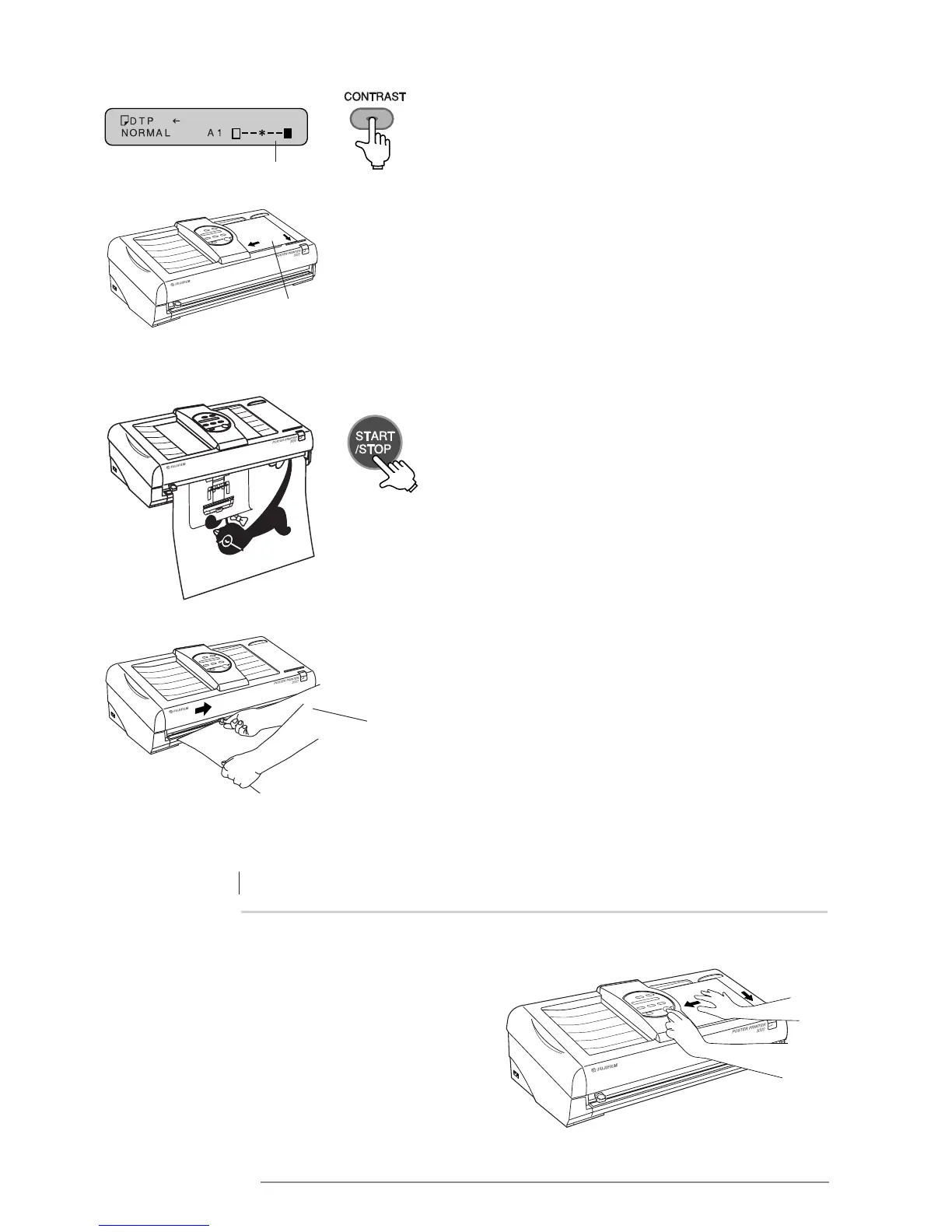
5 Press the CONTRAST key to select the level
of contrast desired.
6 Place the original into the document bay face down.
Make sure the original is placed firmly
along the document guide closest to
you, and into the scanner until it stops.
Move the cutter in
a downward horizontal
sliding motion while
holding the paper out
from the printer.
7 Press the START/STOP key to scan the original.
The printing process will begin.
NOTE: If you wish to stop printing mid-way press
the START/STOP key again.
8 When the printing process is complete, cut the print
with the paper cutter.
What to do when a “document jam” error occurs
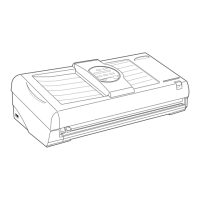
1 Open the scanner cover to remove the original.
2 Reinsert the original until it stops, and press the
START/STOP key.
NOTE: If the original is not placed into the scanner
until it stops, an error may occur.
The contrast is shown here






 To Next Page