Using the ScanSnap in Various Ways (for Mac OS users)
348
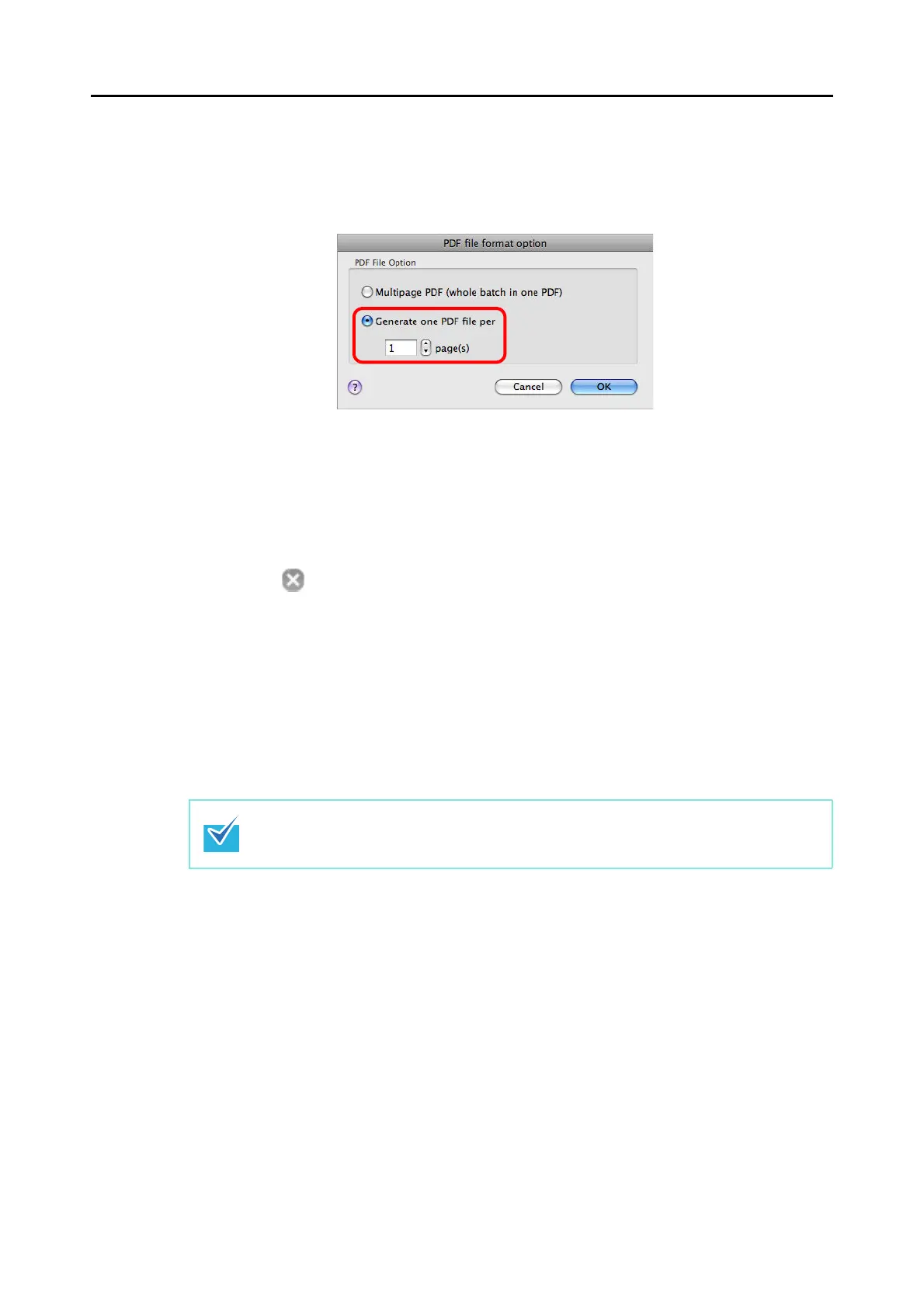
3. Select [Generate one PDF file per (n) page(s)] and enter the number of
pages to split.
One PDF is created every time the number of pages specified here has been saved.
4. Click the [OK] button to close the [PDF file format option] window.
5. Click the [Apply] button in the ScanSnap setup window.
6. Click the [ ] button in the upper left corner to close the ScanSnap
setup window.
7. Load the document in the ScanSnap.
For details about how to load documents, refer to
"How to Load Documents" (page 30).
8. Press the [Scan/Stop] button on the ScanSnap to start scanning.
9. Press the [Scan/Stop] button on the ScanSnap to finish scanning.
One PDF file is created every time the number of pages specified in step
3. has been
scanned.
Load another document in the ScanSnap when you want to scan multiple sheets. Scanning
starts automatically when a document is loaded.



 To Next Page
 Loading...













