33
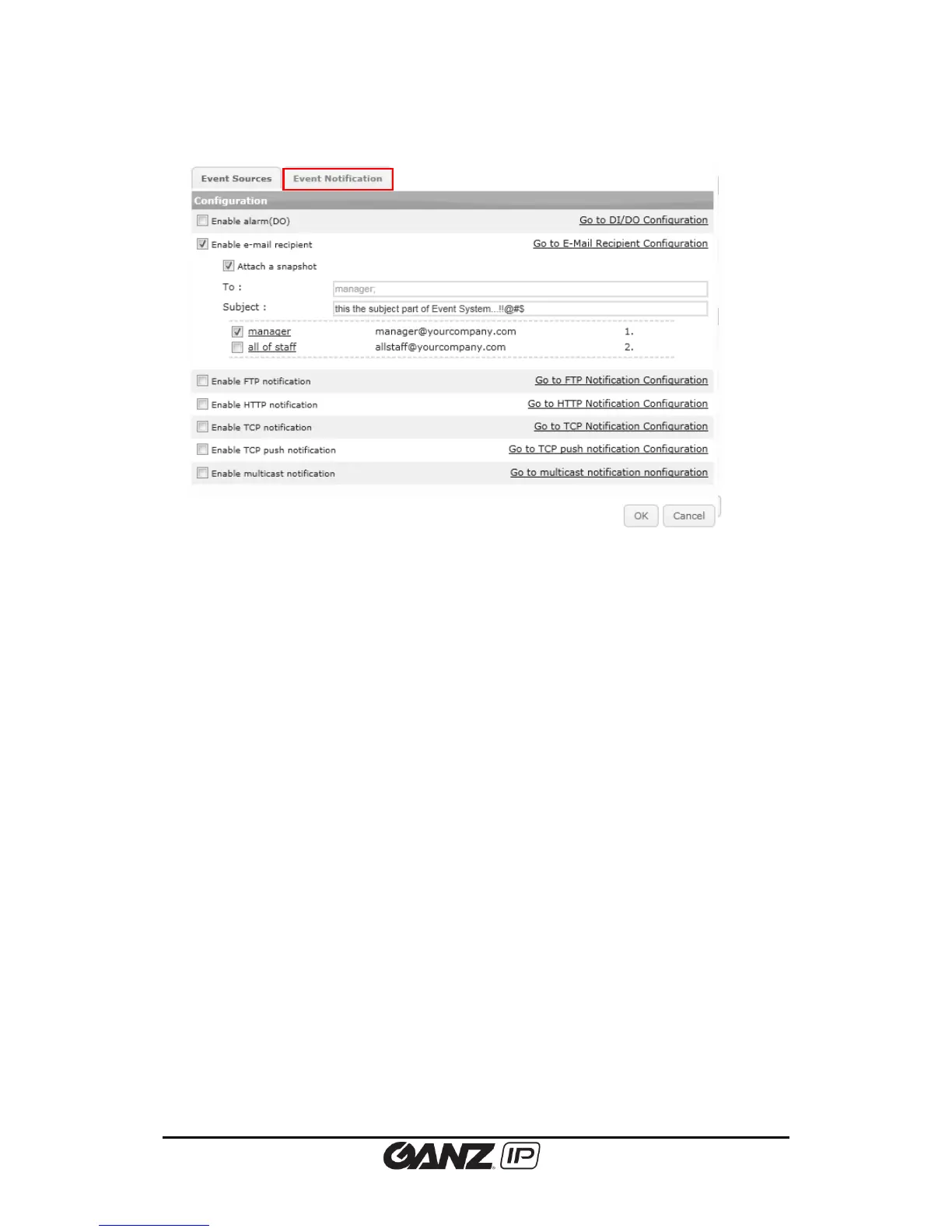
To configure the event sources, click the Event Notification
tab.
Active Alarm (DO)
Enable the check box to activate the DO for the event publisher. Specify the alarm duration.
The duration time indicates for how long does the DO works. For example, if you input ‘0,’ a
DO device keeps working until a user turns it off manually. If you input ’10,’ a DO device will
work for 10 seconds and finish the operation.
Send E-mail notification
Enable the check box to send E-mail to designated recipients. To attach a snapshot image,
select the Attach a snapshot check box. From the recipient list, select the recipient to send the
notification. To create a new recipient that is not on the list, go to Setup > Event Configuration
> E-Mail Recipient and create a new recipient information. Once the desired recipient is
selected, write the subject for the email.
Upload notification to FTP
Enable the check box to activate the FTP notification method. To attach a snapshot image,
select the Attach a snapshot check box. From the FTP server list, select the FTP server to send
the notification. To create a new FTP server that is not on the list, go to Setup > Event
Configuration > FTP Notification and create a new FTP server information.
Send HTTP Notification
Enable the check box to activate HTTP notification method. From the HTTP notification list,
select the HTTP server to send the notification. To create a new HTTP server that is not on the
list, go to Setup > Event Configuration > HTTP Notification and create a new HTTP server
information.
Send TCP Notification
Enable the check box to activate TCP notification method. To configure a new TCP server, go to
Setup > Event Configuration > TCP Notification and configure TCP server information.



 To Next Page