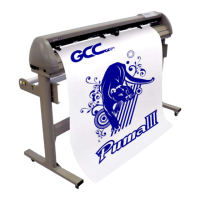
Puma III User Manual
Installation 2-15
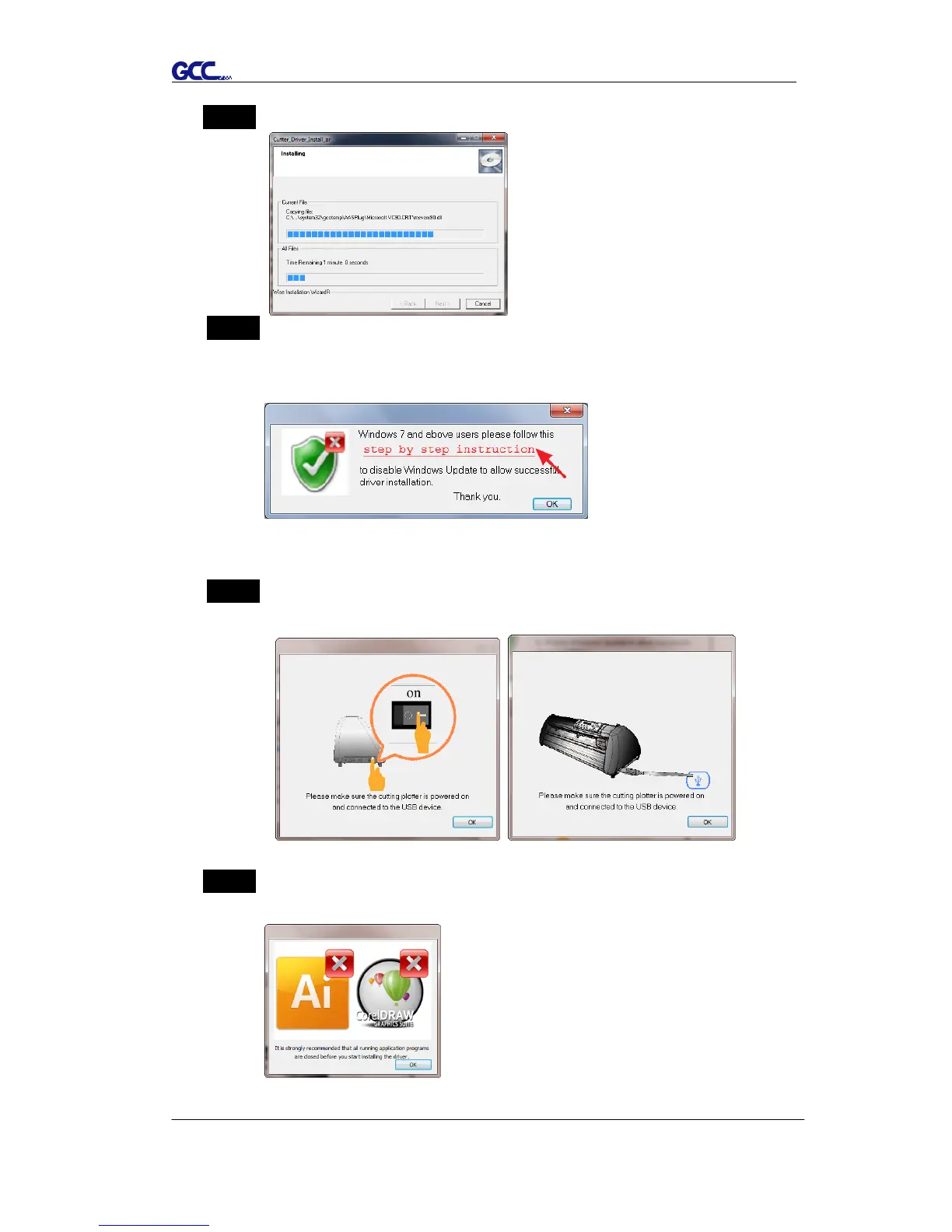
Step 3 Click “Next” to start the driver installation.
Step 4 If you were Windows 7and above, please click on the red words to
instruct you how to disable Windows Update to allow success driver
installation. And then click OK to next step.
Step 5 Please make sure the cutting plotter is powered on and connected to
theUSB device, and then click OK to next step.
Step 6 Confirm to close all running application programs before you start
installing the driver, and then click OK.



 To Next Page