4-8 W650 Wind Generator Protection System GEK-113032A
4.1 ENERVISTA 650 SETUP SOFTWARE INTERFACE 4 HUMAN INTERFACES.
4
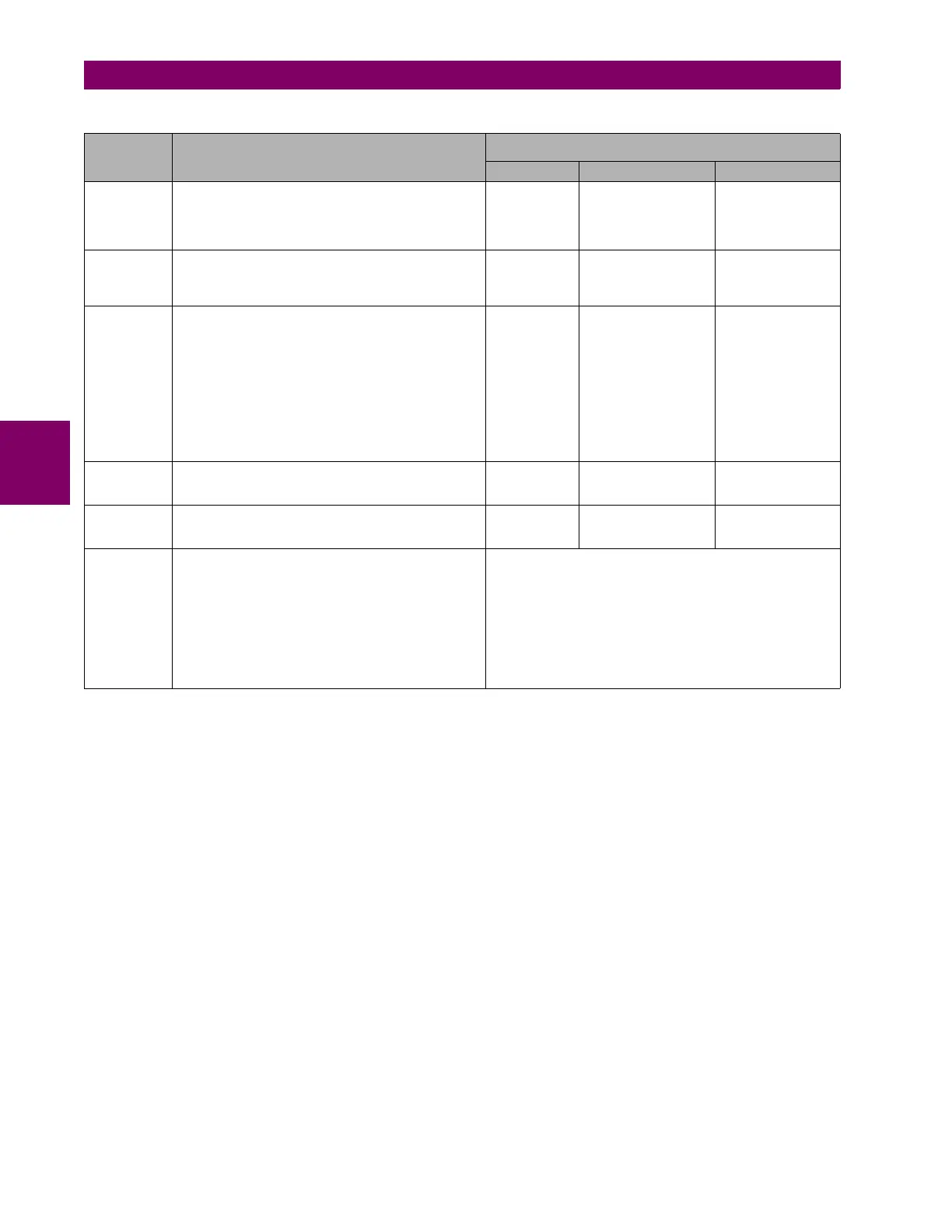
Table 4–1: TYPES OF FILES GENERATED BY ENERVISTA 650 SETUP SOFTWARE OPERATION MODE OFF-LINE:
SETTINGS & CONFIGURATION FILE *.650
LOGIC CONFIGURATION FILES (*.PEP, *AUT, *.LIB)
*.PEP *.AUT *.LIB
Description Protection Settings and Configuration Section
Header for
Logic project
Graphical edition
container. Logic
equations (Virtual
Outputs) in FDB
format.
User programmable
logic objects
Created by EnerVista 650 Setup
Logic
configuration
graphic editor
(PLC Editor)
Logic configuration
graphic editor (PLC
Editor)
Logic configuration
graphic editor (PLC
Editor)
Contents
Relay configuration file containing all protection
elements Settings, input/output and LEDs configuration,
graphic display configuration, etc.
Equations corresponding to the logic created and
compiled in the PLC Editor
PLC project file
containing the
necessary
information
relative to the
relay model,
logic libraries
included in the
project (*.lib),
graphic file
name (*.aut),
etc.
PLC Project file
containing all the
drawings used by the
logic, required by 650
relay based on IEC
61131-3 standard.
Functional block
diagram (FDB).
Library file to be
included as an object
in a PLC project.
Logic packages that
can be stored into
libraries and be
distributed in different
PLC projects.
How to save
EnerVista 650 Setup:
“File>Save *”
PLC Editor:
“File>Save
Project”
PLC Editor:
“File>Save Project”
PLC Editor:
“File>Save Library”
How to open
EnerVista 650 Setup:
“File>Open *”
PLC Editor:
“File>Open
Project”
PLC Editor:
“File>Open Project”
PLC Editor:
“File>Library>New
Library”
How to
transfer to
relay
Connect with the relay
(“Communications>Computer”)
Open the created file (“File>Open *”)
Send to relay from the menu: “File>Send info to relay”
Note that texts used in the configuration of inputs,
outputs, etc. are not sent to the relay. The only texts
sent to relay are operations, events, and LEDs.
Connect with the relay (“Communications>Computer”)
LaunchLogic equations Editor (“Setpoint>Logic
Configuration”)
Open the created PLC project (“File>Open Project”)
Compile the project (“Run>Compile”)
Now the logic (virtual outputs) can be sent directly to relay
(“Run>Send Equations to Relay”). Texts of virtual outputs are
not stored in the relay, only in the logic configuration files to be
edited.


 To Next Page