31
2. Sound Volume
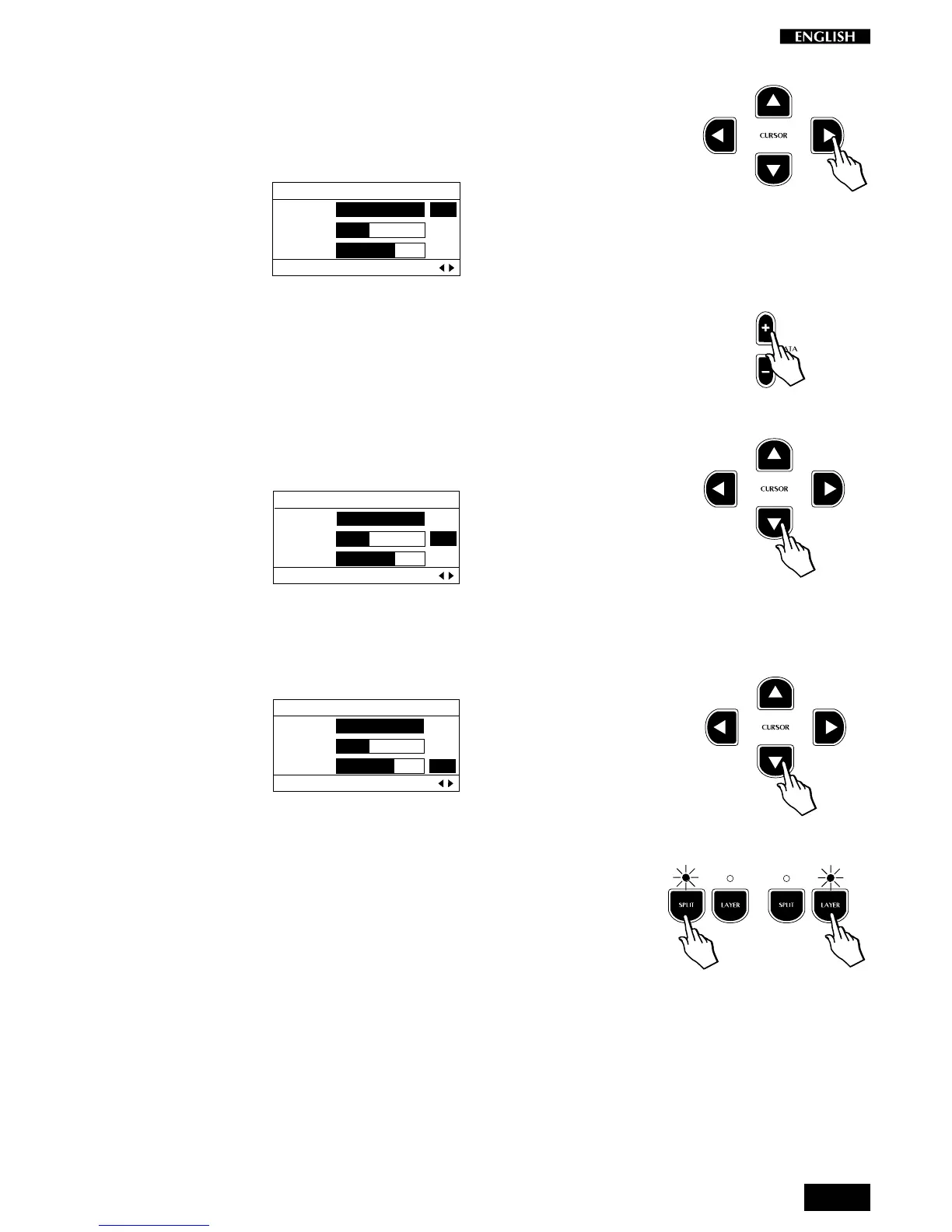
Press the CURSOR RIGHT button to pass to the second screen (Sound
Volume). The negative highlight cursor is shown in correspondence with
the main sound volume:
EDIT MENU
Main : 127
Layer : 54
Split : 90
Sound Volume Pg. 2
The volume of the main sound is represented by a bar graph and
corresponding numerical value.
To change the volume setting, press the DATA +/– buttons.
Holding down the DATA + or – button increases or decreases the volume
setting rapidly and stops instantly after release.
Press the CURSOR Down button to change the Volume of the Layer
section:
EDIT MENU
Main : 127
Layer : 54
Split : 90
Sound Volume Pg. 2
To change the Volume setting, use the DATA +/ buttons as described.
Press the CURSOR Down button again to change the Volume of the Split
section:
EDIT MENU
Main : 127
Layer : 54
Split : 90
Sound Volume Pg. 2
To change the Volume setting, use the DATA +/ buttons as described.
Note: Remember that the Volume changes made to the Layer and/or
Split sections will only be heard if the corresponding Layer and Split
buttons are active (LEDs on).



 To Next Page