5. After 9 devices are powered up and connected to the LAN network, use “Auto Discover” function or “Create
New Device” function to add the devices to the device list on Web GUIValue-added FeaturesZero
ConfigZero Config.
6. On Web GUIValue-added FeaturesZero ConfigZero Config page, users could identify the devices
by their MAC addresses or IP addresses displayed on the list. Click on to edit the device settings.
7. For each of the 5 phones used by English speaking customer support, in “Basic settings” select an available
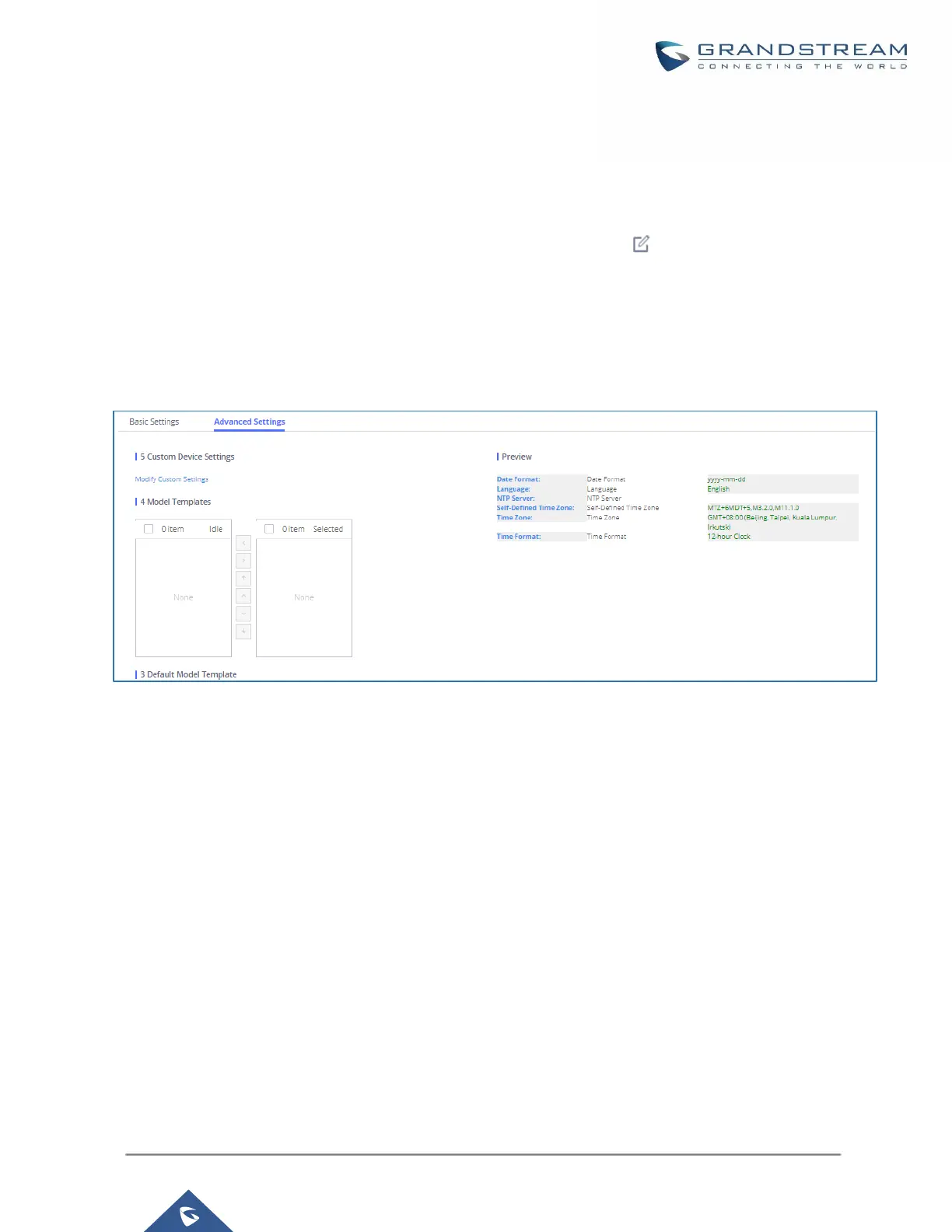
extension for account 1 and click on “Save”. Then click on “Advanced settings” tab to bring up the following
dialog. Users will see the English support template is applied since this is the default model template. A
preview of the device settings will be listed on the right side.
Figure 79: Zero Config Sample - Device Preview 1
8. For the 3 phones used by Spanish support, in “Basic settings” select an available extension for account 1
and click on “Save”. Then click on “Advanced settings” tab to bring up the following dialog.



 To Next Page
 Loading...