AXIS4000 WHEEL ALIGNMENT SYSTEM
HAWEKA Wheel Alignment –AXIS4000
6.2 Installing software under Windows
• Close all applications that are currently open on the com-
puter.
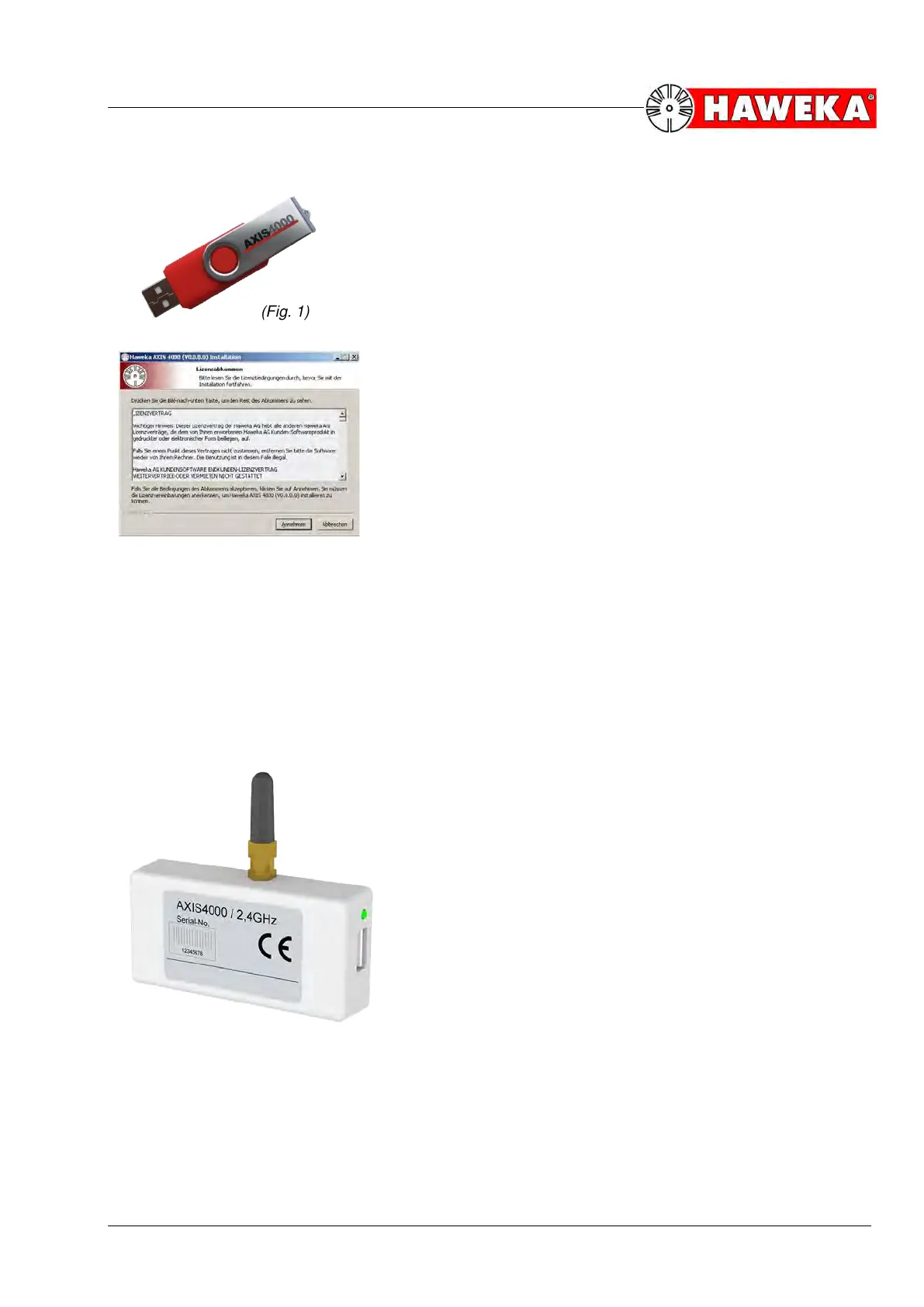
• Place the USB-Stick in the PC.
If the installation wizard does not start automatically, click
on Start in the Windows taskbar and then on Run. Enter
D:\axis4000setup, where D is the drive letter of the remov-
able media.
• If required, confirm the Windows safety warning and click
the Run button.
• Read the licence agreement and follow the installation wiz-
ard instructions on the screen.
(Fig. 2)
• Once installation is finished, the AXIS4000 software and
FM transmitter driver will be installed on the computer.
• After installation, remove the USB-Stick from the PC.
The driver for the FM transmitter is usually added automatically to the system on your computer
when the AXIS4000 program is installed. If the FM transmitter is connected to a free USB port on
the PC after installation, the new hardware will be detected and integrated into the system.
If this function does not occur automatically or you deinstall and install the driver manually, then the
driver can be integrated as follows into your system.
6.3 Installing the FM transmitter
• Connect the Radio Server Unit (FM transmitter)
using any USB connection cable
(Fig. 3) to a free
USB port on the computer.
• The new hardware will be detected by Windows
and the installation wizard will start automatically.


 To Next Page