29
In fact, during the installment you just need to remove the main unit side door and after that
you can finish the replacement
Remove the right side door
(
front view
)
of the main unit. As for the operation
procedure,
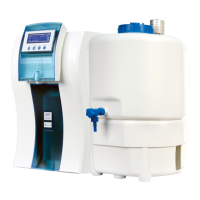
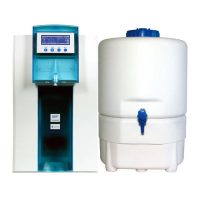
Pre-treatment cartridge is installed right in front of the host cavity and mounted on the
connector of the water. As is shown in picture A.
Pull out the lock which is on the stainless steel .As is shown in picture B
Gently pull out the upper part of the pre-treatment cartridge along the stainless steel rod
of the port. As is shown in picture C.
Get the dovetail at the bottom of the pre-treatment out from square hole. As is shown in
picture D
Get the new pre-treatment cartridge and make sure the ordering No. is CR-SP101M .
Install the new pretreatment cartridge into the main unit.
Install side door.
Press the “Stop/”keypad to confirm it to been replaced.
Now since you have finished all the operation of pre-treatment replacement, you can
press “Menu” keypad to return to the previous menu or continuously press “Menu” keypad to
exit the maintenance settings so that the system will restart.
6.3.3 RO membrane replacement
Refer to Chapter 6 3.1. After you enter the maintenance settings, press
“
Disp/
▲”
or
“Flush/▼”keypad to choose “Cartridge replace” White words and black background mean
that it has been chosen, then press “Stop/” button to confirm you have entered each settings
of replacement of supplies menu.
Press
“
Disp./
▲ ”
or
“
Flush/
▼ ”
keypad to choose “RO” White words and black
background mean that it has been chosen. As is shown below:
Press “Stop/ ”keypad to confirm, LCD will display the confirmation interface of


 To Next Page