Wi-Fi 6 2x2:2 User Manual Rev: A0-00
33
CONFIDENTIAL
7 Connect to the Thick Access Point and Log In
You can connect to the access point’s web management interface to view or change its LAN and wireless
access settings. Refer the procedure mention in “Connect to the Indoor Access Point” and “Connect to the
Outdoor Access Point” section and connect to a thick mode access point.
7.1 Login through GUI
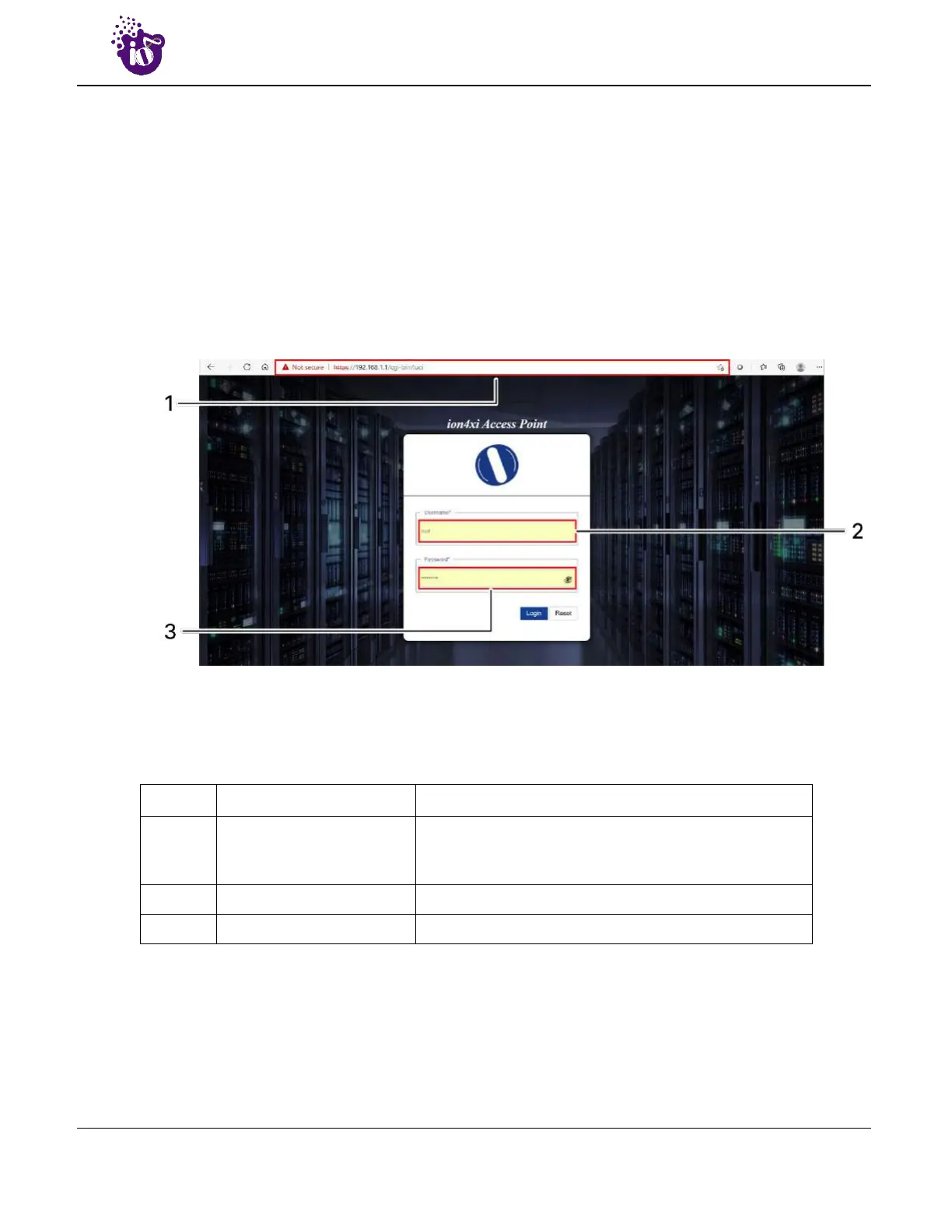
This is the 1
st
screen of AP GUI. It provides access to the users with valid login credentials only. The login
credentials will determine the access rights of the user.
A basic overview of the same is shown below:
Figure 14: Basic overview of login screen
Follow the steps given below to login through GUI:
Table 5: List of actions to login through GUI
Callout Name Description
1. Web browser
Open a web browser and enter the “IP address of the
AP” in the address bar. 192.168.1.1 is the default IP
address
2. User name Enter the valid “User ID”
3. Password Enter the valid “Password”
Click on “Login”, a successful/authenticated login will take the user to Status Overview screen.


 To Next Page