Wi-Fi 6 2x2:2 User Manual Rev: A0-00
73
CONFIDENTIAL
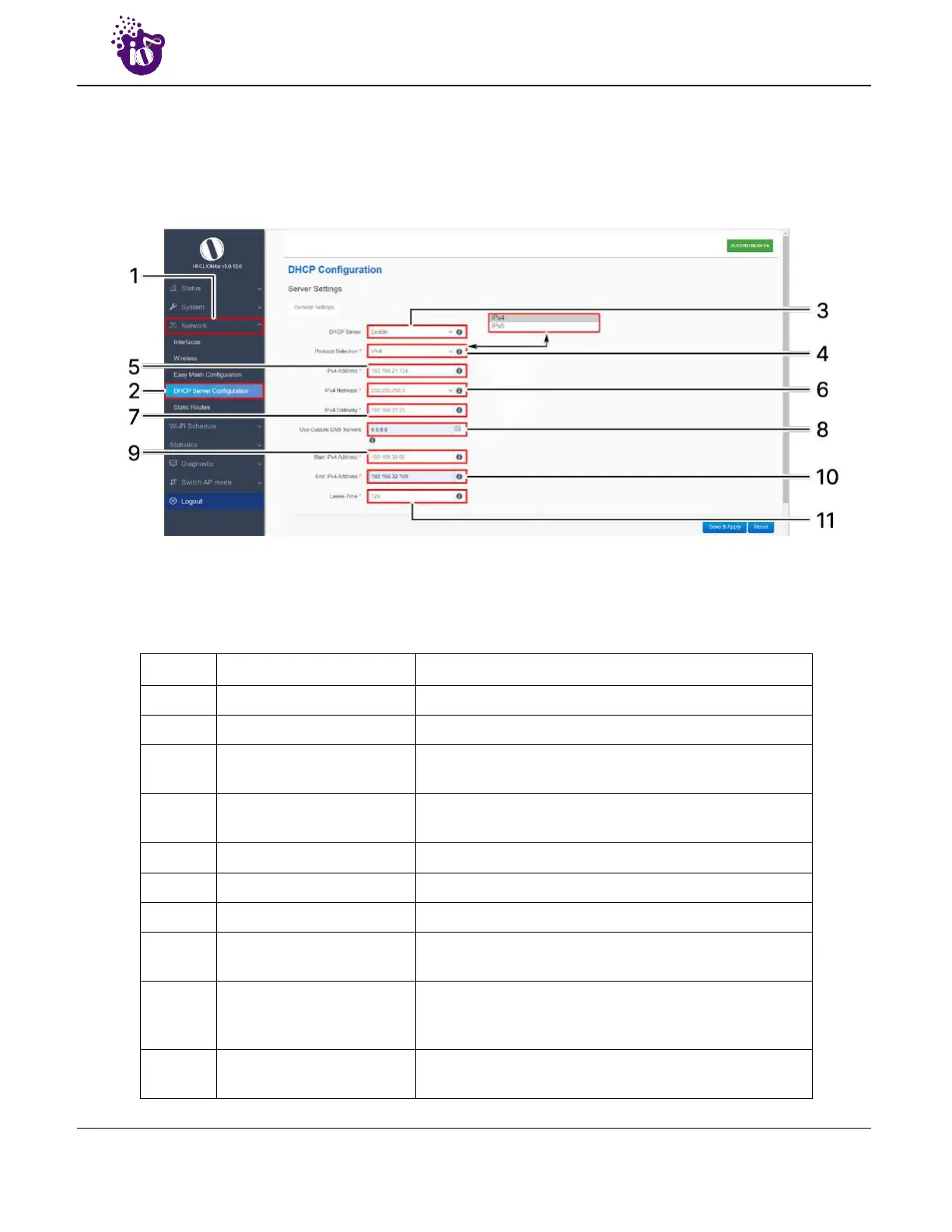
10.4 DHCP server configuration of thick AP
The AP itself can act as a DHCP service provider for the connected clients and configuration for the same is
executed from this screen. A basic overview of the screen to enable thick AP as DHCP server (IPv4) is given
below:
Figure 43: Basic overview of the screen to enable thick AP as DHCP server (IPv4)
Follow the steps given below to enable thick AP as DHCP server (IPv4):
Table 33: List of actions to enable thick AP as DHCP server (IPv4)
Callout Name Description
1. Network Click on “Network” dropdown
2. DHCP Server Configuration Click on “DHCP Server Configuration” option
3. DHCP Server
Enable the thick AP as DHCP server and enter the
following parameters
4. Protocol Selection
Set the protocol to IPv4 and provide the following
parameters
5. IPv4 Address Enter the address in IPv4 format for the DHCP server
6. IPv4 Netmask Select the netmask from the dropdown list
7. IPv4 Gateway Enter the address in IPv4 format for the DHCP gateway
8. Use Custom DNS Servers
Enter the IP address for DNS server. Click on add icon
and multiple DNS servers
9. Start IP Address
Enter a start IP address. The DHCP server assigns the
new IP addresses to the clients from the defined start IP
address
10. End IP Address
Enter an end IP address. The DHCP server assigns the IP
addresses to the clients till the defined end IP address


 To Next Page