Wi-Fi 6 2x2:2 User Manual Rev: A0-00
74
CONFIDENTIAL
Callout Name Description
11. Lease Time
Enter a value to set a limit on the lease time. New
addresses will be assigned to the associated clients
once the previous lease has expired as per the specified
lease time
Click “Save & Apply” to enable thick AP as DHCP server or click “Reset” to configure the same again.
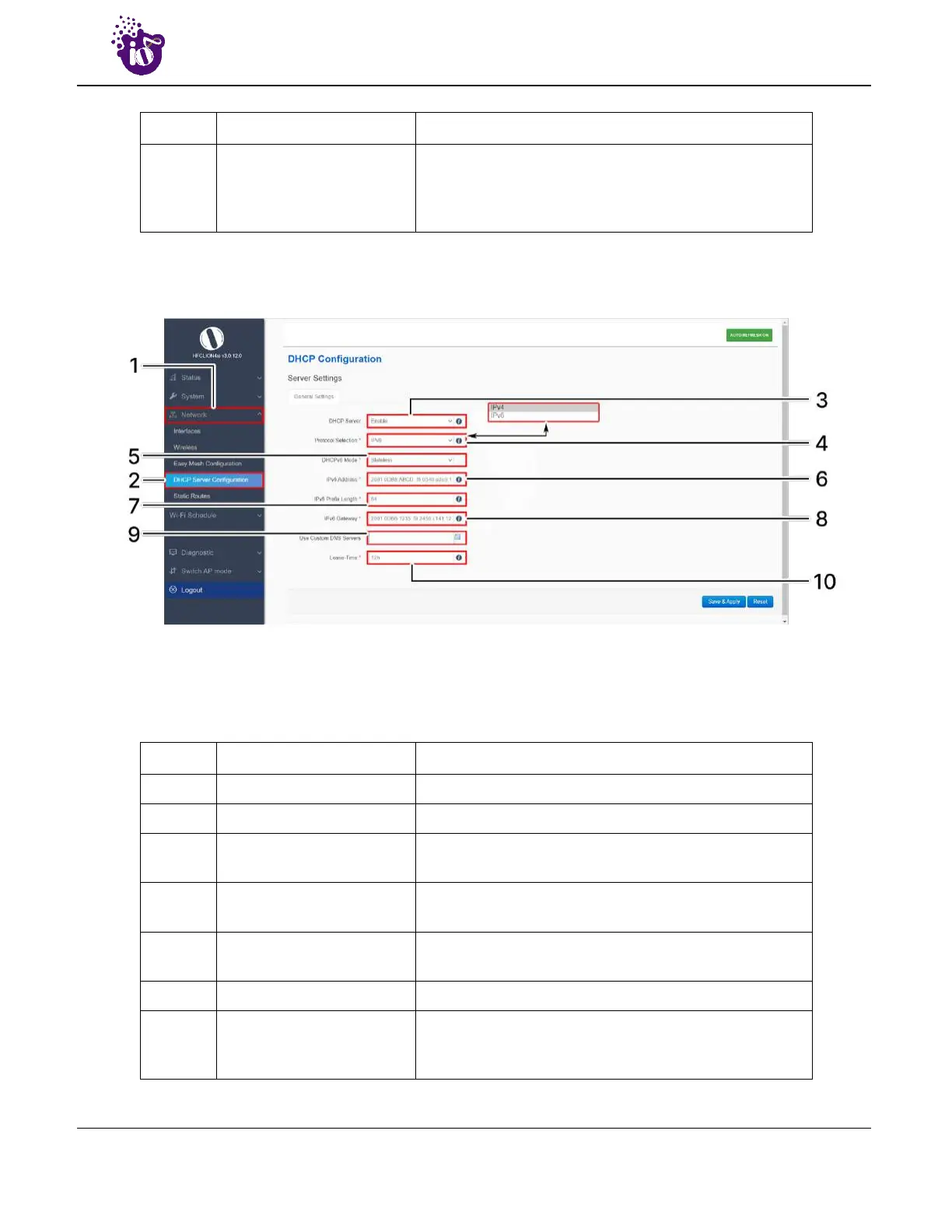
A basic overview of the screen to enable thick AP as DHCP server (IPv6) is given below:
Figure 44: Basic overview of the screen to enable thick AP as DHCP server (IPv6)
Follow the steps given below to enable thick AP as DHCP server (IPv6):
Table 34: List of actions to enable thick AP as DHCP server (IPv6)
Callout Name Description
1. Network Click on “Network” dropdown
2. DHCP Server Configuration Click on “DHCP Server Configuration” option
3. DHCP Server
Enable the thick AP as DHCP server and enter the
following parameters
4. Protocol Selection
Set the protocol to IPv6 and provide the following
parameters
5. DHCPv6 Mode
Select the mode from the dropdown list
(Stateless/Stateless+Stateful/Stateful)
6. IPv6 Address Enter the address in IPv6 format for the DHCP server
7. IPv6 Prefix Length
Specify the prefix length for IPv6 address. Specifies the
number of bits that belong to network part. The prefix-
length specifies a range of devices


 To Next Page