Wi-Fi 6 2x2:2 User Manual Rev: A0-00
44
CONFIDENTIAL
9.4.3 Upgrade firmware
The firmware is stored in the flash memory and can be updated with new versions to include new features or
to modify the existing one. This AP has two partitions. The firmware version is always uploaded in the
alternate partition to keep the current firmware image restored which is located in the current partition of
access point. When we upgrade new firmware, the existing firmware will become backup firmware. If any
issues found in new firmware, the backup firmware will be booted.
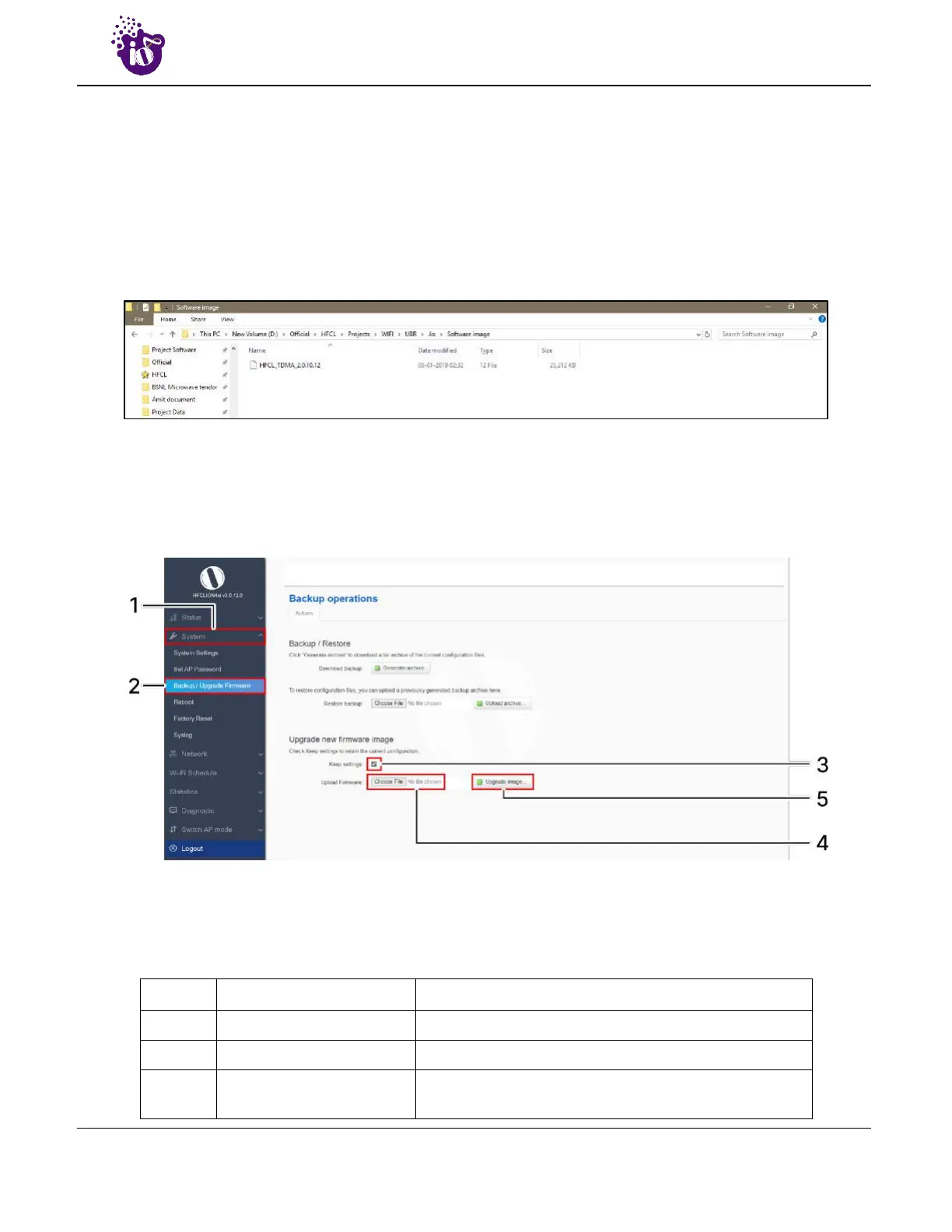
Save the software file in system drive of your laptop or system. Refer the image below:
Figure 23: Software file in the system drive
In the above figure, the software file is saved in the “D” drive.
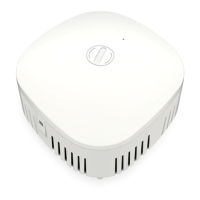
A basic overview of the Backup/Flash Firmware screen to upgrade the firmware from an external file is given
below:
Figure 24: Basic overview of the backup/flash firmware screen to upgrade the firmware
Follow the steps given below to upgrade the firmware from an external file:
Table 14: List of actions to upgrade the firmware from an external file
Callout Name Description
1. System Click on “System” dropdown in navigation tollbar
2. Backup/Upgrade Firmware Click on “Backup/Upgrade Firmware” option
3.
Selection box/Keep
settings
Click on “Selection box” to retain the existing device
configuration (or) deselect the “Selection box” to discard


 To Next Page