Wi-Fi 6 2x2:2 User Manual Rev: A0-00
86
CONFIDENTIAL
14.5 Diagnostic Tools
As part of diagnostics, the user can perform the following activities:
1. The user can check if the link connection is established or not with “Ping” option
2. The user can trace the route of the established link with “Traceroute” option
14.5.1 Check the network connection/status
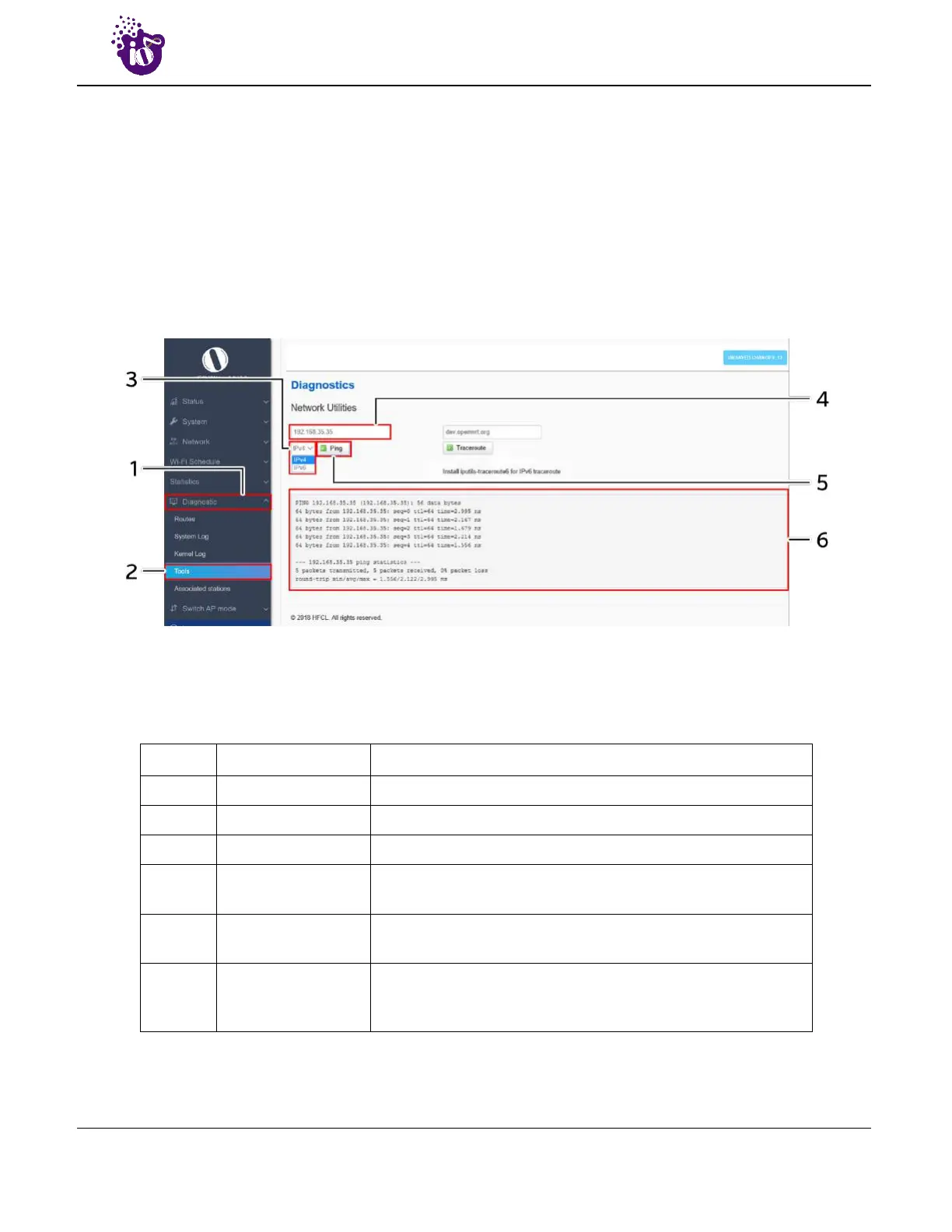
This utility is used to test connectivity between the respective AP and another device on the network. A basic
overview of the Diagnostic Tools screen to check the connection status is given below:
Figure 54: Basic overview of the diagnostics tool screen to check the connection status
Follow the steps given below to check the connection status:
Table 44: List of actions to check the connection status
Callout Name Description
1. Diagnostics Click on “Diagnostics” dropdown
2. Tools Click on “Tools” option
3. Address type Select the IP address type from the dropdown list (IPv4, IPv6)
4. IP Address
Enter the IP address of the device with which the user wants to
check the connection status
5. Ping
Click on “Ping” option to check the connection status. It will
check the network connection/status with entered IP address
6. Feedback window
Check the response on the feedback window to know the
connection status. The status is shown in terms of transmitted
packets and received packets with packet data loss


 To Next Page