Wi-Fi 6 2x2:2 User Manual Rev: A0-00
41
CONFIDENTIAL
9.3 Set Password for thick AP
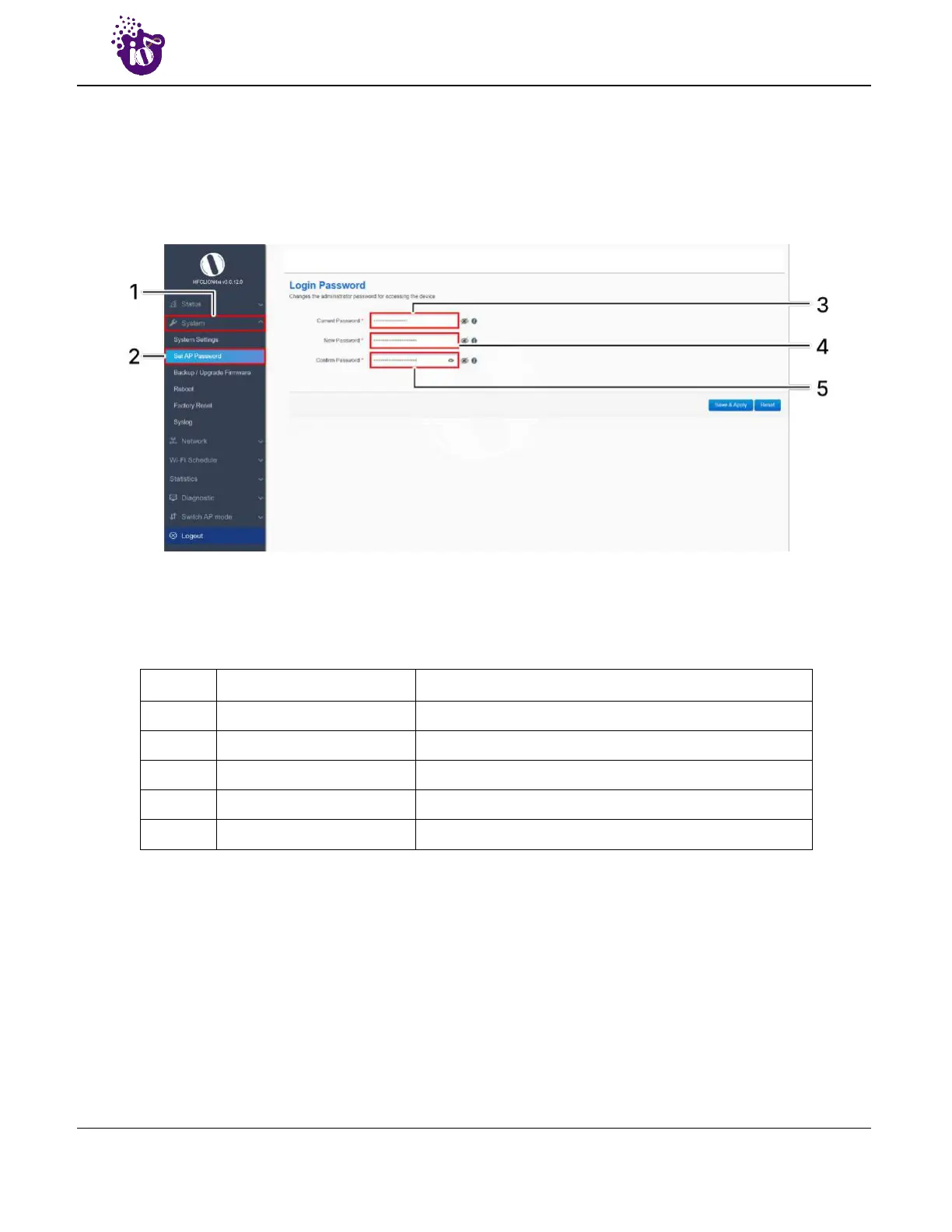
This screen provides the user with options to change the default password for respective thick access point.
The default username is “root” and the default admin password is “root”.
A basic overview of the screen is given below:
Figure 20: Basic overview of the system admin password configuration screen for thick AP
Follow the steps given below and configure the system admin password for the thick AP:
Table 11: List of actions to configure the password for thick AP
Callout Name Description
1. System Click on “System” dropdown
2. Set AP Password Click on “Set AP Password” option
3. Current Password Enter the existing password
4. New Password Enter a new valid password
5. Confirm Password Enter the password again for confirmation
Click on “Save & Apply” to save the system admin password configuration or click “Reset” to configure the
same again.


 To Next Page