FAXITRON PATH USER MANUAL | HOLOGIC | REVISION 024
ECTION
ISION
oftware
5
5-30
Show All DB Entries
Reloads the Patient table from the Database file. Any new changes or additions to the Database
will be applied to the table. This selection also clears any active Search Filter which may have
been applied to the tables. Search Filter is explained in detail under the Database Search
subject below.
Refresh DB Entries
Refreshes the Patient table, but maintains any existing Search Filter that has been applied.
Browse Data Directory (No DB)
Displays all thumbnail images in the Data directory established by the configuration file. These
files are displayed in the Thumbnail Viewer. They are not associated with the Database, or table
lists. This tool is helpful to review un-recorded images, or to debug database problems with
images in the current data directory.
Browse Any Directory (No DB)
llows user to browse to any file directory. These files are displayed in the Thumbnail Viewer.
They are not associated with the Database, or table lists. This tool is helpful to review an image
directory which was never recorded in the database, or when database records are corrupted.
Search Menu
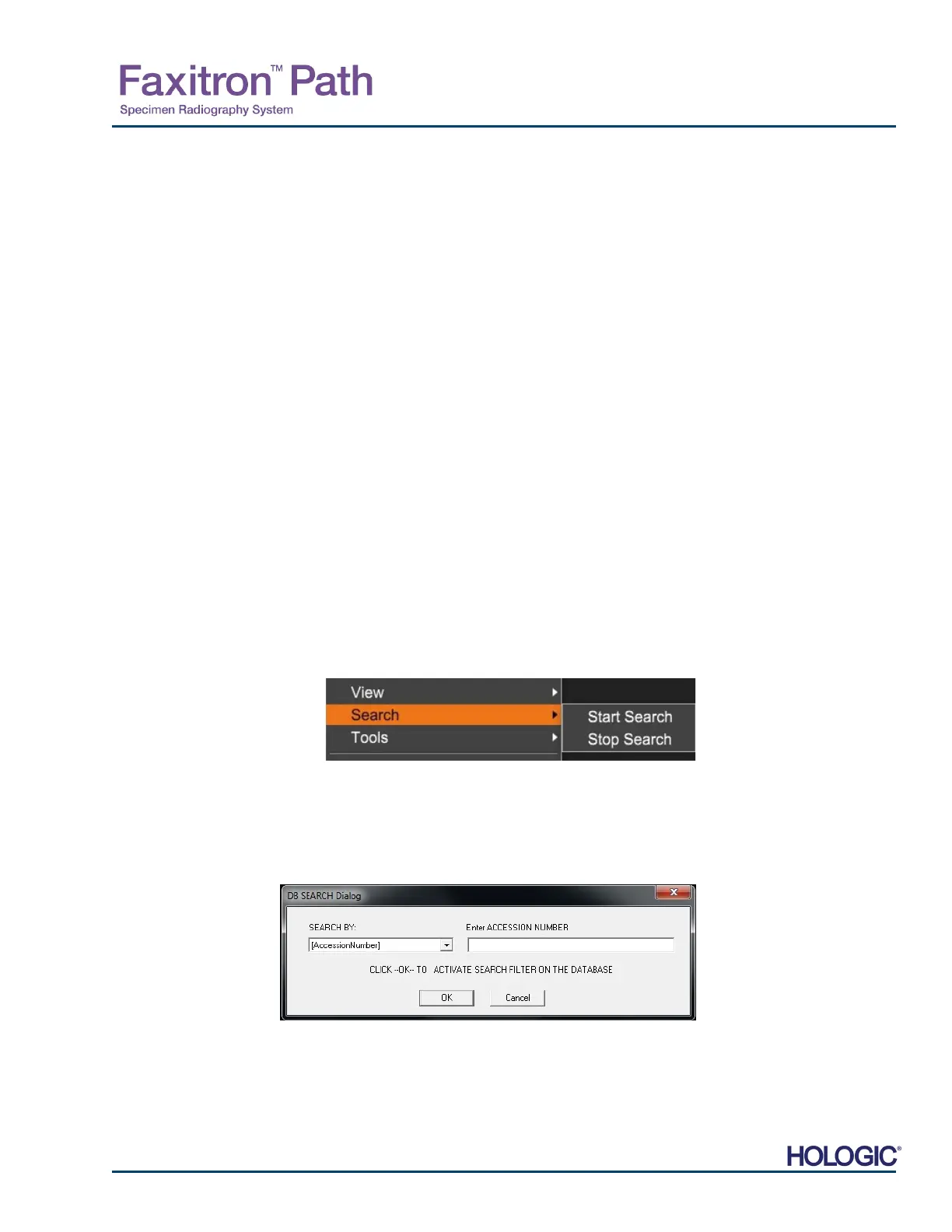
The database “Search” tools, see Figure 5.6.6, provide detailed searches or database filtering.
Selecting the “DB-Search” menu allows the user to perform a detailed and specific search.
When search criteria is entered and activated in the DB Search Dialog, see Figure 5.6.7, the
search filter is applied to all list tables on Image Database dialog. The activated search criterion
is called “Search Filter” and this filter remains effective until the user selects “stop Search” from
“DB-Search” menu or “Show all DB Entries” from the “DB-View” menu. The active “Search Filter”
is always shown in the caption of Image Database dialog.
Start Search
“Start Search” opens the DB Search Dialog which allows the user to place an active Search
Filter on the database. When the Search Dialog is opened, the Database page is closed and
the software goes back to the Image Acquisition page. The Database page will reopen
automatically after the Search Dialog is closed.
Drop down menus provide a listing of the search categories. Select a search category and type
in the desired search parameter to start the search. Select the “Start” to initiate the search. I
the category can have more than one discrete entry, all entries for that category will be
displayed.
5.6.1 Cont.
Figure 5.6.6
Database Search Menu
Figure 5.6.7
Starting a DB-SEARCH













 To Next Page