5
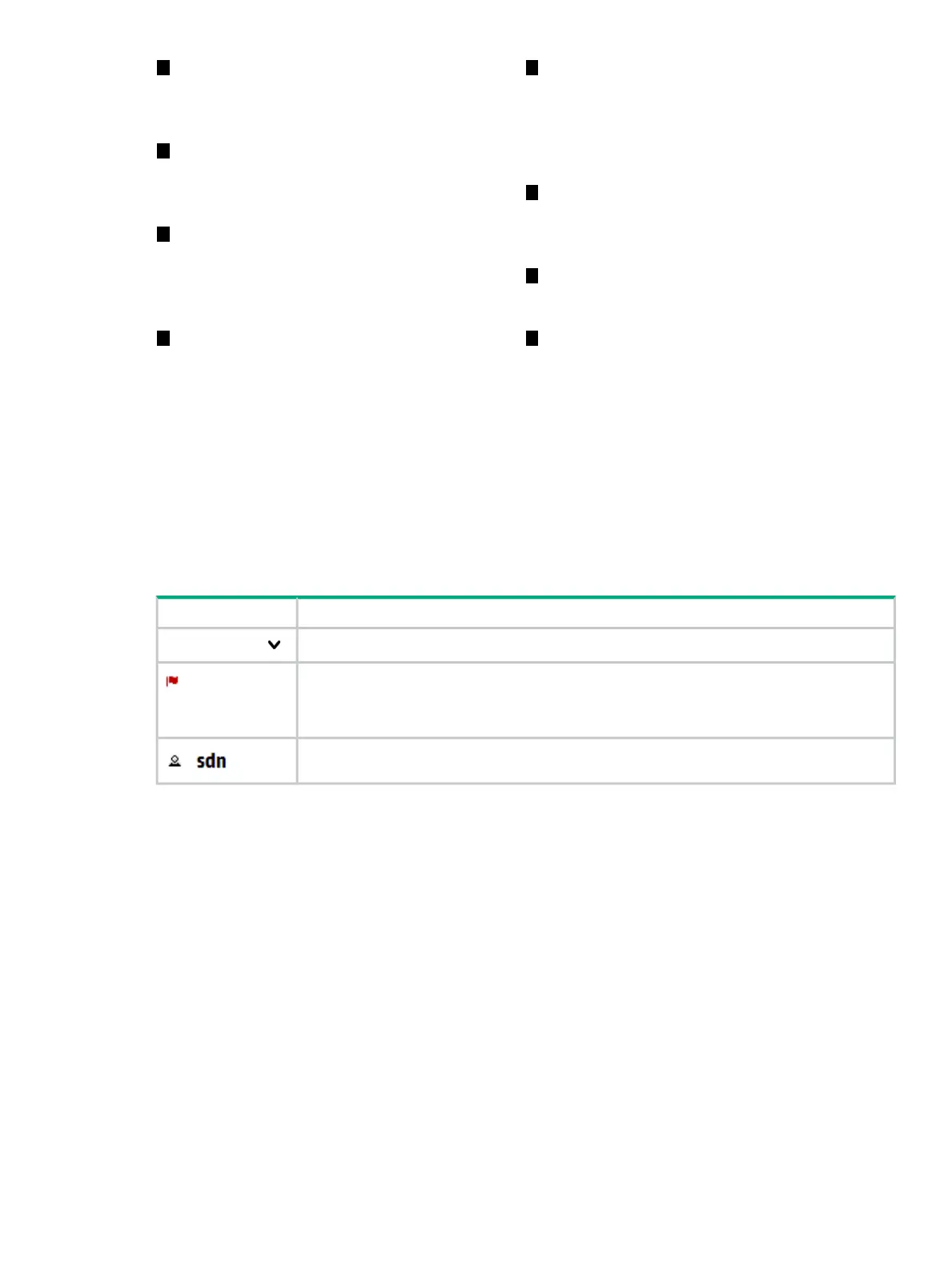
Navigation tree: Used to select the controller
or application screen to display in the details
1
Banner: Identifies the user interface.
Contains the alert notification counter and
links to the navigation menu, alert
information, and the SDN User window.
pane. General is the controller navigation
tree. Navigation trees for installed
applications are displayed below or to the
right of the General navigation tree.
2
Alert notification counter: Displays the
current number of active alerts. Clicking this
icon displays the Alerts as of Today window
box.
6
Details pane: Displays the detailed interface
for the controller or application resource
selected in the Navigation menu. When the
controller starts, it displays the Alerts screen.
3
SDN User window: Enables you to log out
of the controller, link to external websites,
change the theme for the controller, and
7
Pagination control: Can appear on screens
that have lists of items. Use these controls to
view the listings page by page.
identify the version of controller software
currently in use.
4 8
Navigation menu: The primary menu for
navigating to controller and application
Listing control: Can appear on screens that
have lists of items. Use these controls to
resources. Contains the controller navigation select the number of items to display in a
tree, labeled General, and can contain single view. The Auto option displays all
additional navigation trees for installed items in a single screen. For listings
applications that integrate with the controller exceeding the length of the screen, you can
UI. Can be displayed as a pane (as shown) use the scroll bar on the right side of the
screen.or as a window that overlays the controller
screen (see “Expanding or collapsing the
navigation menu” (page 25)).
Banner
DescriptionScreen component
Expands or collapses the “navigation menu” (page 25) as an overlay window.
SDN Controller
Expands or collapses the controller “Alerts as of today” (page 29) window.
The number next to the icon is the “alert notification counter” (page 29), which provides a
count of the current active alerts.
Expands or collapses the “SDN User” (page 23) window.
Changing column widths
To change the column widths, drag the column head borders. For example:
• To narrow the Severity column width, click the border to the left of Date/Time and drag it
to the left.
• To change the width of the navigation menu pane, click and drag the divider between the
menu pane and the details pane.
SDN User window
The SDN User window displays as an overlay on the controller screen.
See also:
• “Changing the SDN user password” (page 24)
• “Changing the background and text colors” (page 25)
• “Expanding the SDN user window” (page 25)
SDN User window 23



 To Next Page