12 PRT-KLCD Protege Alphanumeric LCD Keypad User Manual | April 2011
2.7 Text Search
The Protege LCD User Station features a powerful text search function that allows you to find items that have
been given text names.
In the following example the name for a user is searched for from the user selection screen when programming
the user. If the text searching option is available for a record, pressing the memory button will open the search
entry.
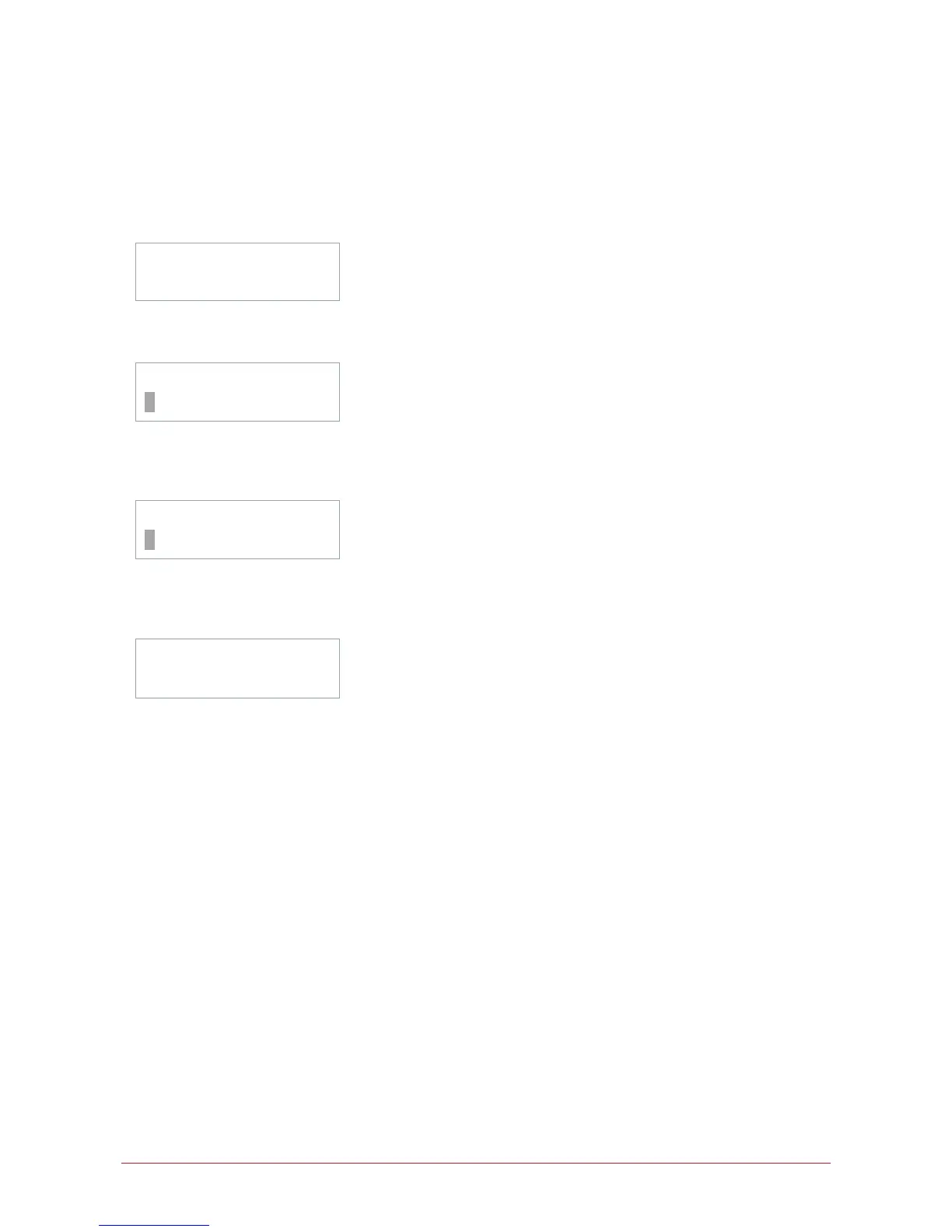
Select user to
modify: UN00001
From the user selection screen press the [MEMORY] key to open the search screen. The display will then show
the text search entry.
Search Details
_
Use the keypad to enter the text data that you want to search for in the search details screen. In our example we
want to find the user James Cook. To cancel the search press the [MEMORY] key to return to the screen were
you selected the search.
[ENTER] To Find
J
When you press the [5] key to get the 'J' in James, the display will change with the prompt telling you to press
the [ENTER] key to find the text shown. Complete the entry to get the first three characters. You can enter up to
the full 16 characters.
[È]Find Next
JAMES COOK
When you press the [ENTER] key the system will begin the search. If a record is found matching the text you
have entered the record will be shown. The top line will prompt you to find the next record by pressing the []
key.
Press [FORCE] to jump to the item shown or press [DISARM] to clear the entry.
Jumping To Search Results
To use the information that is found by the search press the [FORCE] key to jump to the record.



 To Next Page