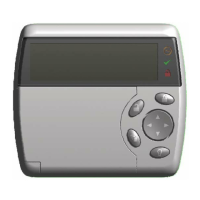
24 PRT-KLCD Protege Alphanumeric LCD Keypad User Manual | April 2011
Once the enabling of the zones has been completed the area will now ensure that the zones in the area are ready
to be armed.
If an area has zones that are not ready to be armed and are not secured the display will show you the
first zone that is open in the area. The following section describes how to arm an area with open zones.
Warehouse
Arm complete
If all the zones are ready the area will complete the arming process and briefly display the message "Arm
Complete" to you.
Warehouse
in EXIT delay
After the display period for the arm complete message the display will return to the area status display and show
the exit delay. You should now leave the area.
Regular Arming An Area With Open Zones
When an area has open zones an action needs to be taken by the user to complete the arming process.
Logon to the LCD Keypad by entering your [USER CODE] followed by the enter key.
Warehouse
is DISARMED
The display will show the area associated with the LCD Keypad you have logged on to and the current status. If
you have access to more than one area you are able to scroll the areas using the [] and [] keys.
Warehouse
Enabling zone(s)
Press the [ARM] key. The area will enable the zones in the area. The display will show the progress.
Warehouse
Checking zone(s)
Once the enabling of the zones has been completed the area will now ensure that the zones in the area are ready
to be armed.
If an area has zones that are not ready to be armed and are not secured the display will show you the
first zone that is open in the area. You can force arm (see page 26) the zone or press the [BYPASS]
key to bypass the displayed zone and continue with the arming process.
Roller Door
is OPEN



 To Next Page