35
3.3.5 Lamp test
In the page of 【Lamp test】, you can test if each light is normally function or
not.
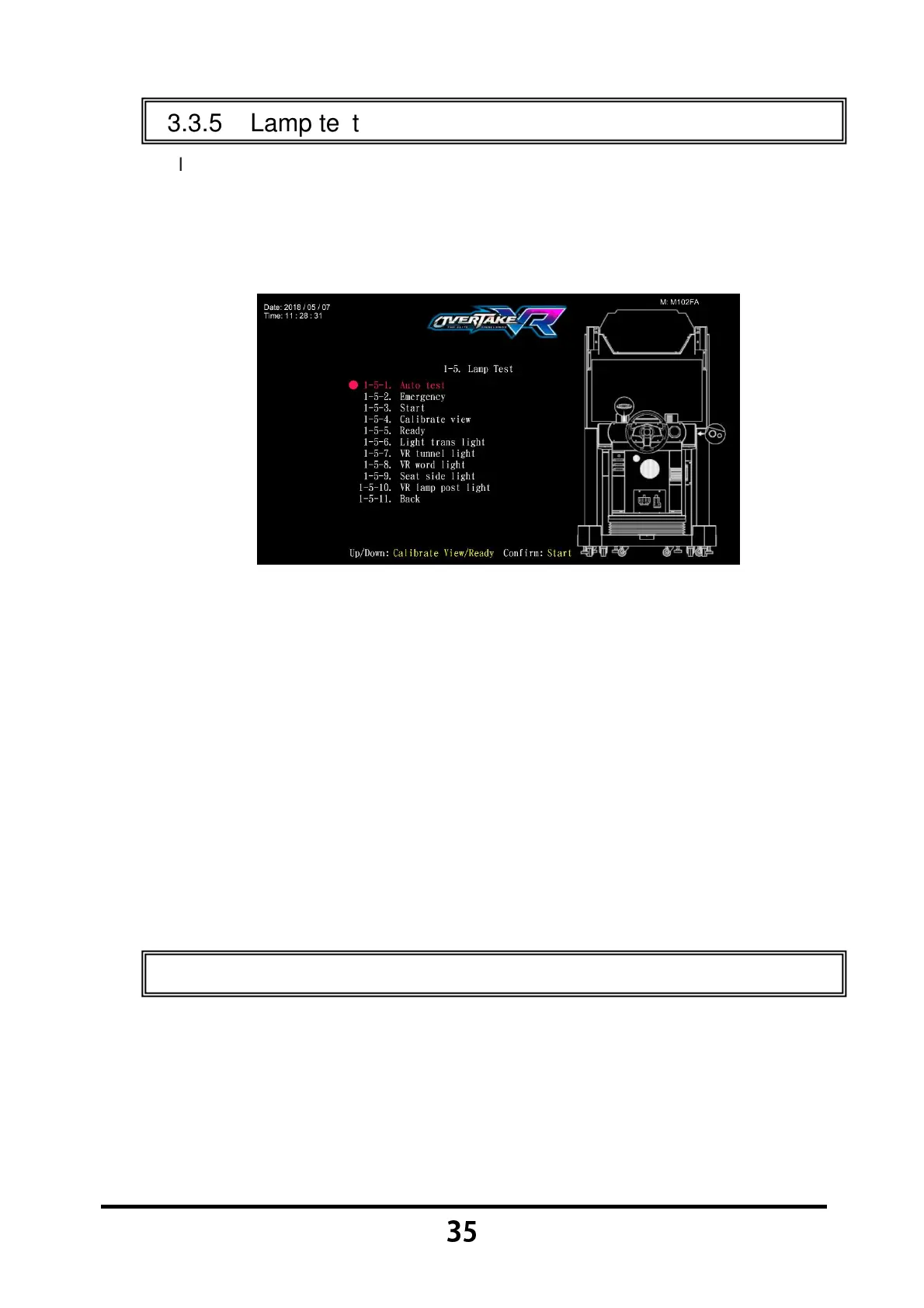
Enter 【Operator Settings】→【1.Hardware test】→【1-5.Lamp test】,
and the screen will display as below:
Move the cursor, and choose the lamp to be test, then press the 【Start】
button to run testing.
During testing, each light will blink as follows:
Emergency / Calibrate View / Ready: Blink eleven seconds.
Start / Light trans light / VR tunnel light / VR word light / Seat side light
/ VR lamp post light: Three kinds of RGB light will blink two times.
While testing, press the 【Start】 button one more time to discontinue the
testing process.
Move the cursor to 【1-5-11.Back】, and press the 【Start】 button to
return to 【Hardware test】.
3.3.6 Screen test
In the page of 【Screen test】, you can test whether the white balance, color
level, and lattice are normally functioning or not.
Enter 【Operator Settings】→【1.Hardware test】→【1-6.Screen test】.
After you enter the page of the 【Screen test】, the system will then
process the testing, and the following six pictures will be displayed for you
to adjust the white balance, color level, and lattice.


 To Next Page