The StellarMate Plus Manual
101 / 341
device, it is always assigned a designated port that INDI uses to communicate
with the device.
To use the Serial Port Assistant, go to StellarMate Web Manager either from
StellarMate App or from any browser and click on the Serial Port Assistant Icon
at the bottom right. Simply follow the instructions in the step-by-step guided
wizard to assign permanent designations to your Serial-To-USB devices.
Video Tutorial: https://www.youtube.com/watch?v=VQHUaO5Hmi0
Note
StellarMate Serial Assistant is only applicable to Serial-To-USB devices,
for regular USB devices, do not use it.
15. StellarMate Control Panel
IMPORTANT
In order to open the StellarMate Control Panel you need to be connected
to the same network as your StellarMate.
If StellarMate is in hotspot mode, you can connect to it by going to your
computer/laptop WiFi settings and connecting to the SSID stellarmate
with the password stellar@mate
Do not open StellarMate Control Panel from StellarMate itself, it is meant
to be opened from your computer/laptop.
StellarMate Control Panel is a web application for StellarMate OS. It provides any
functions such as displaying the connection status of the controller, backup and
restore, network and factory reset, etc.
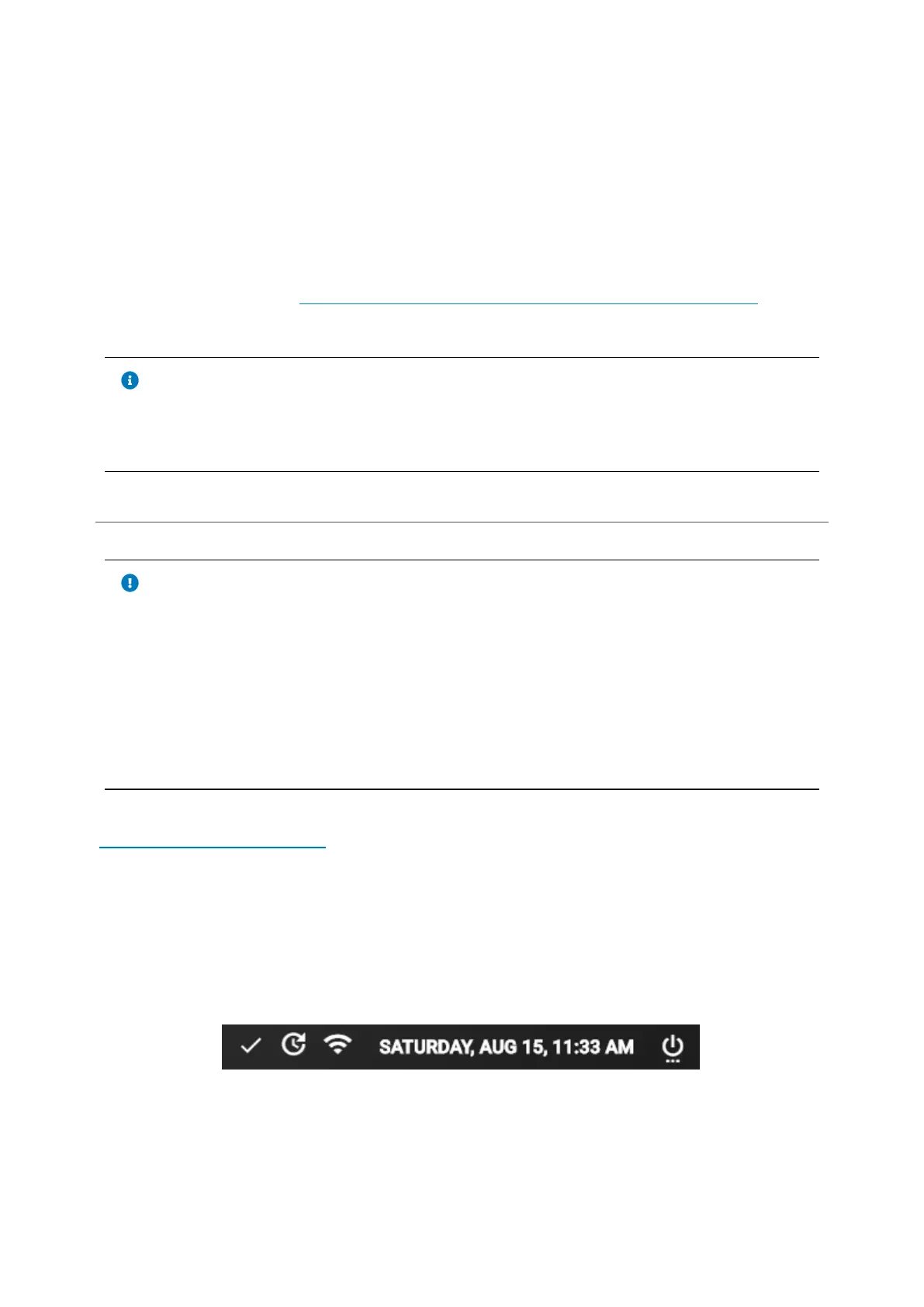
15.1 Status Bar
The Status Bar is available on every page on the top-right corner as it is
informative to the user and has some shortcuts.
The Status Bar has the following features:
· Shows the connection status
· Shortcut to update StellarMate OS build
· Shows the type of connection to StellarMate (Hotspot, WIFi or ethernet)



 To Next Page