The StellarMate Plus Manual
122 / 341
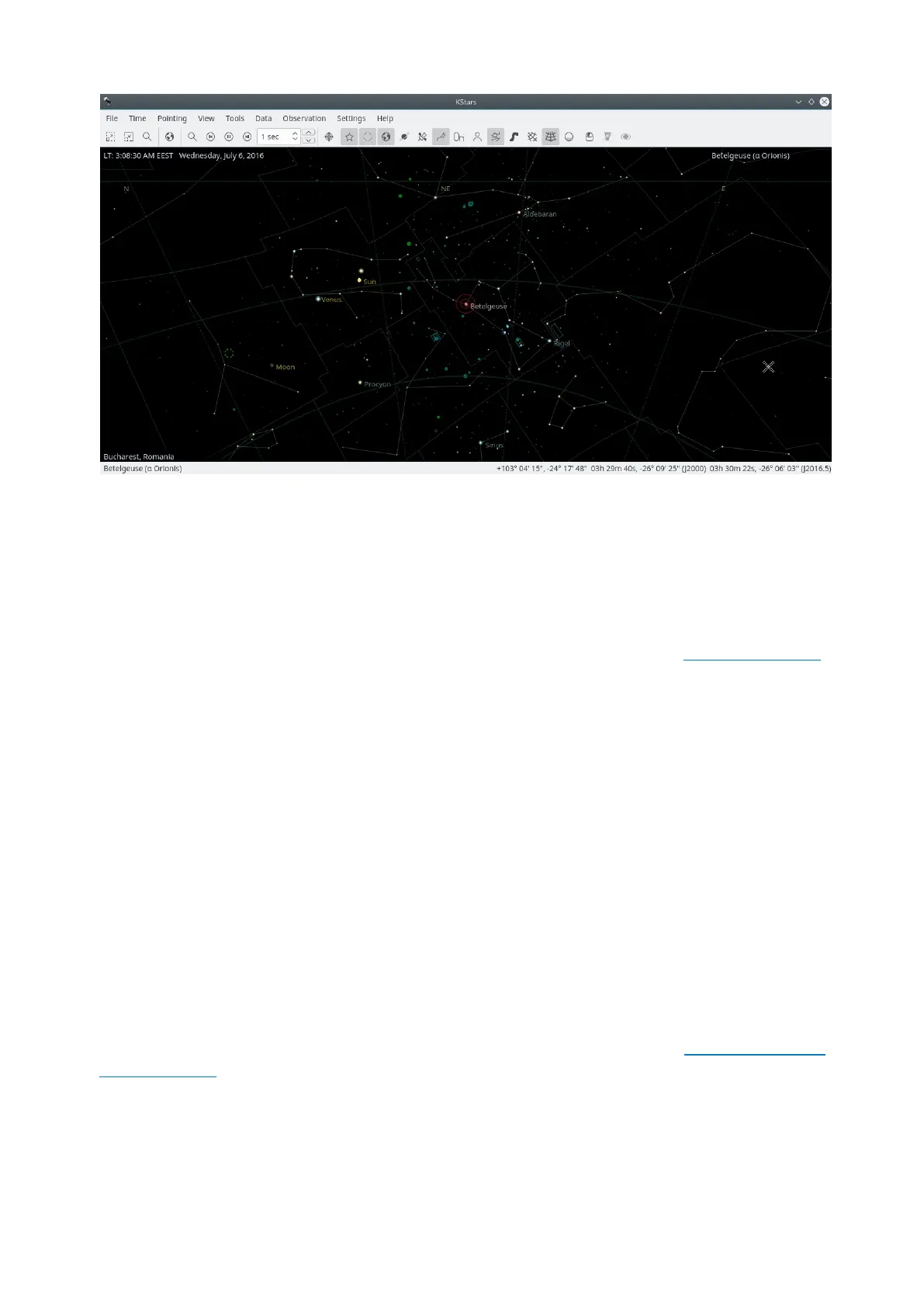
The above screenshot shows a typical view of the KStars program. You can see
the sky display centered on Betelgeuse, the brightest star in the constellation
Orion. Stars are displayed with realistic colors and relative brightnesses. In three
corners of the sky display, there are on-screen text labels displaying data on the
current time (“LT: 3:08:30 AM EEST Wednesday, July 6, 2016”), the current
Geographic Location (“Bucharest, Romania”), and the current object in the center
of the display (“Focused on: Betelgeuse (alpha Orionis)”). Above the sky display,
there are two toolbars. The main toolbar contains shortcuts for menu functions,
as well as a time-step widget which controls how fast the simulation clock runs.
The view toolbar contains buttons that toggle the display of different kinds of
objects in the sky. At the bottom of the window, there is a status bar which
displays the name of any object you click on, and the sky coordinates (both Right
Ascension/Declination and Azimuth/Altitude) of the mouse cursor.
18.1.1 The Setup Wizard
The first time you run KStars, you will be presented with a Setup Wizard, which
allows you to easily set your geographic location and download some extra data
files. You can press the OK button at any time to exit the Setup Wizard.
The second page of the Setup Wizard allows you to choose the starting
geographic location, by selecting from the list of the 3400+ known locations on
the right side of the window. The list of locations can be filtered to match the
text you enter in the City, Province, and Country edit boxes. If your desired
location is not present in the list, you can select a nearby city instead for now.
Later on, you can add your precise location manually using the Set Geographic
Location tool. Once you have selected a starting location, press the Next button.
The last page of the Setup Wizard allows you to download extra data that are not
included with the standard distribution of KStars. Simply press the Download
Extra Data button to open the Get New Stuff tool. When you are all done, press
the OK button in the Setup Wizard to start exploring KStars.



 To Next Page