The StellarMate Plus Manual
147 / 341
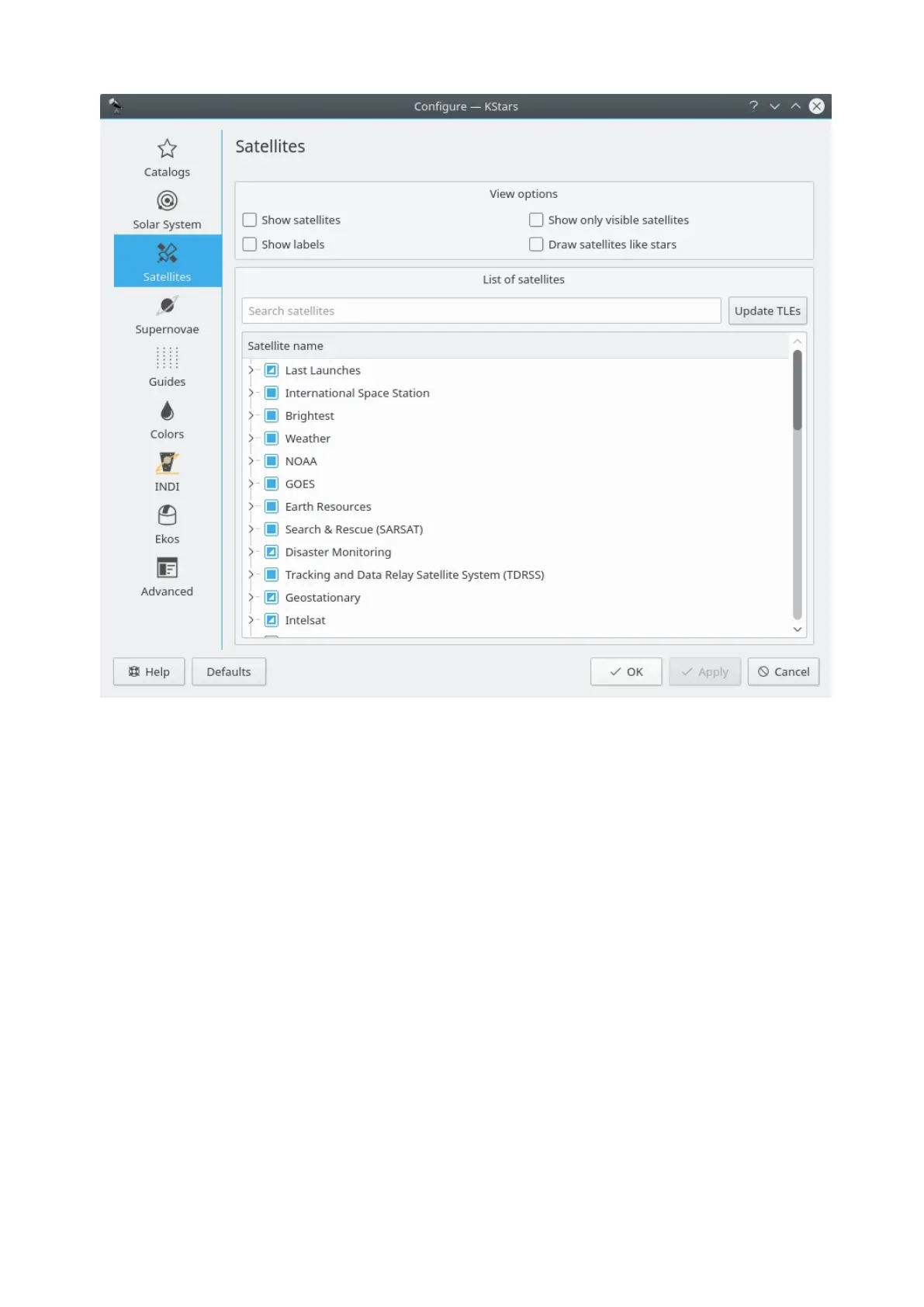
The Satellites page allows you to set the satellites view options. Firstly, you can
see or hide the satellites on the skymap using Show satellites checkbox from the
top View options section. By default, satellites are drawn as small light red filled
circles with an optional dark red name label next to them. You can enable or
disable these labels by checking or not the Show labels checkbox. It is located
below the Show satellites checkbox, within the View options section.
The colors of the dots representing satellites and their name labels can be easily
customized using the Colors page from the same Configure KStars window. In
addition, satellites can be drawn just like regular stars by checking the Draw
satellites like stars checkbox. To display only the visible satellites from your
current geographic location and time, select Show only visible satellites.
KStars can draw artificial satellites from many predefined groups. Thus, you can
select to display a particular group, multiple groups or partially select subgroups.
Under each group, a list of individual satellites is presented. To select all satellites
from a group, you need to check the group checkbox. You can also select only
the satellites of interest in each group. The satellites orbital elements can be
updated via the internet by pressing the Update TLEs button. Another way for
updating the satellites orbital elements is to use the Updates →Update satellites
orbital elements in the Data menu. If you know the name of a desired satellite
then you can use the search satellites method that KStars provides. You need to
enter the name of satellite in the Search satellites text box and the list will be



 To Next Page