EasyManua.ls Logo

IMS DRIVE - Overview of the Individual Buttons in the Footer

IMS DRIVE
57 pages
Print Icon
To Next Page IconTo Next Page
To Previous Page IconTo Previous Page
Loading...
21
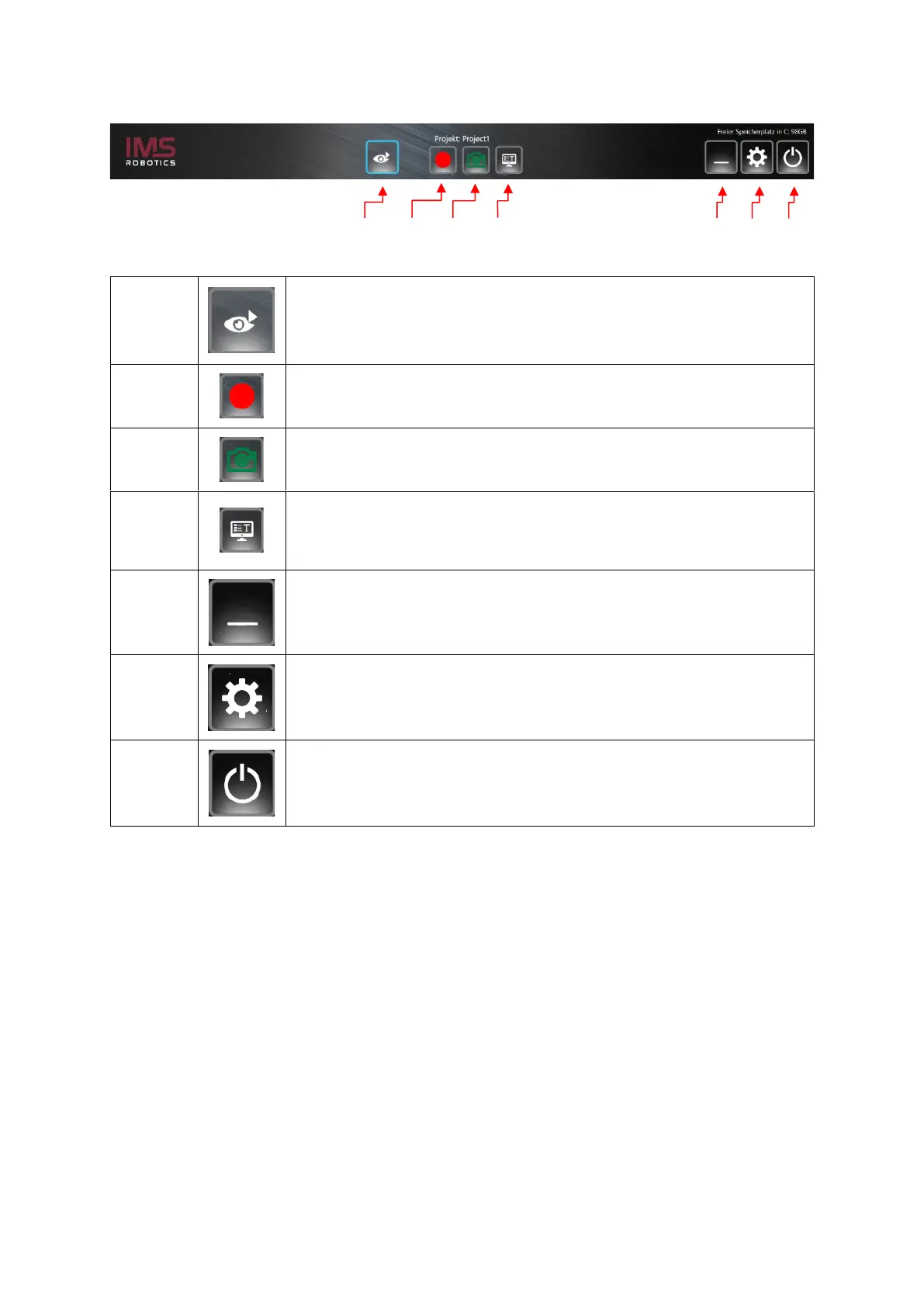
2.5.2 Overview of the individual buttons in the footer
1
Use the "Video player" button to open the video player. (see point
2.5.3.1 Video player menu)
2
Press the "Record" button to start video recording. The icon turns
blue.
3
Pressing the button creates a photo of the screen display.
4
Press the button to open a submenu at the upper left edge of the
screen. This allows the date, time and a company logo to be
displayed.
5
Press the button to minimise the program and place it in the footer
bar of the desktop.
6
Press the button to open the Settings submenu.
7
Press the button to terminate the program.
1 2 3 4 5 6 7

Table of Contents