22
2.5.3 Explanation of the individual buttons
2.5.3.1 Video player menu
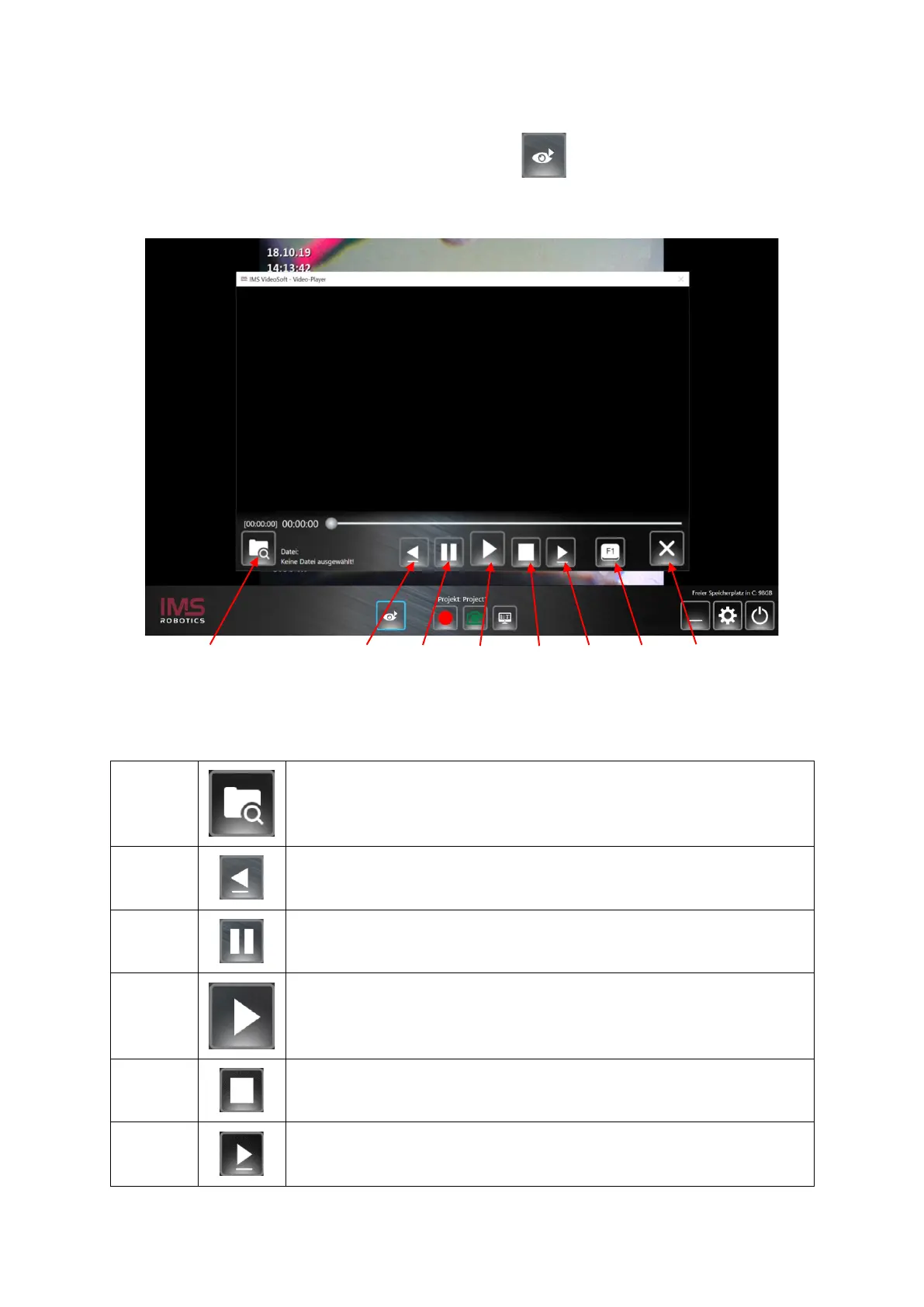
The video player is started via the Video player button . It serves both to play recorded
video files and to view image files. After pressing the button, the following screen opens:
The video player has the following buttons:
The button opens the "Window Explorer" of the Mini PC. The video
files and image files are stored there.
Pressing the button skips 5 seconds back in a current video
playback.
Press the "Pause" button to pause the video recording. The icon
turns blue.
Press the "Play" button to start video recording. The icon turns
blue.
Press the button to stop playback.
Press the button to jump 5 seconds forward in a current video
playback.


 To Next Page