25
2.5.3.2 Record button
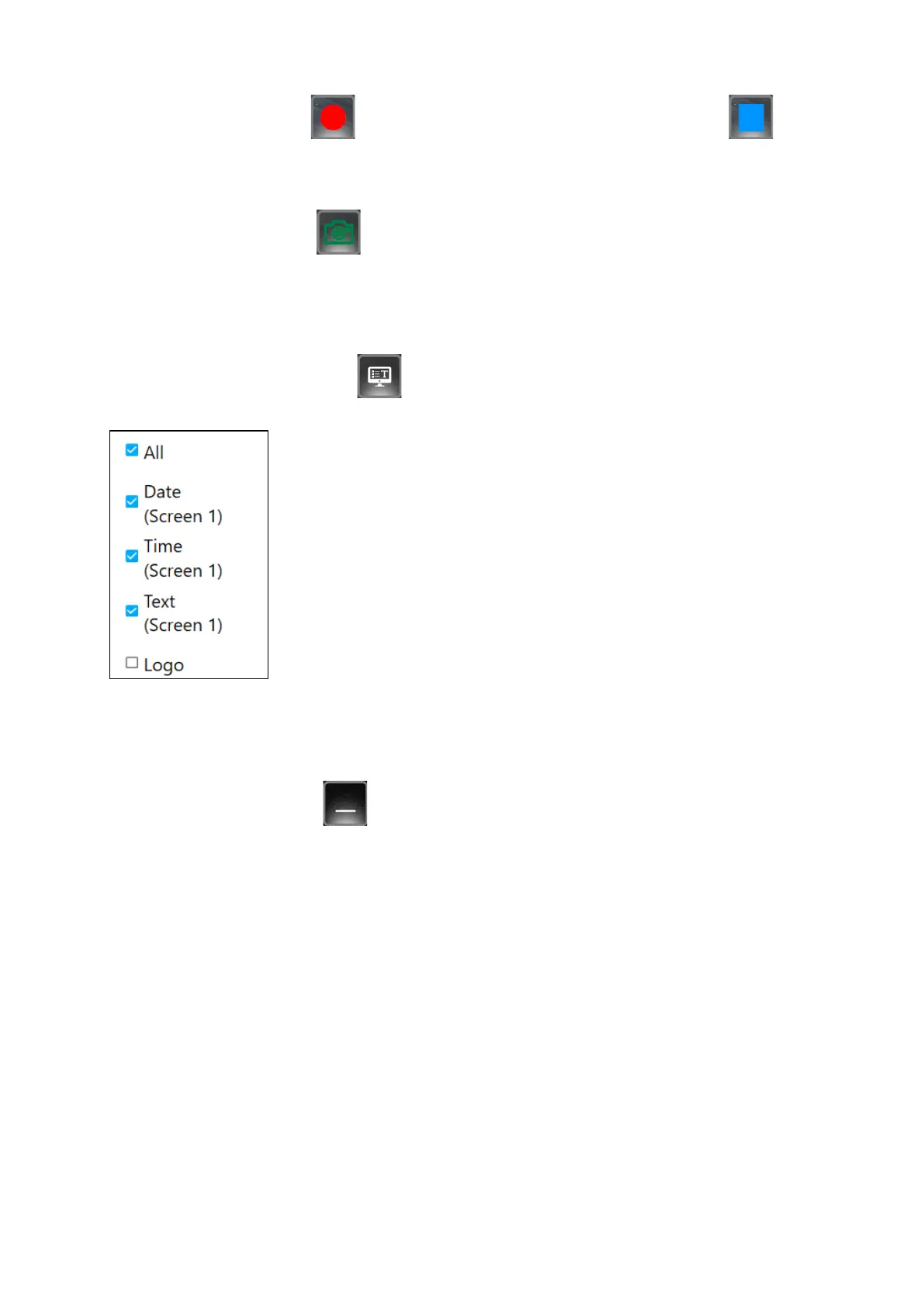
Press the "Record" button to start video recording. The icon now turns blue .
Press this icon to stop video recording.
2.5.3.3 "Camera" button
Press the "Camera" button to create an image file. The icon changes colour briefly. To
view this file, see point 2.5.3.1.1 Loading and playing back a saved video or image file.
2.5.3.4 "Text overlays" button
Press the "Text overlays" button at the top left edge of the screen to display a
submenu.
If a check mark is set in the "All" field, the time, date and a text (e.g.
address of the construction site) defined in the "Settings" menu (see
2.5.3.6.2 Text overlay) are displayed.
If a check mark is set in the "DT" field, only the time and date are
displayed.
If a check mark is set in the "Add" field, a text (e.g. address of the
construction site) defined in the "Settings" menu (see 2.5.3.6.2 Text
overlay) is displayed.
A company logo can also be displayed.
To do this, press the "Search Logo" button. Windows Explorer will
open. Browse here for the location of the logo and load the image file.
The image file must be an ICO file.
2.5.3.5 "Minimise" button
Press the "Minimise" button to minimise the program and place it in the footer bar of
the desktop. Click on the icon there to reopen the program.


 To Next Page