24
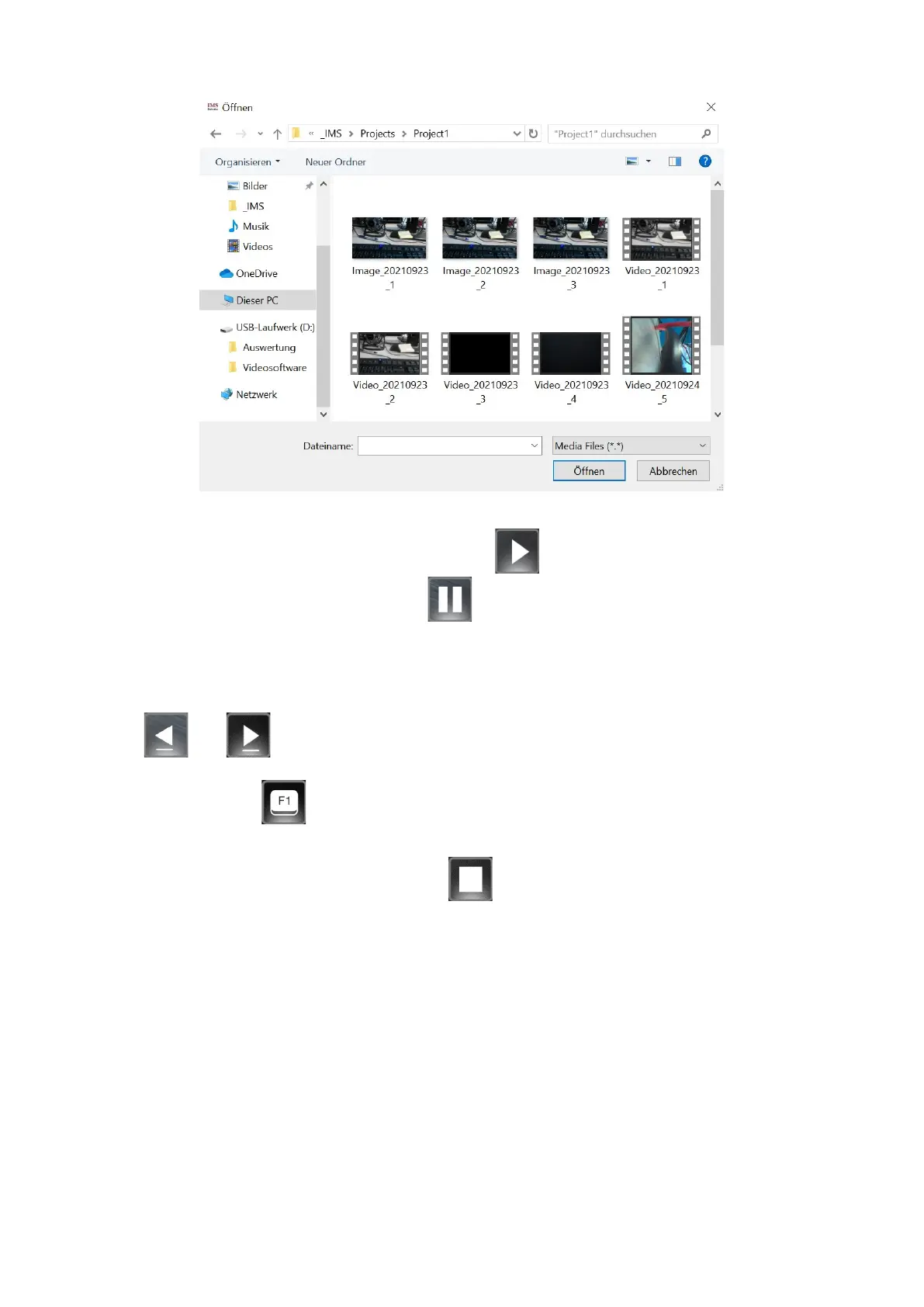
Double-click on the desired file to load it into the video player.
The loaded video file can now be started using the icon. The icon is now displayed in
blue. Pause playback with the pause icon . When the "Pause" button is pressed, the
symbol is blue. You can move forward and backward in the video file using the grey dot in
the playbar. To do this, touch the grey dot on the Touch Monitor. The grey dot can now be
moved to the right and left. If an external computer mouse is connected, it can also be used
for this purpose.
The and buttons can be used to jump in the video in 5 seconds steps. If an
external keyboard is also connected, further options for video playback are available.
Pressing the button opens a submenu. The keyboard shortcuts for video control are
explained here.
Playback can be stopped via the "Stop" icon . The icon turns now blue.


 To Next Page