33
Check Status of Connection
1. Check the status of your connection by going to the Network Connections window.
2. If the connection status is disabled, enable it by right-clicking on the Local Area Connection and selecting
Enable. If technical difculties arise, please contact INCON Technical Support before proceeding.
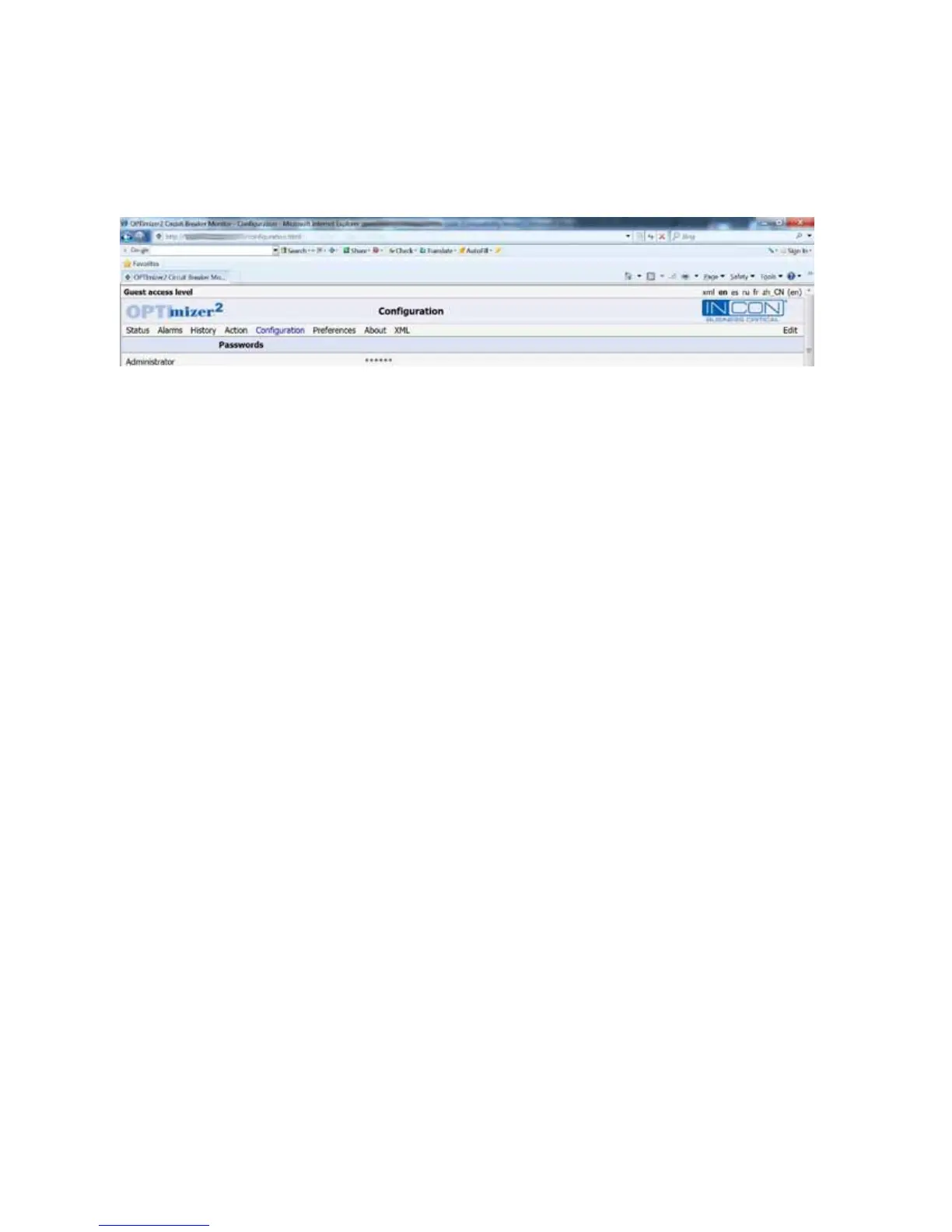
Open the web browser. Type the OPTImizer
2
’s default IP address (192.12.27.1) in the browser’s address eld. You should
see the OPTImizer
2
’s STATUS page. Click “Conguration”, at the top left, to move to the CONFIGURATION page. Click
“Edit”, at the top right, to make changes to the OPTImizer
2
’s conguration.
Figure 9: User Interface, Conguration Page
Initial Set-up
Conguration settings required to initially set-up (commission or test) an OPTI
mizer
2
are included under the following
headings:
• Passwords (The default Administrator’s password is “admin”)
• Date / Time
• DNP3
• Circuit Breaker Information
• Circuit Breaker Monitor
• SF
6
Monitor
• SF
6
Sensor A
• SF
6
Sensor B
• SF
6
Sensor C


 To Next Page