34
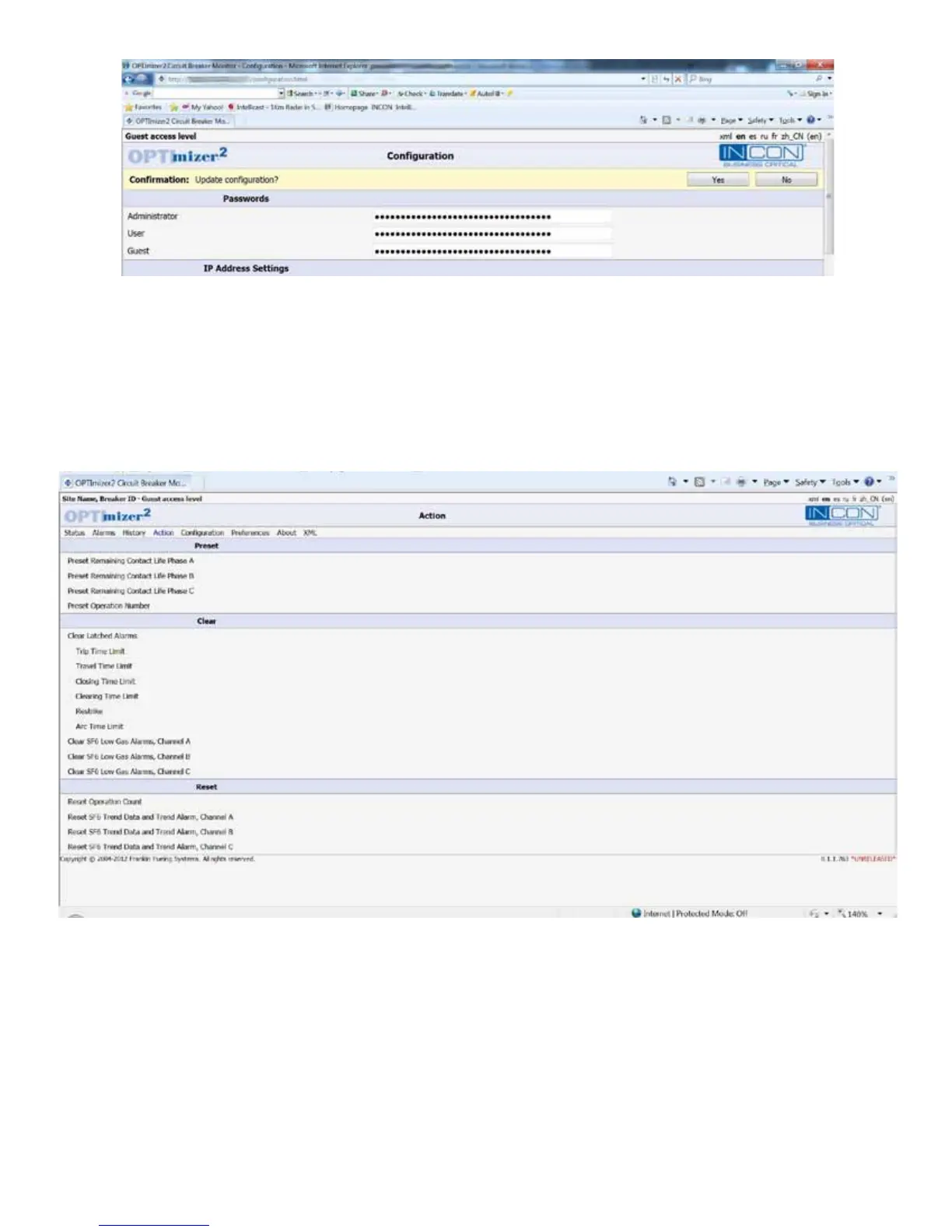
Figure 10: User Interface, Conrming Conguration Update
Following the guidelines listed in this manual, make the appropriate changes to each conguration parameter. When all
changes are entered, click “Yes” to update the conguration. The correct Administrator’s password (initially set to “admin”)
will need to be given for the changes to be saved.
Commissioning the OPTI
mizer
2
involves setting most of the available programming parameters. Note that during initial setup
and programming, alarms may be triggered inadvertently. When all conguration programming is done it is recommended to
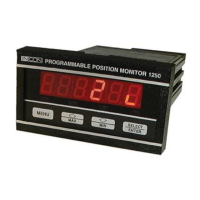
"Clear Latched Alarms" on the ACTION page to clear alarms and preset the remaining contact life (if desired).
Figure 11: User Interface, Action Page


 To Next Page