23
Operating
1.
Press the AUTO button on the remote control.
Pressing this button performs the following.
Using the automatic adjustment feature
For a computer signal
The vertical position, the horizontal position and the
horizontal phase will be automatically adjusted.
Make sure that the application window is set to its
maximum size prior to attempting to use this feature. A
dark picture may be incorrectly adjusted. Use a bright
picture when adjusting.
For a video signal and S-video signal
The video format best suited for the respective input signal will be selected
automatically. This function is available only when the AUTO is selected for
the VIDEO FORMAT item in the INPUT menu (37). The vertical position
and horizontal position will be automatically set to the default.
For a component video signal
The vertical position, horizontal position and horizontal phase will be
automatically set to the default.
● The automatic adjustment operation requires approx. 10 seconds. Also
please note that it may not function correctly with some input. When this
function is performed for a video signal, extra items such as a line may appear
outside a picture.
● The items adjusted by this function may vary when the FINE or DISABLE
is selected for the AUTO ADJUST item of the SERVICE item in the OPTION
menu (50).
1.
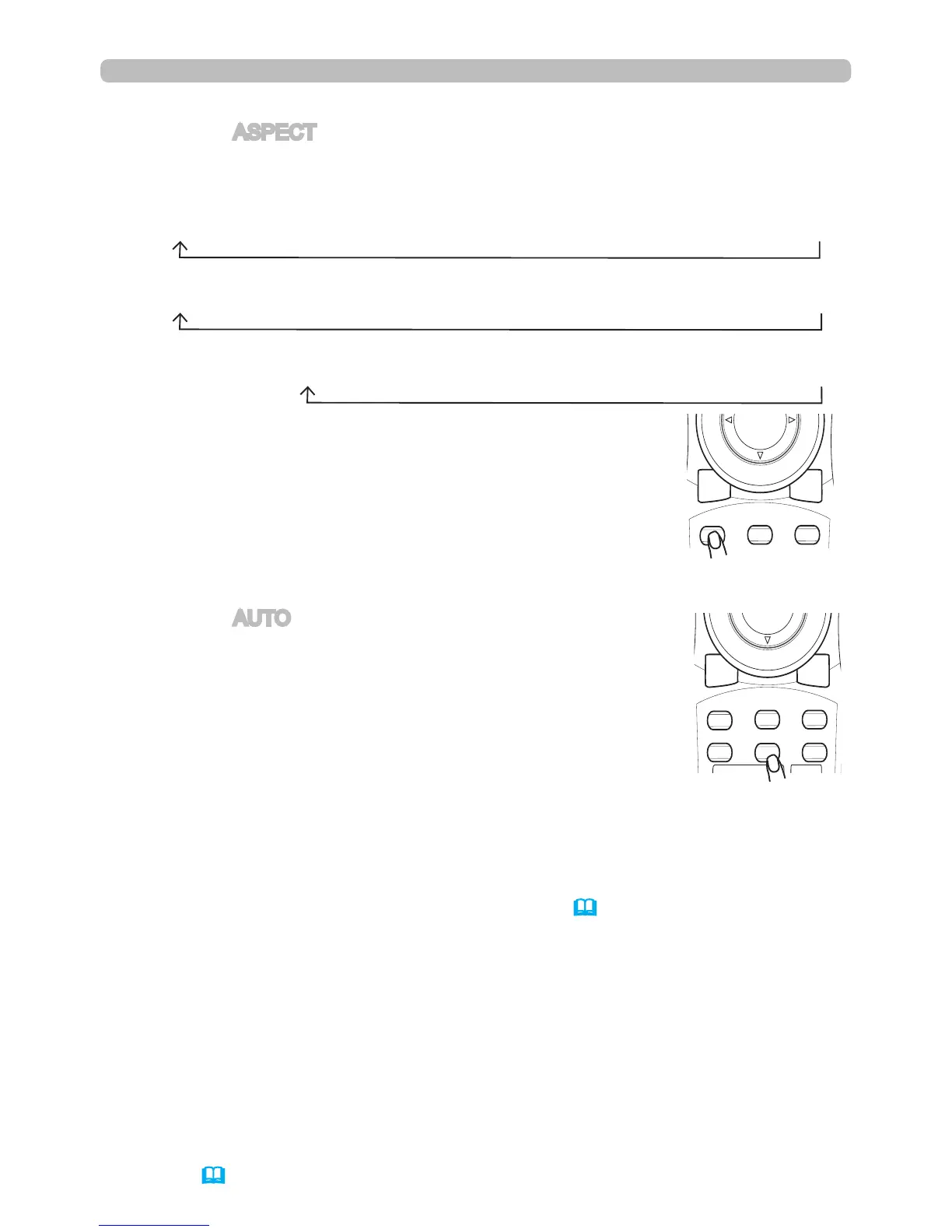
Press the ASPECT button on the remote control.
Each time you press the button, the projector switches the mode for aspect
ratio as per below.
Selecting an aspect ratio
●
*
16:10 / FULL: IN5544/IN5544c only. NATIVE: Except
IN5542/IN5542c. SMALL: Except IN5544/IN5544c.
● The NORMAL mode maintains the signal's native
aspect ratio.
For a computer signal
NORMAL 4:3 16:9 16:10
*
SMALL
*
NATIVE
*
FULL
*
For an HDMI or DVI-D signal
NORMAL 4:3 16:9 16:10
*
14:9 SMALL
*
NATIVE
*
FULL
*
For a video signal, S-video signal or component video signal
4:3 16:9 16:10
*
14:9 SMALL
*
NATIVE
*
FULL
*
For no signal
4:3 (xed, except IN5544/IN5544c) / FULL (xed,
IN5544/IN5544c)


 To Next Page