36
INPUT menu
INPUT menu
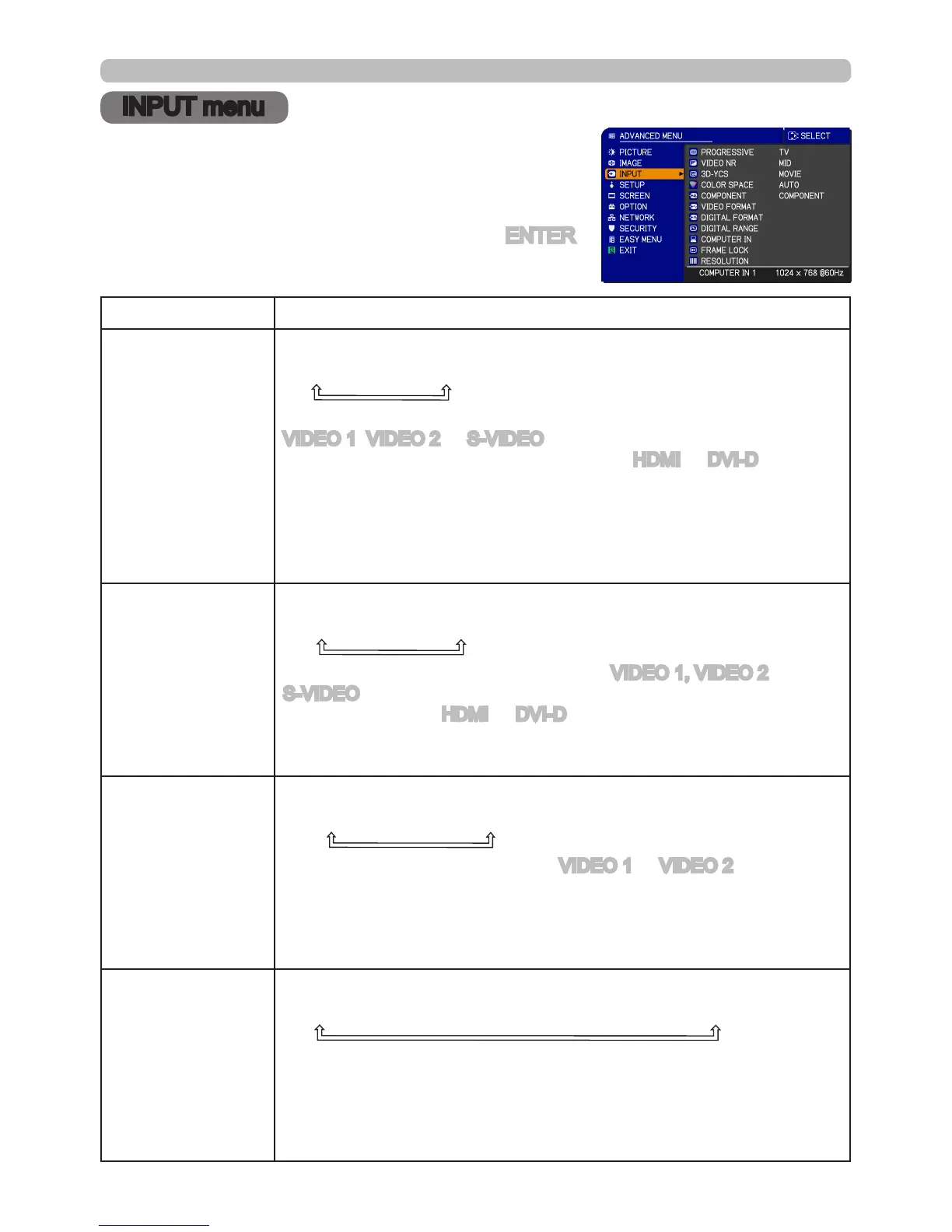
From the INPUT menu, items shown in the table
below can be performed.
Select an item using the ▲/▼ cursor buttons on the
projector or remote control, and press the ► cursor
button on the projector or remote control, or ENTER
button on the remote control to execute the item.
Follow the instructions below.
Item Description
PROGRESSIVE
Using the ▲/▼ buttons switches the progress mode.
TV
ó
FILM
ó
OFF
• This function is performed only for an interlaced signal at the
VIDEO 1, VIDEO 2 or S-VIDEO input, and for 480i@60, 576i@50
or 1080i@50/60 signal at the Component, HDMI or DVI-D input.
• When TV or FILM is selected, the screen image will be sharp.
FILM adapts to the 2-3 Pull-Down conversion system. But these
may cause a certain defect (for example, jagged line) of the picture
for a quick moving object. In this case, please select OFF, even
though the screen image may lose sharpness.
VIDEO NR
Using the ▲/▼ buttons switches the noise reduction mode.
HIGH
ó
MID
ó
LOW
• This function is performed only for the VIDEO 1, VIDEO 2 or
S-VIDEO input, and for 480i@60, 576i@50 or 1080i@50/60 signal
at the Component, HDMI or DVI-D input.
• When this function is excessive, it may cause a certain
degradation of the picture.
3D-YCS
Using the ▲/▼ buttons switches the 3D-YCS mode.
Still
ó
MOVIE
ó
OFF
• This function performs only at a VIDEO 1 or VIDEO 2 input of
NTSC, and PAL.
• MOVIE is the mode for images with a lot of motions like movies,
and still is the mode for images with few motions or completely still
ones like slides.
COLOR SPACE
Using the ▲/▼ buttons switches the mode for color space.
AUTO
ó
RGB
ó
SMPTE240
ó
REC709
ó
REC601
• This item can be selected only for an RGB signal or a component
video signal (except 480i@60, 576i@50 and SCART RGB).
• The AUTO mode automatically selects the optimum mode.
• The AUTO operation may not work well at some signals. In this
case, it might be good to select a suitable mode except AUTO.
(continued on next page)


 To Next Page