42
SCREEN menu
SCREEN menu
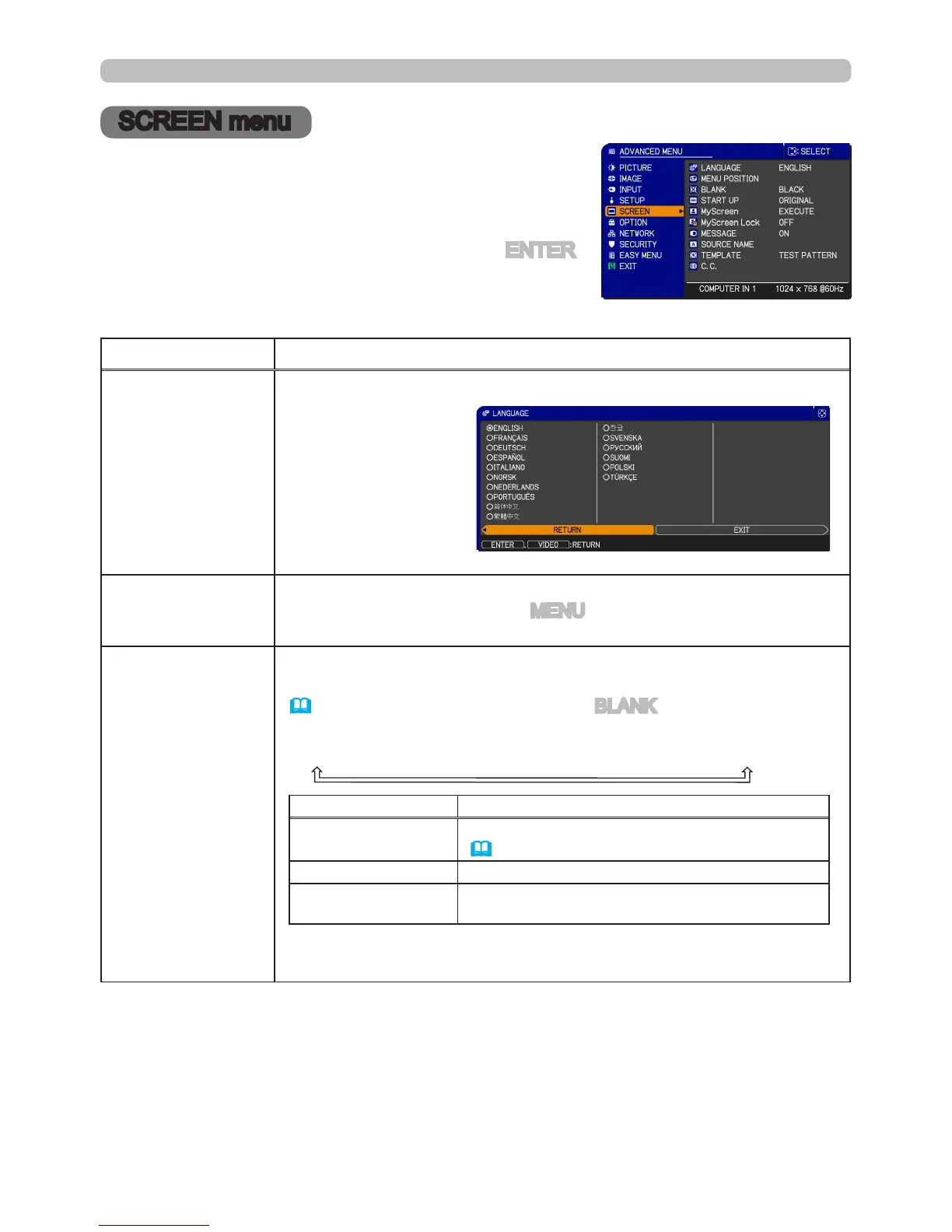
From the SCREEN menu, items shown in the table
below can be performed.
Select an item using the ▲/▼ cursor buttons on the
projector or remote control, and press the ► cursor
button on the projector or remote control, or ENTER
button on the remote control to execute the item.
Follow the instructions below.
Item Description
LANGUAGE
Using the ▲/▼/◄/► buttons switches the OSD (On Screen
Display) language.
MENU POSITION
Using the ▲/▼/◄/► buttons adjusts the menu position.
To exit the function, press the MENU button on the remote control
or do nothing for about 10 seconds.
BLANK
Using the ▲/▼ buttons switches the mode for the blank screen.
The blank screen is a screen for the temporarily blanking feature
(
26
). It is displayed by pressing the BLANK button on the remote
control.
MyScreen
ó
ORIGINAL
ó
BLUE
ó
WHITE
ó
BLACK
Feature
MyScreen
Screen can be registered by the MyScreen item
(
44)
.
ORIGINAL Screen preset as the standard screen.
BLUE, WHITE,
BLACK
Plain screens in each color.
• To avoid screen burn-in, the MyScreen or ORIGINAL screen will
change to a solid black screen after several minutes.
(continued on next page)



 To Next Page