TempScan / MultiScan User's Manual Chapter 8: ChartView & ChartView Plus 65
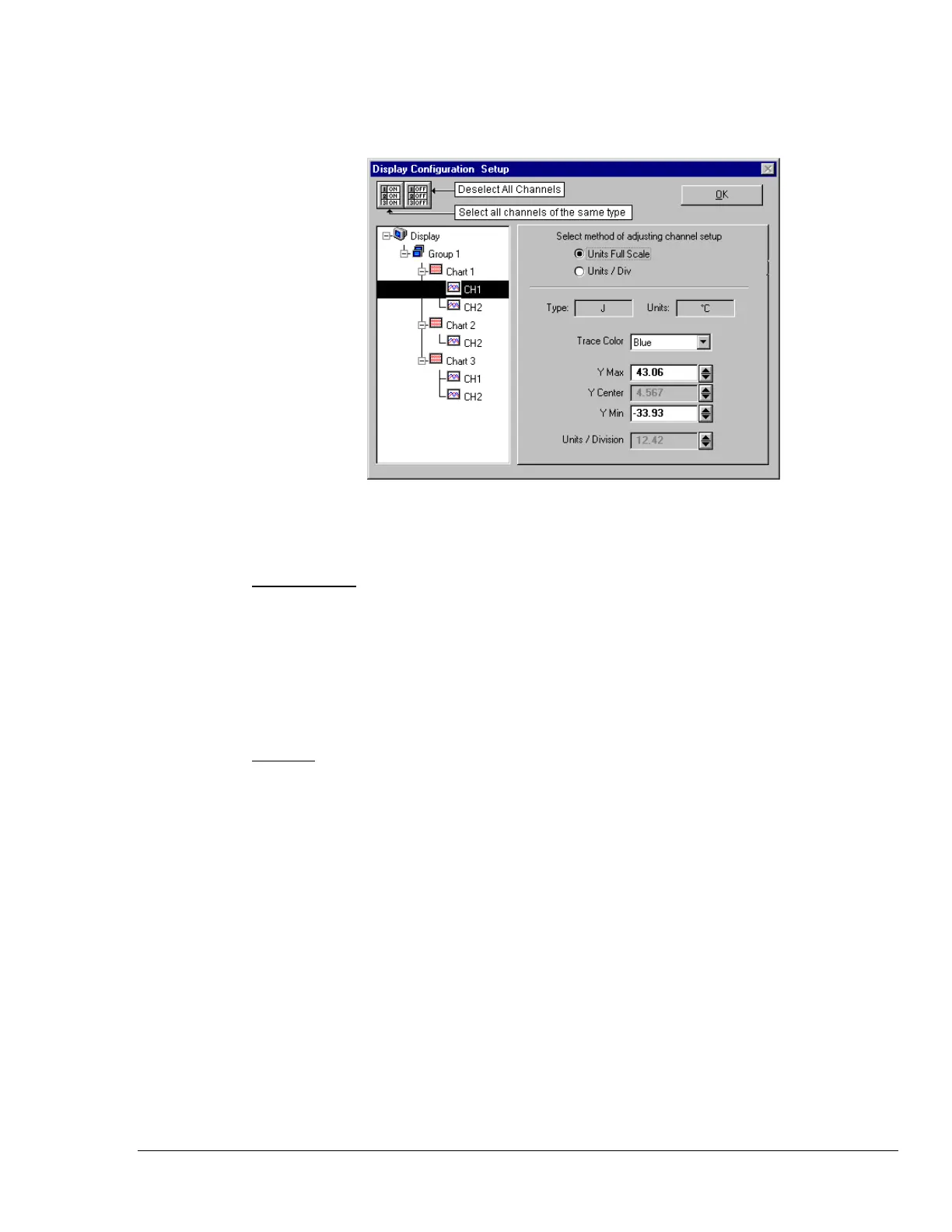
Another variation of the Display Configuration Setup box appears when you highlight a channel. In the
following figure, Channel 1 (of Chart 1, Group 1) was selected, resulting in a new screen image. From
this screen you can edit the channel setup.
Adjusting Channel Setup for Channel 1
ChartView and ChartView Plus data channels can operate in one of two modes: Units Full Scale or,
Units/Div. The mode is selected by radio button.
Units Full Scale. When Units Full Scale is selected, as depicted in the above figure, you can alter
Y Max and Y Min. These are the upper and lower limits of the Channel as they will appear on the
chart when the channel is selected. When you change either parameter, Y Center and Units/Division
are automatically adjusted. You can not directly adjust Y Center or Units/Division while “Units Full
Scale” is selected. You can change Y Max and Y Min by using the up and down arrows, or by
highlighting the existing value, typing in the new value, the pressing “Enter” on your PC keyboard.
Note: If the window size is changed, a chart operating in the Units Full Scale mode will maintain its
full scale setting across the chart.
Units/Div. When Units/Div. is selected you can alter Y Center and Units/Div. Y Center is the
centerline value of the chart when the channel is selected. Units/Div. is the vertical value of on chart
grid increment. When you change Y Center or Units/Div. Y Max and Y Min are automatically
adjusted. You can not directly adjust Y Max or Y Min while “Units/Div.” Is selected. You can change
Y Center and Units/Div. by using the up and down arrows, or by highlighting the existing value, typing
in the new value, the pressing “Enter” on your PC keyboard.
Note: If the window size is changed, a chart operating in the Units/Div. Mode will maintain its
units per division scale setting across the chart.
The channels in the display setup you create will be automatically enabled and will appear in chart
form on ChartView’s Main Window. The Channels will overlap on their assigned Chart (for
ChartView Plus applications), and will be visible when the applicable Group is selected. Note that
only one group of charts can be viewed at a time.
It is important to understand that other channels (those not in the display setup) maintain their existing
configuration status. They are not affected by the edit of the configuration display. You can enable
additional channels from the Channel and Alarm Setup window. Enabling additional channels allows
you to acquire more data; however, it will not change your display on ChartView’s Main Window. In
other words, you can also acquire data from channels which you do not monitor.



 To Next Page