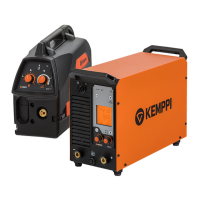
X8 MIG WELDER 2.5 Operation
3.
To see all the details of the selected WPS, press the middle view button twice and select WPS.
To fine tune WPS parameters in the Welding view, press the middle view button once.
Selecting WPS or WPS pass through wire feeder display
You can select a WPS or change the WPS pass through the wire feeder display.
Note:
The first time you use a WPS, you must activate it with Control Pad. After the activation,
you can also use the wire feeder display or the gun remote control to select the WPS.
Adjusting WPS parameters
You can adjust all parameters through Control Pad or the wire feeder display. Through the gun
remote control, you can adjust wire feed speed, fine tuning and dynamics.
If you adjust a parameter whose correct value is essential for the process (the current, voltage or
wire feed speed) beyond the range defined in the WPS, the system displays a warning on Control
Pad and on the wire feeder display. The parameter for which the warning is shown depends on
the process in use. For more information on the parameters related to various processes, see
Standard MIG welding processes in MIG X8 Welder on page 138 and Wise processes on page
143.
Note: Depending on the welding program and process in use, it is possible that the
welding machine cannot adjust all the settings according to the WPS. Current, voltage
and wire feed speed depend on each other, so a controversy between WPS and welding
program or process may arise, in which case the parameters are not adjsut according to
the WPS.
For information on adjusting the parameters with Control Pad, see Welding view on page 96.
For information on adjusting the parameters through the wire feeder display, see Wire feeder
views on page 106.
Transferring dWPSs to the welding machine
Digital WPSs are created with the WeldEye tool and transferred to the welding machine via
Internet or on a USB stick. For more information on WeldEye, see Introduction to WeldEye for
welding procedure and qualification management on page 10 and www.weldeye.com.
Note:
The WPSs must be approved in WeldEye before they can be transferred to the welding
machine.
Welding machines are connected to WeldEye in the WeldEye settings. You will need the serial
number and security code on the X8 Power Source rating plate. You can find more detailed
instructions in the WeldEye Help. Once the welding machine has been connected to WeldEye,
within an hour, WPSs are automatically transferred to the welding machine. When new WPSs are
created, if the welding machine is online, the WPSs are automatically transferred to the welding
machine within 15 minutes after the WPS has been approved.
For information on connecting the welding machine to the Internet, see Connecting to Kemppi
cloud services on page 114.
All the welding machines of the company can be connected to WeldEye. You can see a list of all
the connected machines. If My Fleet is also in use, the services share the same list of machines.
For more information on My Fleet, see About My Fleet.
Transferring dWPSs without a connection to Kemppi Cloud Services
1.
In WeldEye, open a WPS.
OPERATING MANUAL | EN 132
©
KEMPPI 2017 | 1817


 To Next Page
 Loading...