ENGLISH
Chapter 5: KGUARD Web Client
100
DVR User’s Manual
Menu Item
Descripon
Enable Select Enable to issue a nocaon when the event type occurs.
Buzzer Set the buzzer duraon when the event occurs (
O/10 S/20 S/40 S/60 S).
To disable buzzer, select O.
Show Message
Check the box to display a message on the screen when the event occurs.
Send Email Check to enable email alarm nocaon. If the funcon is enabled, the system will
send the alarm to the specied email address. See “4.4.4 Email Sengs” on page
53.
Alarm Out
If an alarm device is connected, check the box to make the device sound the alarm
when the event occurs.
Dwell Time Select the alarm duraon
(10S/20S/40S/60S).
4 Aer all sengs are complete, click Save.
Set Auto Maintenance
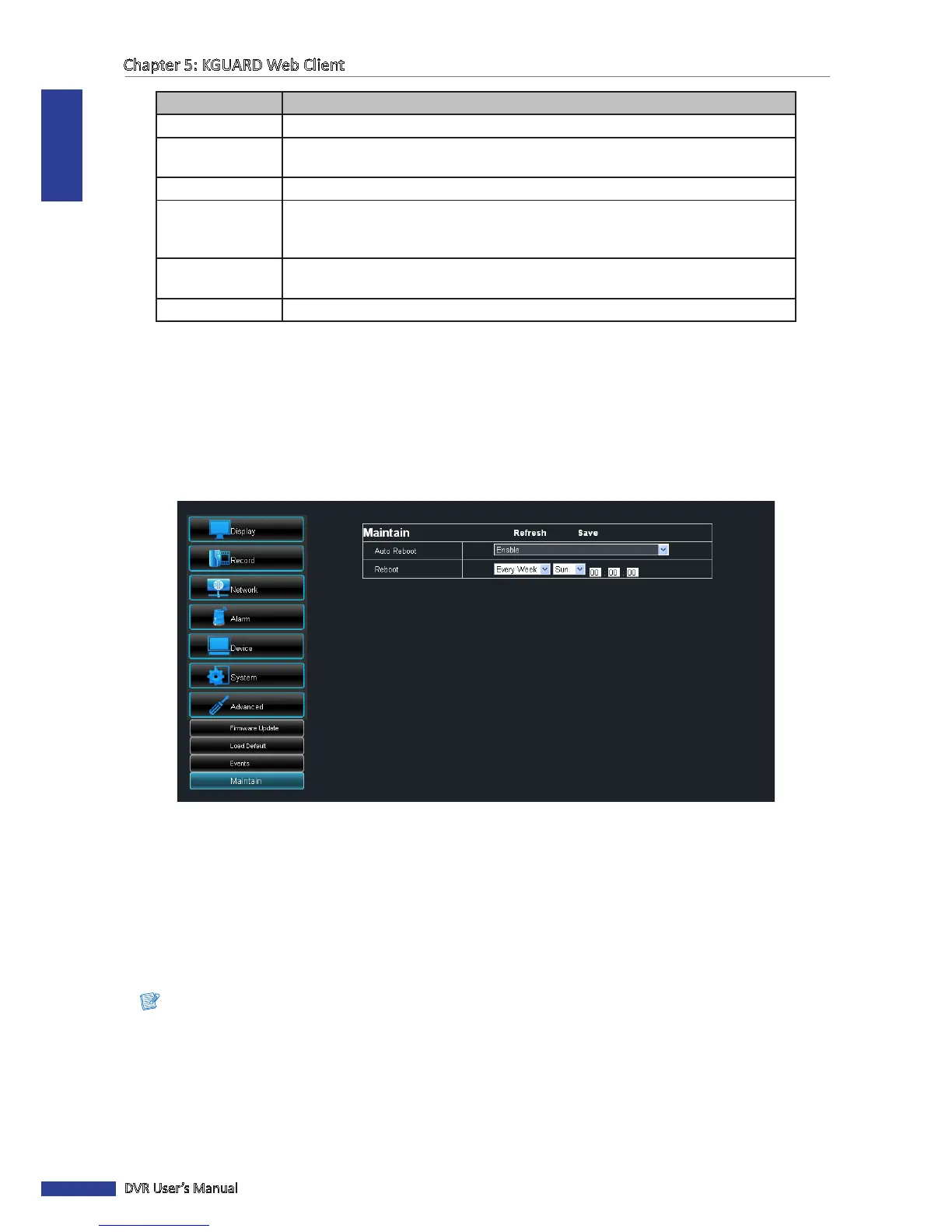
Use this feature to automacally reboot the DVR on a specied schedule. When the DVR reboots, all sengs and data
are refreshed from the memory, which opmizes the DVR performance.
1 On the Main Menu, click Remote Seng.
2 On the le panel, click Advanced > Maintain.
3 Set Auto Maintain to Enable.
4 In Reboot, select the frequency to reboot the DVR. Opons are:
• Everyday: Reboots the DVR on a daily basis. If this opon is selected, specify the me you want to reboot the
DVR.
• Every Week: Reboots the DVR on a weekly basis. If this opon is selected, specify the day of the week and the
me to reboot the DVR.
• Every Month: Reboots the DVR on a monthly basis. If this opon is selected, specify the date (1 to 31) and the
me to reboot the DVR.
Note:
The illustraon above is an example of Auto Reboot set to Every Week. The available elds vary depending on the
selected Reboot opon.
5 Aer all sengs are complete, click Save.
« TIP »
To restore the maintenance schedule to default seng, click Refresh.


 To Next Page