ENGLISH
Chapter 4: Using the DVR
58
DVR User’s Manual
4.6 Seng the Device
4.6.1 Storage Device Setup
To ensure the hard disk drive is properly set, it is important to congure the hard disk drive sengs before its inial
usage. For other external hard drive and USB device, it is recommended to format those devices before their inial
usage.
Seng HDD
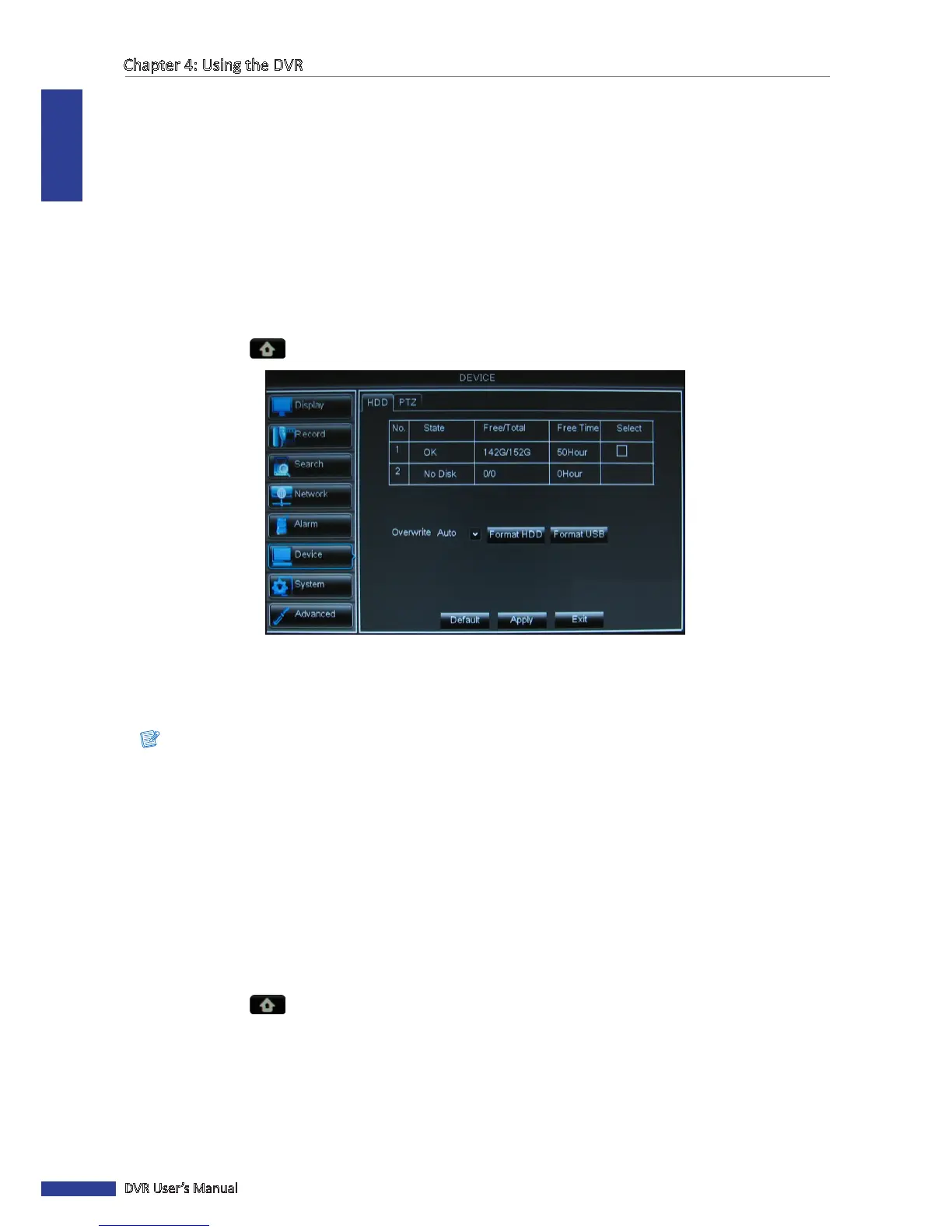
To set up the hard disk drive, do the following:
1 In preview mode, right-click on the mouse to display the Pop-up menu.
2 Select Main Menu > DEVICE.
3 Select the hard disk drive that you want to congure. A √ icon appears on the check box to indicate that the HDD
has been selected.
4 On Overwrite, select an overwrite interval opons (Auto/1 Hour/3 Hours/1 Day/7 Days/30 Days/90 Days/Close).
Note:
If the overwrite is set to Close, the recording will stop once the hard disk drive is full.
5 Aer all sengs are complete, click Apply.
6 When data saving is complete, click OK.
Formang HDD
Aer a new hard disk drive is properly installed in the DVR, the system automacally detects the HDD and prompts for
disk formang.
To format the hard disk drive, do the following:
1 In preview mode, right-click on the mouse to display the Pop-up menu.
2 Select Main Menu > DEVICE.
3 Select the hard disk drive that you want to format.
4 Click Format HDD.
5 An “All data will be deleted aer formang” warning message appears on the screen. Click OK to proceed.
6 When the formang process is complete, click OK.


 To Next Page