ENGLISH
Chapter 6: Mobile Device Access
DVR User’s Manual
103
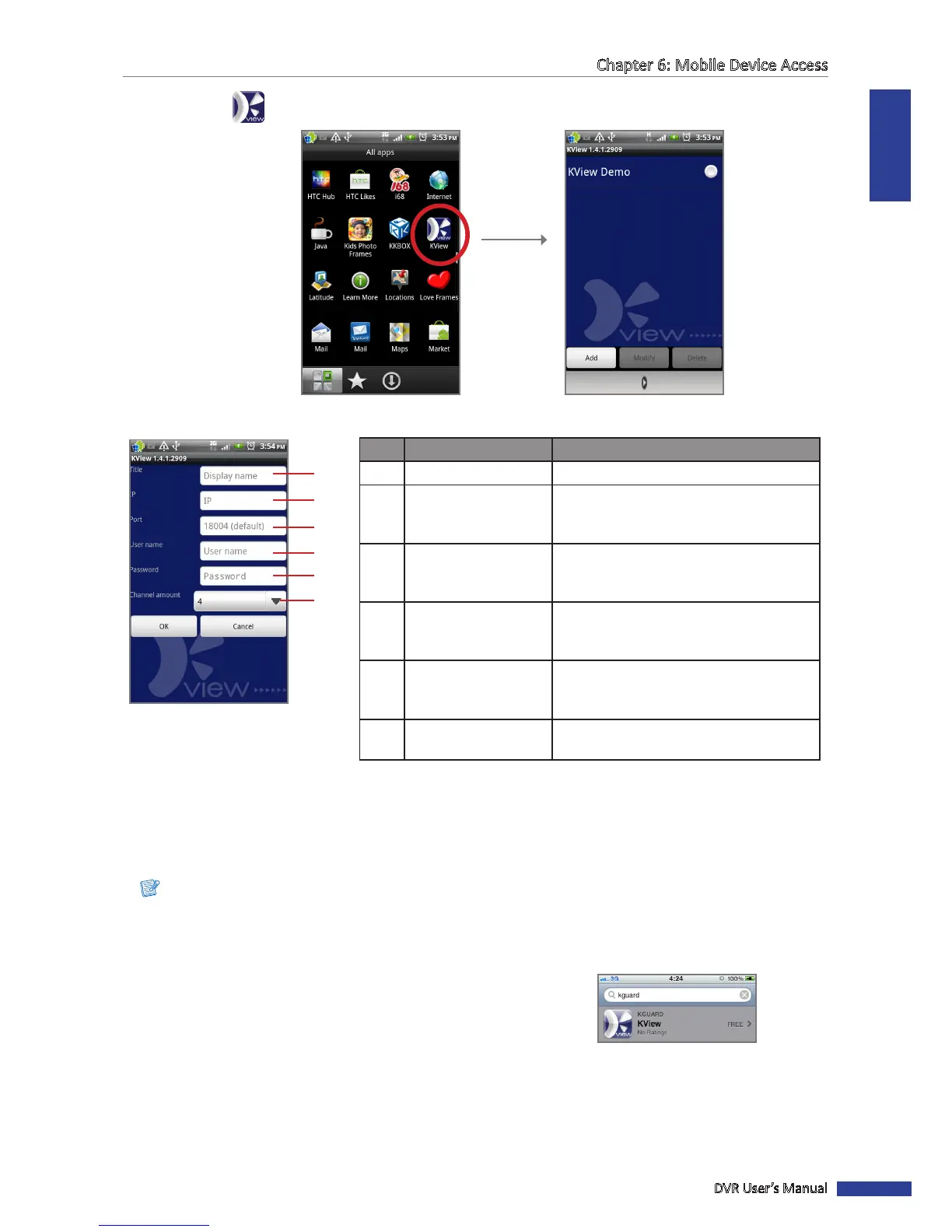
5 Click the KView icon to open the applicaon.
6 Click Add to add a DVR and enter the required sengs.
2
3
4
5
6
1
No. Item Descripon
1 Title Enter the desired DVR name.
2 IP
Enter the IP address assigned to the DVR.
Consult your network administrator or ISP
to obtain this informaon.
3 Port
Enter the server port number that you
congured in the DVR menu. See “4.4.5
Seng Up Mobile Devices” on page 54.
4 User name
Enter the user name that you congured
in the DVR menu. See “4.4.5 Seng Up
Mobile Devices” on page 54.
5 Password
Enter the password that you congured
in the DVR menu. See “4.4.5 Seng Up
Mobile Devices” on page 54.
6 Channel amount
Select the number of channels that you
want to access on your smart phone.
7 Click OK to view the main screen.
6.1.2 KView on iPhone
®
Note:
To ensure opmum performance, download and use KView on iPhone devices with iOS 4.2.1 or above.
1 Make sure your smart phone is connected to the Internet (either by mobile data connecon or Wi-Fi).
2 Open the App Store applicaon and search for “kguard”.
3 On the search bar, enter the keyword “kguard” to search for KView.


 To Next Page