ENGLISH
Chapter 4: Using the DVR
48
DVR User’s Manual
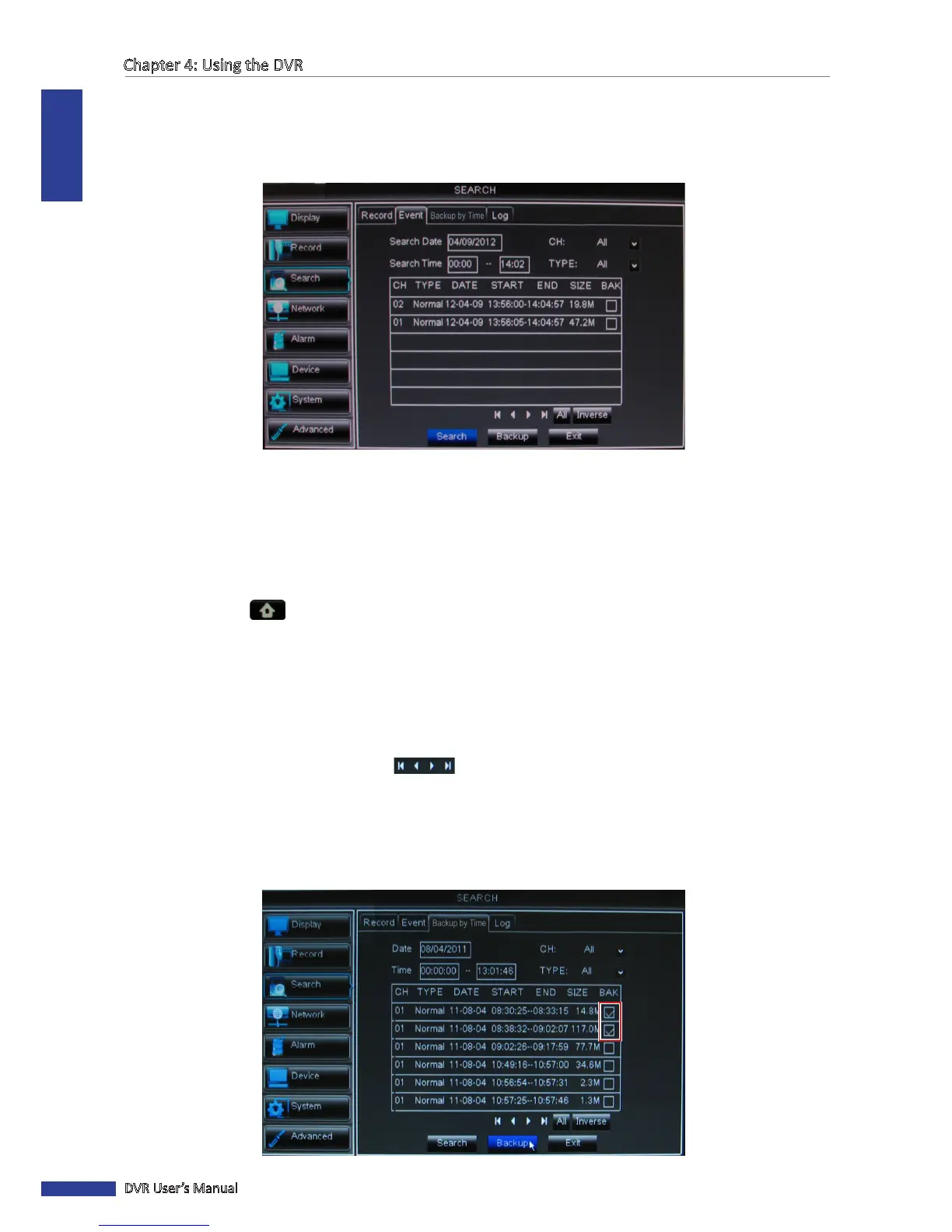
4 On Search Time, specify the starng me and the ending me to search for the event.
5 On CH, select the channel to search, or select All to search all channels.
6 On TYPE, select the type of recording to search. Opons are: All, Normal or Alarm.
7 Click Search. The recordings are listed on the table.
4.3.3 Backing up Videos
1 Plug a USB device into the USB port of the DVR.
2 In preview mode, right-click on the mouse to display the Pop-up menu.
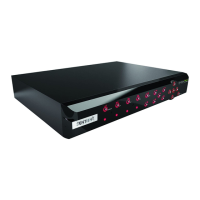
3 Select Main Menu > SEARCH, select the Backup by Time tab.
4 On Search Date, specify the recording date.
5 On Search Time, specify the starng me and the ending me to lter the search.
6 On CH, select the channel to search, or select All to search all channels.
7 On TYPE, select the type of recording. Opons are: All, Normal or Alarm.
8 To browse the list, click the control buons .
9 Select the BAK boxes of the recordings that you want to backup. A √ icon appears on the check box to indicate that
the le has been selected.
« TIP »
• To select or deselect all check boxes, click All.
• To reverse the marked boxes, click Inverse.



 To Next Page