ENGLISH
Chapter 4: Using the DVR
DVR User’s Manual
45
4.3 Searching Videos
4.3.1 Searching and Playing Videos
1 In preview mode, right-click on the mouse to display the Pop-up menu.
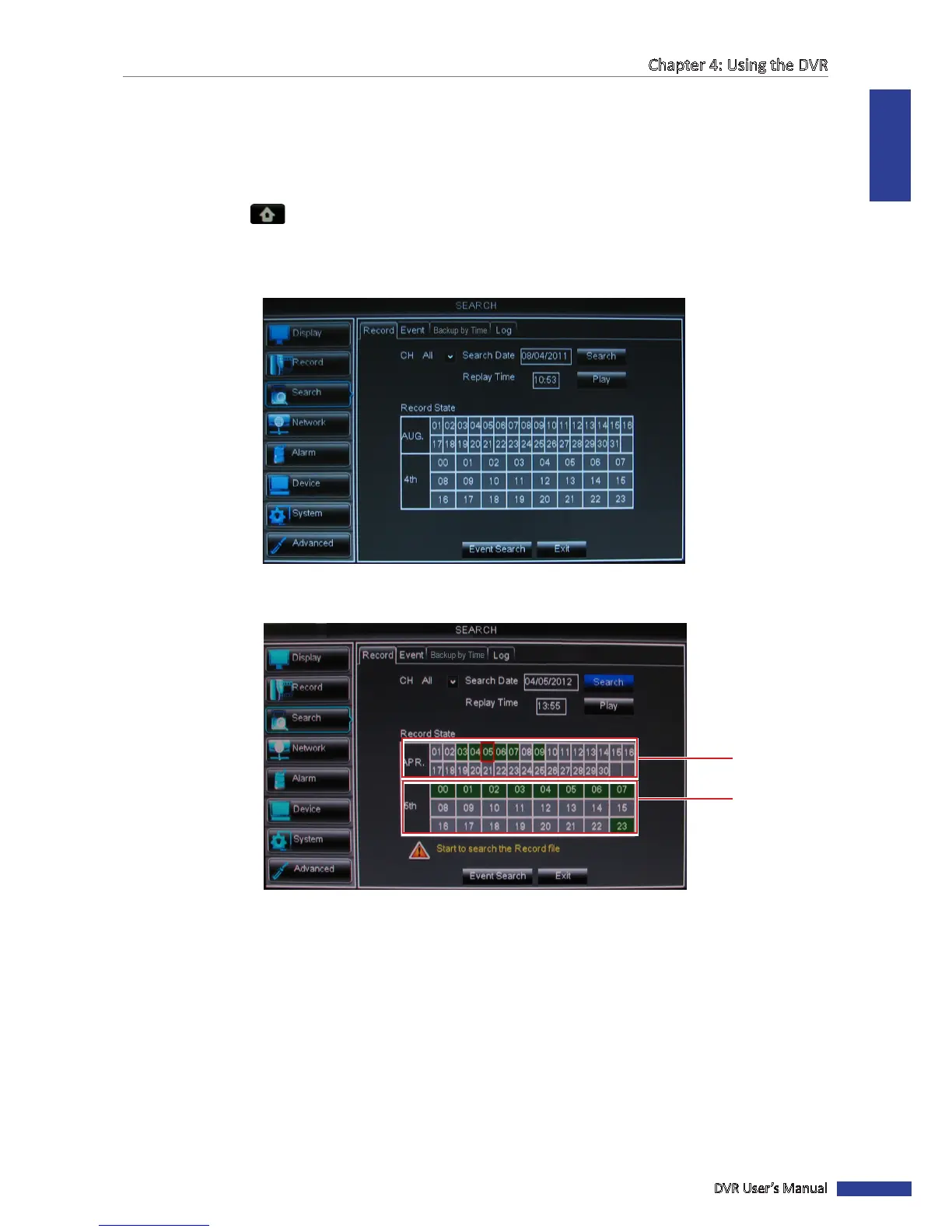
2 Select Main Menu > SEARCH.
3 On CH, select the channel where you want to search the recorded video, or select All to search all channels.
4 Click the Search Date box and specify the date where you want to search the recorded video.
5 Click Search. The me slot of the recorded videos are marked on the Record State table. Green box means normal
recording while a red box means alarm recording.
Date
Time
6 Click a me slot that you want to play.



 To Next Page