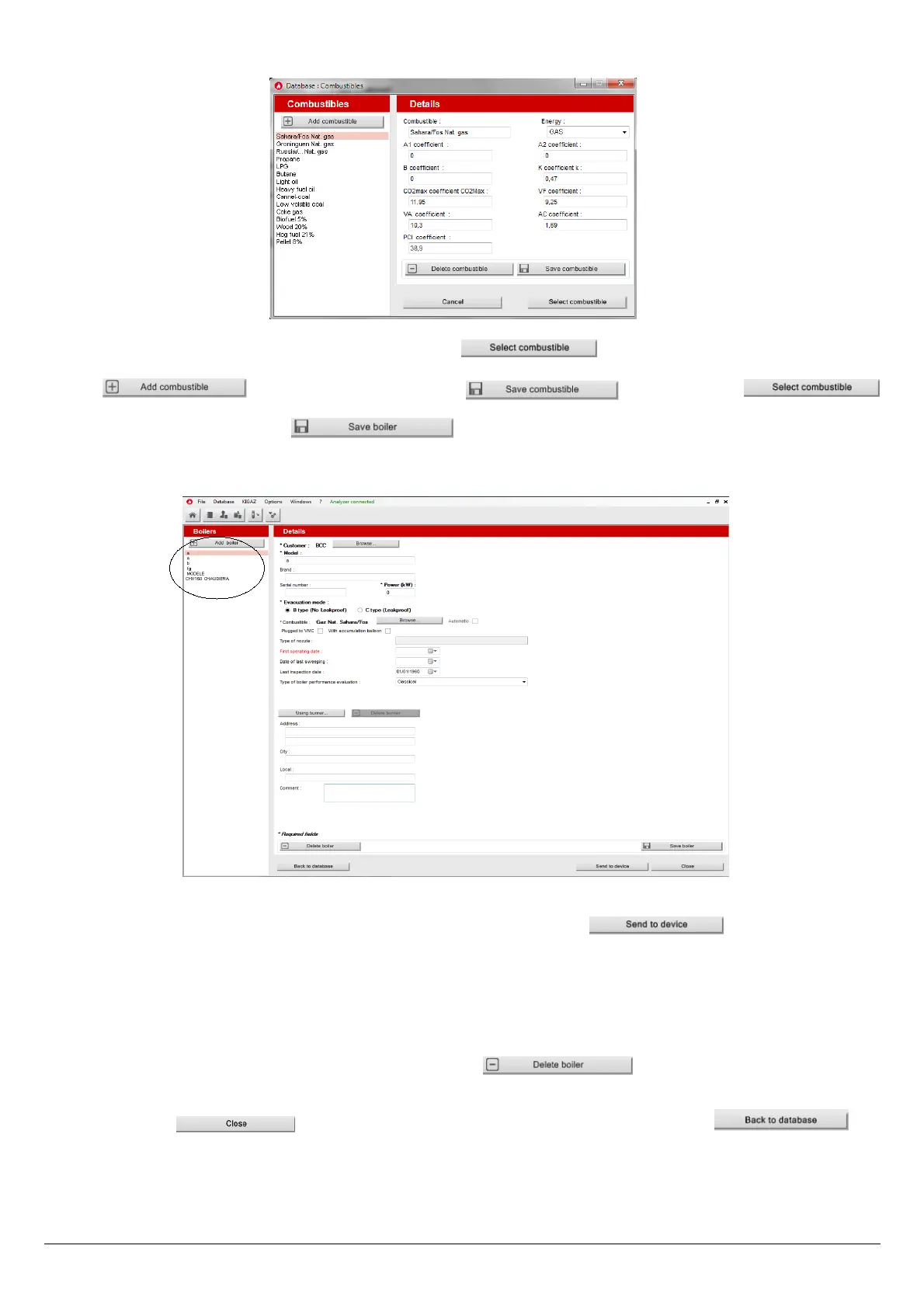
The following window is displayed:
➢ Select the combustible used by the boiler and click on the button.
15 types of combustible are programmed. If the combustible type used by the boiler is not available in the list, click on the
button, fill in the fields, click on the button then on the
button.
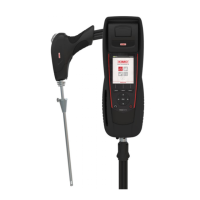
➢ To save the boiler, click on the button.
The software displays a confirmation message.
➢ Click on OK.
The created boiler appears on the list on the left of the screen:
➢ Repeat the procedure to add other boilers.
➢ To transfer a boiler to the analyser, select it on the boilers list then click on the button. If it is not
accessible, check the device connection.
A message is displayed to confirm the transfer:
➢ Click on OK.
➢ To download boilers from the analyser to the software database, it is necessary to download inspections present on the
device (see page 54). Only the boilers linked to at least an inspection are added to the “Boilers” software database. The
customer linked to this boiler is also added to the “Customers” software database.
➢ To delete a boiler, select it on the boilers list then click on the button.
A confirmation message is displayed.
➢ Click on YES to confirm deletion or NO to cancel.
➢ Click on the button to close the window and back to the homepage, or on the
button access the complete database.
Use the different databases 49


 To Next Page