9. Compare the instrument and software information
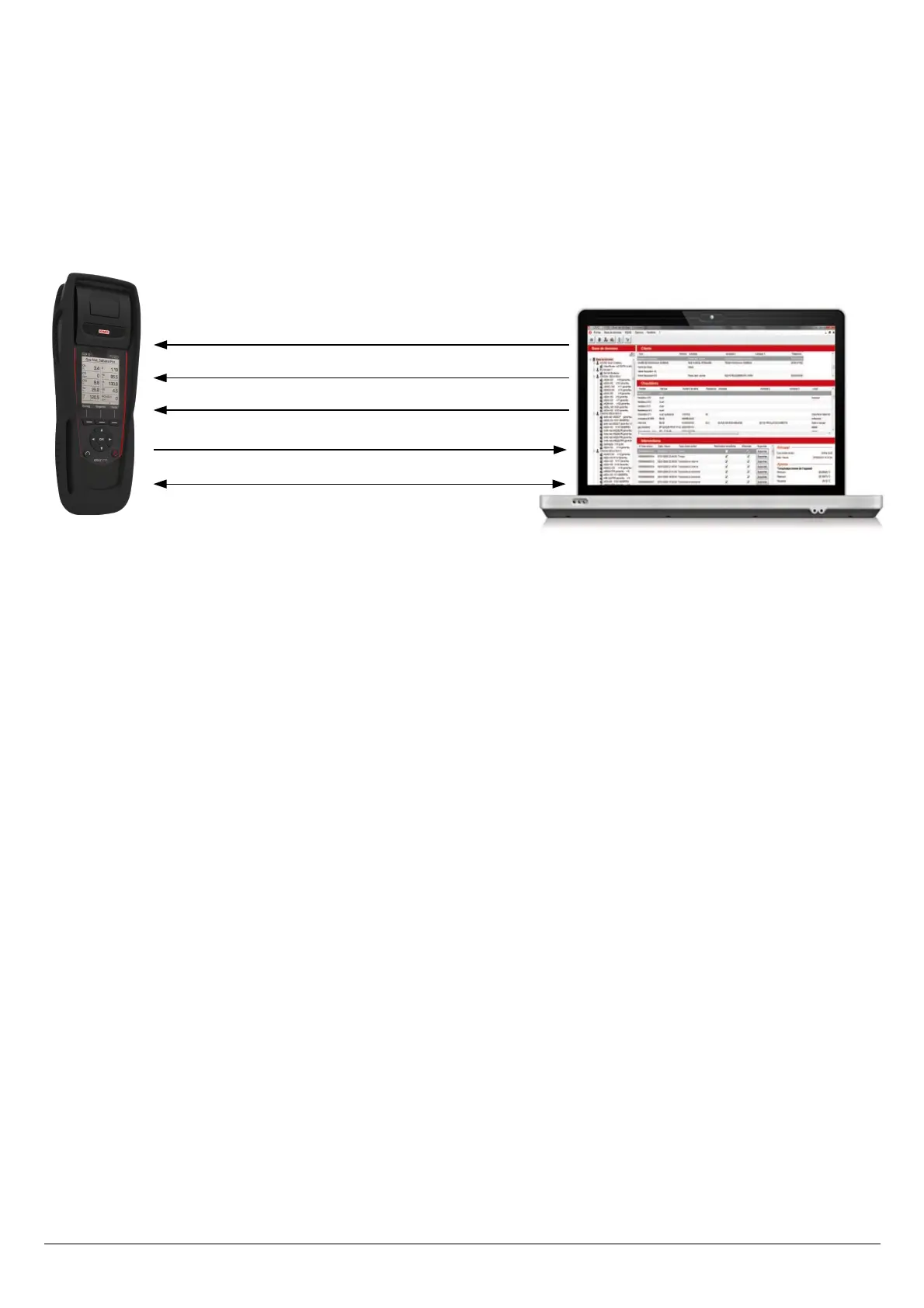
As we have seen, the LIGAZ-2 software allows to send information to the analyser or to delete information from the analyser:
• Sending customers or boilers to the analyser
• Download customers/boilers/inspections from the KIGAZ to the software
• Delete customers and boilers from the analyser
The “Comparison of PC elements with KIGAZ” function in the KIGAZ menu allows to update customers and boilers information in
the analyser and in the LIGAZ-2 software databases. There are different possibilities.
Inspection deletion (see page 46)
Send a customer or a boiler to the device (see page 47)
Customers/boilers deletion (see page 47)
Customers/boilers/inspections downloading (see page 46)
Comparison of PC elements with KIGAZ
9.1. Add elements automatically in the databases
The LIGAZ-2 software will add automatically customers and boilers in the following cases:
• If the same customer is present in the analyser and the software “Customers” database but different boilers are associated
to this customer, the software will add automatically the missing boilers in the “Customers” and “Boilers” databases.
• If a customer is present in the analyser with at least one associated boiler, the software will add it automatically in the
“Customers” and “Boilers” databases. But if a customer is present in the analyser without associated boiler, the software
will not add this customer in the “Customers” database.
Procedure:
➢ Click on “KIGAZ” menu.
➢ Click on “Comparison of PC elements with KIGAZ”.
9.2. Modification of customer and boilers features
The LIGAZ-2 software will compare the information: if a customer or a boiler is present in the analyser and the database but with
different features, the software will ask which features have to be taken into account.
Procedure:
➢ Click on “KIGAZ”.
➢ Click on “Comparison of PC elements with KIGAZ”.
Compare the instrument and software information 57


 To Next Page