5.3. Complete database
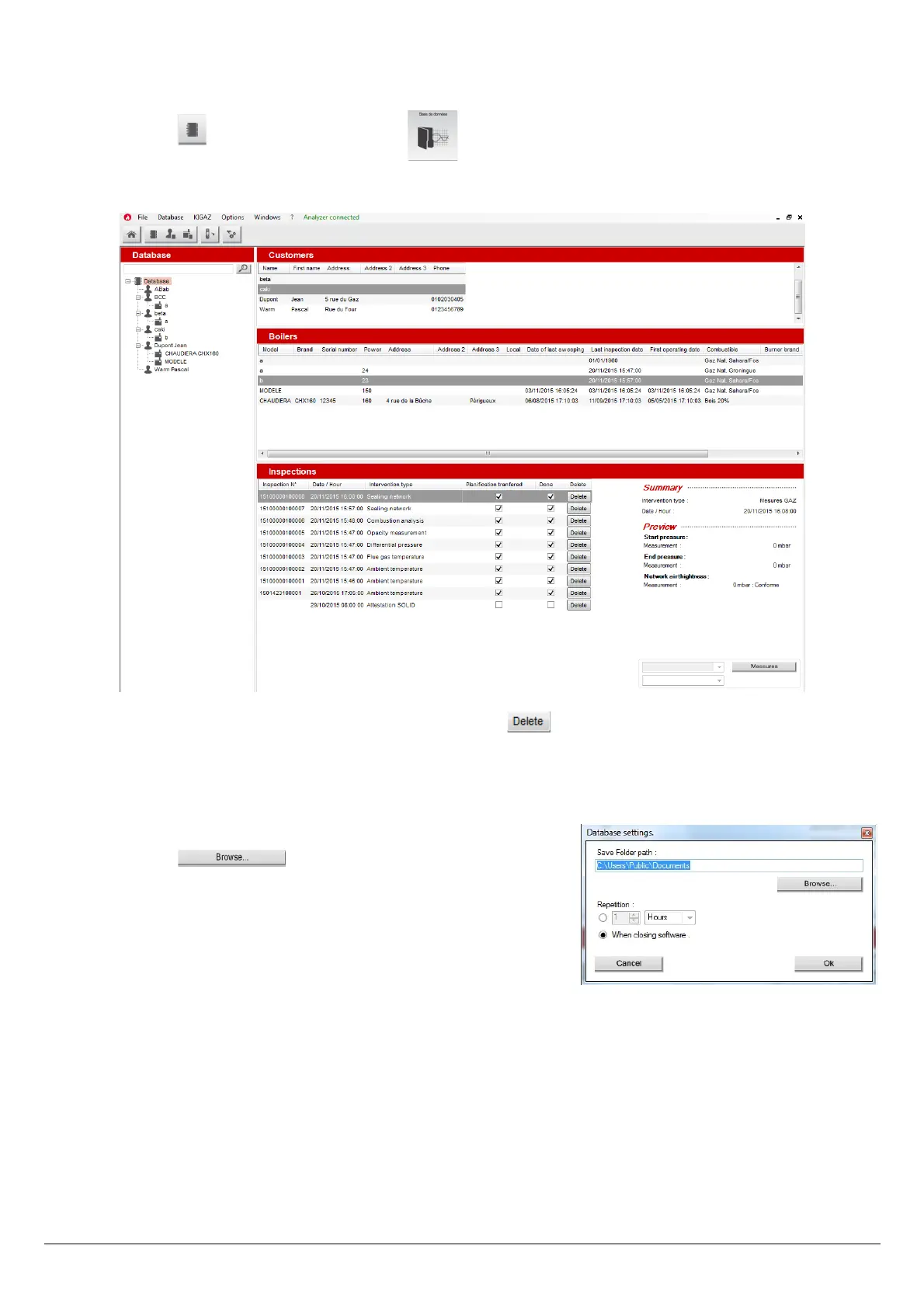
This database allows to have a global view of all customers and their boilers with also the inspections.
➢ Click on the tool bar button or directly on the button on the homepage.
Or
➢ Click on “Database” menu, then choose “Complete”.
The following window is displayed:
➢ To delete an inspection from the complete database, click on the button of the inspections list.
A message is displayed to confirm deletion.
➢ Click on “OK” to confirm or “Cancel” to cancel the inspection deletion.
5.3.1. Database settings
➢ Click on “Database” menu then on “Database settings...”.
The database configuration window opens.
➢ Click on the button and define the save folder path.
➢ Select the recurrence, that is the automatic registration of the database:
• Select the database registration frequency: from 1 to 30 hours or 1 to
30 days.
Or
• Tick “When closing software” to save automatically the database when
the software is closed.
5.3.2. Save while using
To guarantee information saving, you shall regularly proceed this way:
➢ Click on “File” menu.
➢ Click on “Save database”.
5.3.3. Import a database
When opening LIGAZ-2 software, to recover a database:
➢ Click on “File” menu.
➢ Click on “Import database”.
➢ Go to the saving folder of the database, select the database to open then click on OK.
50 Use the different databases


 To Next Page