EasyManua.ls Logo

Kyocera FS-9530DN - Service Manual

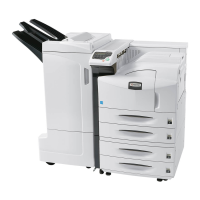
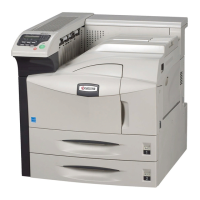
Kyocera FS-9530DN
274 pages
Print Icon
To Next Page IconTo Next Page
Loading...
SERVICE
MANUAL
Published in April 2007
842GZ113
2GZSM063
Rev. 3
FS-9130DN
FS-9530DN

Table of Contents

Other manuals for Kyocera FS-9530DN

Questions and Answers

  • L
    lsmithSep 23, 2025
    What to do if Kyocera FS-9530DN showing Memory card err## Press GO?
    • J
      Jillian MontgomerySep 23, 2025
      If your Kyocera printer displays 'Memory card err## Press GO', it indicates an error occurred during access to the memory card using the PRESCRIBE RWER command or from the printer’s operation panel. Check the error code.
  • E
    Erika GuerreroAug 25, 2025
    How to fix completely blank printout from Kyocera Printer?
    • P
      pthorntonAug 25, 2025
      If you're getting completely blank printouts from your Kyocera printer, check the toner container. Open the front cover of the printer and make sure that the toner container is correctly installed.
  • M
    marvin73Aug 25, 2025
    What to do if Kyocera FS-9530DN Printer showing Add paper (paper source)?
    • S
      Sarah SummersAug 26, 2025
      If your Kyocera printer displays 'Add paper', it means the paper has run out. Simply supply paper to the indicated paper source, whether it's the paper cassette, MP tray, or an optional paper feeder.
  • R
    Rachael JimenezAug 27, 2025
    What to do if Kyocera FS-9530DN prints a status page, but data from the computer is not being printed normally?
    • B
      Beverly AndersonAug 27, 2025
      If your Kyocera printer prints a status page but not data from the computer, ensure both ends of the interface cable are securely connected and try replacing the printer cable. Also, try printing another file or using another print command to see if the issue is specific to a certain file or application. If so, check the printer settings for that application.
  • K
    Kathleen JonesAug 27, 2025
    How to resolve Grey background issue on Kyocera FS-9530DN Printer?
    • S
      savagekatieAug 27, 2025
      To resolve a grey background issue on your Kyocera printer, refresh the drum using the printer's built-in cleaning system via the operation panel. Also, check the operation panel for a 'Toner low' message and flashing ATTENTION indicator; if present, install a new toner kit. You can also adjust the print density to a lighter setting via the operation panel and ensure the toner container is correctly installed.
  • P
    Philip HuntSep 13, 2025
    What to do if Kyocera FS-9530DN Printer showing Load cassette # (paper size)/(paper type)?
    • R
      Roy CaseySep 13, 2025
      If your Kyocera printer displays 'Load cassette # (paper size)/(paper type)', it means that there is data for printing that matches a paper cassette setting (paper size, paper type), but there is no paper in the paper cassette. Set paper into the paper source as indicated by # on the operation panel, and press [GO] to restart printing.
  • E
    Elizabeth WebsterSep 12, 2025
    What to do if Kyocera FS-9530DN Printer showing Duplex disabled Press GO?
    • S
      Stephen VanceSep 12, 2025
      If your Kyocera printer displays 'Duplex disabled Press GO', it means that duplex printing cannot be performed due to the paper size or type. Press [GO], and the printer will print on one side only.
  • S
    Scott CrawfordSep 12, 2025
    What to do if Kyocera Printer showing Check chad box Press GO?
    • C
      Casey ThompsonSep 12, 2025
      If your Kyocera printer displays 'Check chad box Press GO', it means that the punch unit waste box of the document finisher is full or not installed correctly. Check if the box is properly installed, and then discard the chads if the box is full.
  • E
    Elizabeth WhiteSep 4, 2025
    Why Kyocera Printer showing Unknown toner installed?
    • C
      Caitlyn HillSep 4, 2025
      The message 'Unknown toner installed' on your Kyocera printer may appear if a toner container that indicates 'Toner low' or 'Replace toner Clean printer' is installed in other printers of the same model.
  • M
    mollygarnerSep 2, 2025
    What to do if Kyocera Printer showing Cassette # not loaded?
    • R
      Richard BarnesSep 2, 2025
      If your Kyocera printer displays 'Cassette # not loaded', it means a cassette is not loaded properly. Properly load the cassette indicated by #.

Summary

Service Manual

Safety Precautions

Safety Warnings and Precautions

Explains the meaning of different warning symbols used in the manual.

Symbols

Details various warning, prohibition, and action required symbols.

Installation Precautions

WARNING

Lists safety warnings related to power supply, grounding, and installation environment.

CAUTION

Details cautions regarding placement, environment, handling, and toner inhalation.

Precautions for Maintenance

WARNING

Outlines warnings for disassembly, parts usage, measurements, and laser units.

CAUTION

Lists cautions for clothing, powered machines, fixing sections, and roller cleaning.

Specifications

Specifications

Details the printer's technical specifications, including type, system, paper handling, speed, and capacity.

Parts names

Lists and illustrates the names of various parts of the machine's body.

Installation

Unpacking and installation

Provides a step-by-step procedure for unpacking and installing the machine.

Installation environment

Specifies the required temperature, humidity, power supply, and location conditions for installation.

Maintenance Mode

Service mode

Describes how to access and execute various service mode functions.

Maintenance mode

Explains how to enter and use the printer's maintenance mode for servicing.

Troubleshooting

Paper misfeed detection

Covers paper misfeed indications and detection conditions.

Self-diagnosis

Explains the self-diagnostic function and lists diagnostic codes.

Image formation problems

Lists common image quality issues and their potential causes.

Electric problems

Details troubleshooting steps for various electrical issues.

Assembly and Disassembly

Precautions for assembly and disassembly

Lists important precautions to follow when disassembling or assembling machine components.

Kyocera FS-9530DN Specifications

General IconGeneral
Maximum print size297 x 420 mm
Paper tray media typesBond paper, Envelopes, Labels, Plain paper, Recycled paper, Transparencies
ISO A-series sizes (A0...A9)A3, A4, A5
ISO B-series sizes (B0...B9)B4, B5
Maximum ISO A-series paper sizeA3
ColorNo
Duplex printingYes
Print technologyLaser
Maximum resolution1800 x 600 DPI
Time to first page (black, normal)3.5 s
Print speed (black, normal quality, A3)26 ppm
Print speed (black, normal quality, A4/US Letter)51 ppm
Memory typeDDR
Memory slots1
Processor model750FL
Processor familyPowerPC
Compatible memory cardsCF
Maximum internal memory640 MB
Sound power level (standby)51 dB
Sound pressure level (printing)70 dB
Total input capacity1200 sheets
Maximum input capacity4200 sheets
Total number of input trays2
Multi-Purpose tray input capacity200 sheets
Wi-Fi-
Cabling technology10/100Base-T(X)
Ethernet LAN data rates10, 100 Mbit/s
Supported network protocols (IPv4)TCP/IP, IPX/SPX, AppleTalk, NetBEUI
Printing colorsBlack
Maximum duty cycle300000 pages per month
Page description languagesPCL 5e, PCL 6, PCL XL
Current rating11.4 A
AC input voltage120 V
AC input frequency60 Hz
Power consumption (standby)180 W
Power consumption (printing)900 W
Power consumption (PowerSave)4.5 W
Standard interfacesEthernet, Parallel, USB 2.0
USB 2.0 ports quantityUSB 2.0 ports have a data transmission speed of 480 Mbps, and are backwards compatible with USB 1.1 ports. You can connect all kinds of peripheral devices to them.
Mac operating systems supportedMac OS X 10.0 Cheetah, Mac OS X 10.1 Puma, Mac OS X 10.2 Jaguar, Mac OS X 10.3 Panther, Mac OS X 10.4 Tiger, Mac OS X 10.5 Leopard, Mac OS X 10.6 Snow Leopard, Mac OS X 10.7 Lion
Other operating systems supportedNovell NetWare 4.x, Novell NetWare 5.x, Novell NetWare 6.x
Server operating systems supportedWindows Server 2003
Windows operating systems supportedWindows 2000, Windows 2000 Professional, Windows 7 Home Basic, Windows 7 Home Basic x64, Windows 7 Home Premium, Windows 7 Home Premium x64, Windows 7 Professional, Windows 7 Professional x64, Windows 7 Starter, Windows 7 Starter x64, Windows 7 Ultimate, Windows 7 Ultimate x64, Windows 95, Windows 98, Windows 98SE, Windows ME, Windows XP Home, Windows XP Home x64, Windows XP Professional, Windows XP Professional x64
Sustainability certificatesENERGY STAR
Product colorWhite
Networking featuresFast Ethernet
Weight and Dimensions IconWeight and Dimensions
Dimensions (WxDxH)599 x 646 x 615 mm

Related product manuals