LaCie Internet Space • DESIGN BY NEIL POULTON Sharing Your Content & Managing Files
User Manual page 30
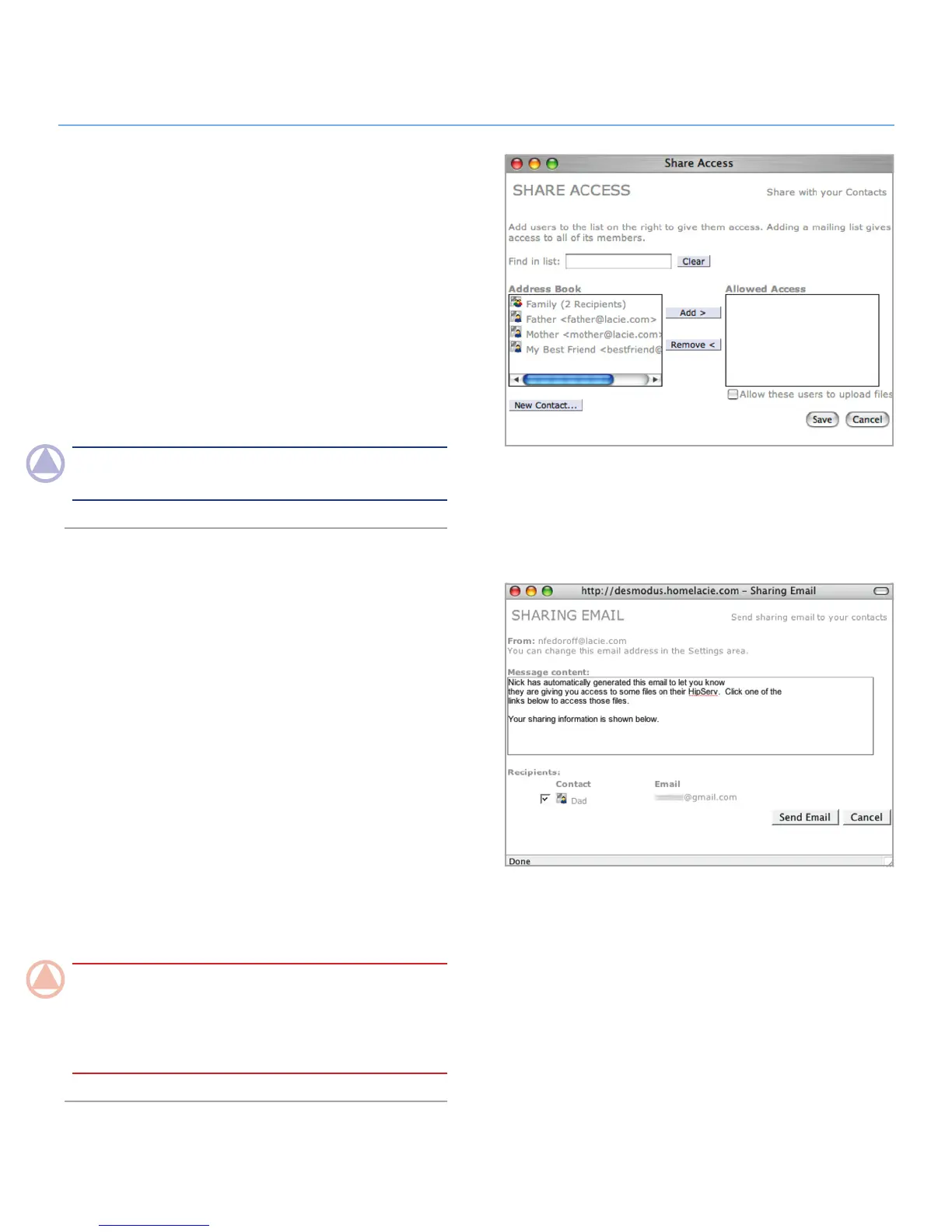
If you click on the Shared icon in the Sharing column (or the
Share button in the action bar and then, Choose Users) the
Share Access window will open (Fig. 4.4.1-B).
Add users or contact lists to the Allowed Access list by selecting
1.
them in the Address Book list and then clicking Add.
Select the “Allow these users to upload files” check box to give
2.
users in the Allowed Access list the ability to upload files to the
folder or folders you are sharing with them.
When you click
3. Save, the Sharing Email window will open
with an automatically-generated email message with instruc-
tions for your friends about accessing your content. See section
4.4.2. Sending Sharing Invitation Email.
NOTe: See section 5. MyContacts for information about creat-
ing contacts and contact lists (mailing lists).
4.4.2. Sending Sharing Invitation Email
Sharing invitation emails make it easy for your contacts to ac-
cess the content you want to share with them. When you share a
folder, as described above, an email message is automatically
generated. Embedded in the message is a link to your content.
All your friends have to do is click on the link for immediate ac-
cess.
To send a sharing invitation email:
Follow the steps for sharing a folder in section 4.4.1.
1.
above.
A default message appears in the Message content area of
2.
the Sharing Email window (Fig. 4.4.2). You can change this
message if you want. The link to you content will be included
in the message even if you delete all of the text.
Select the recipients you want to send the message to.
3.
Click 4. Send Email.
ImpOrTANT INfO: If you do not send this email your con-
tacts won’t have the web address and won’t be able to ac-
cess the shared folder. The step above, Share Access, is not
sufficient, the Sending Sharing Invitation Email is necessary to
enable sharing.
Figure 4.4.1-B
Figure 4.4.2



 To Next Page