LaCie Internet Space • DESIGN BY NEIL POULTON Sync & Backup Files
User Manual page 41
DesktopMirror Synchronization Mode7.1.4.
You can use DesktopMirror’s Synchronization mode to copy files
both ways – from your Ethernet disk to your computer and from
your computer to the Ethernet disk.
If you back up a folder in MyBackup using DesktopMirror, and
then upload additional files to the folder in MyBackup, the folder
you added will be copied to your computer when you use syn-
chronization.
For example, let’s say you’re traveling with your laptop and
1.
you buy a new music CD:
At home, you’ve already used DesktopMirror to back up your
2.
MyMusic folder to MyBackup.
Copy the new music to the MyMusic folder on your laptop
3.
and synchronize your laptop with MyBackup using Desktop-
Mirror.
When you get home (or automatically if you have created a
backup schedule, see section 7.1.2. Scheduling Backups), syn-
chronize your home computer with MyBackup to automatically
update your home computer with the new music. If someone
at home added music to your home computer while you were
gone, it will be copied to MyBackup, so the next time you sync
your laptop, you’ll get that music too.
To synchronize files:
Select
1. Tools > Options in DesktopMirror. The Options
window opens. Click on the Advanced button at the top of
the window.
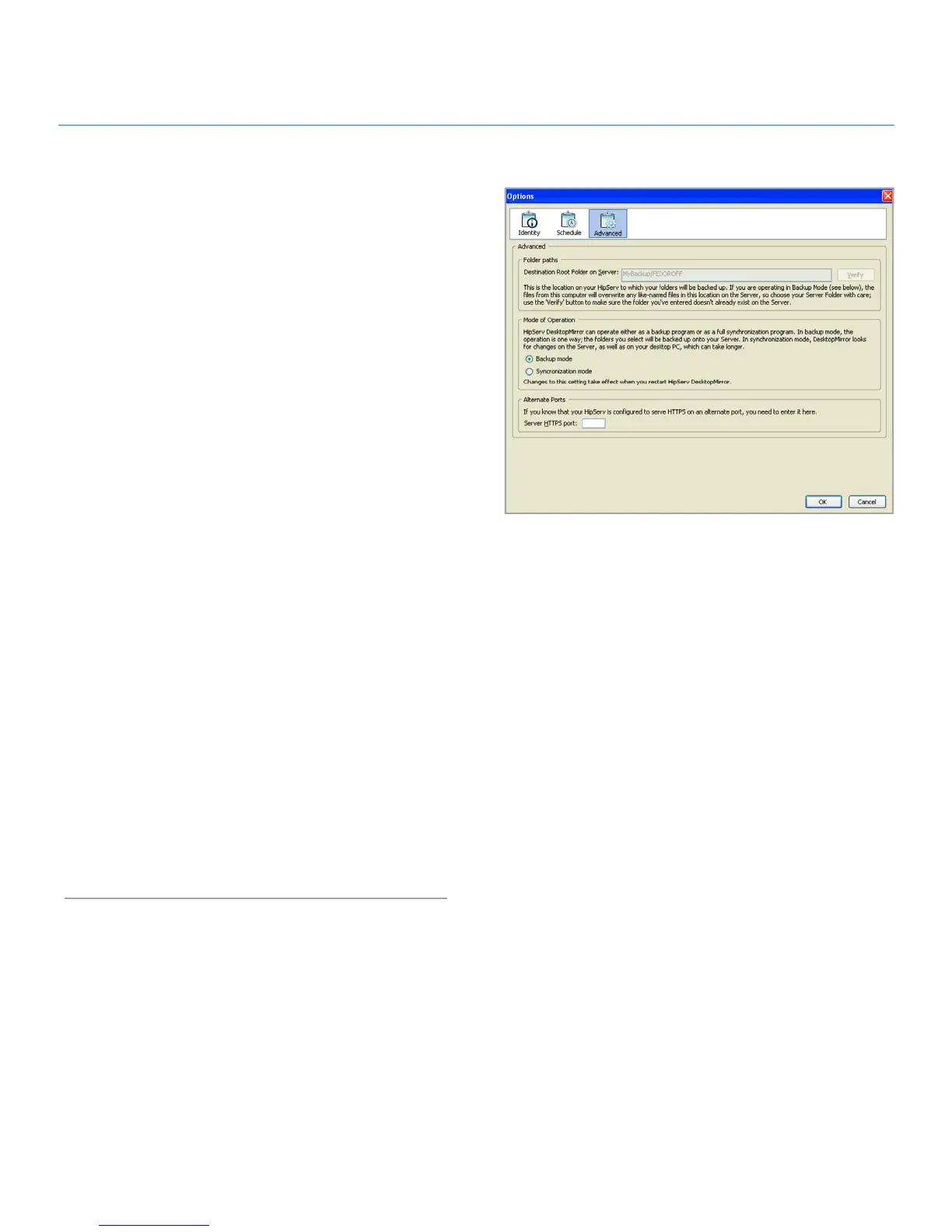
In the Mode of Operation area, select “Synchronization
2.
mode” (Fig. 7.1.4).
Click
3. OK. The next time you back up a folder, DesktopMIrror
will copy files from your computer and from MyBackup.
Figure 7.1.4



 To Next Page