LaCie Internet Space • DESIGN BY NEIL POULTON Sync & Backup Files
User Manual page 40
7.1.2. Scheduling Backups
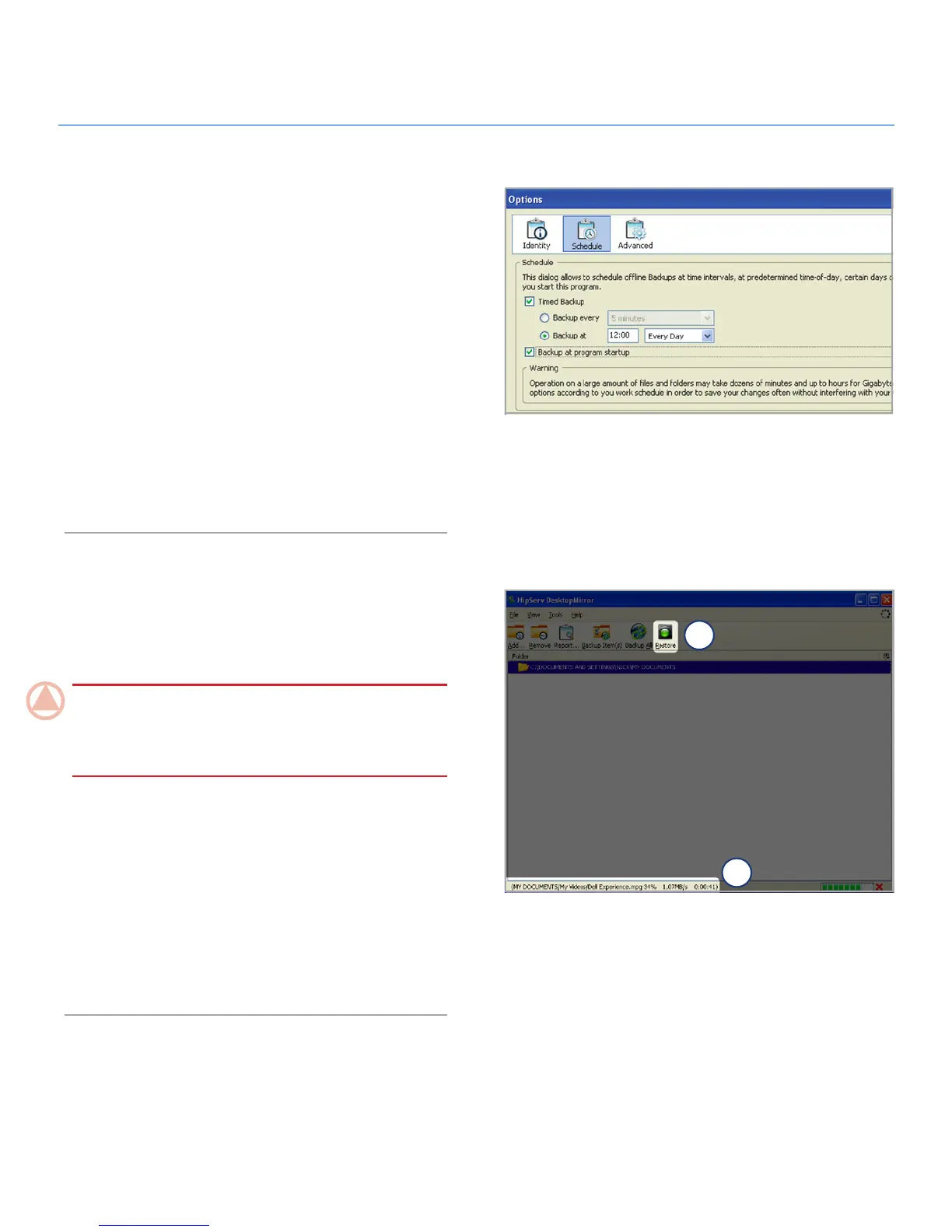
You can create a backup schedule using DesktopMirror’s Sched-
ule Feature. Creating a schedule means you never have to re-
member to back up your important data. DesktopMirror remem-
bers for you.
To create a backup schedule:
Select
1. Tools > Options in DesktopMirror. The Options
window opens. Click on the Schedule button at the top of
the window.
Select
2. Timed Backup.
To select a timed interval for your backup, select
3. backup ev-
ery. To select a specific time and day to perform the backup,
select Backup at.
Click
4. OK. The backup schedule is activate immediately.
Restoring Files7.1.3.
After you’ve backed up files to MyBackup using DesktopMirror,
you can restore them to their original location on your computer
using the Restore feature. Remember, restoring files overwrites
all of the files in MyBackup.
ImpOrTANT INfO: Do not move files you have backed up
or change the name of the files on MyBackup. When you re-
store files from your original backup, two folders will be created
and the files will not synchronize.
To restore files:
In the main DesktopMirror window, select the folders you
1.
want to restore and click the Restore button (a, Fig. 7.1.3).
A dialog box will open asking if you are sure you want to
2.
overwrite the files in MyBackup. Click OK if you are sure.
DesktopMirror will restore the files to MyBackup from your
3.
computer. Check the status of the restore in the status bar at
the bottom of the window (b, Fig. 7.1.3).
Figure 7.1.2
Figure 7.1.3
a
b




 To Next Page