LaCie Internet Space • DESIGN BY NEIL POULTON MyContacts
User Manual page 34
Importing Contacts5.4.
If you already have a large address book in either Mozilla/
Netscape 7 or Outlook Express, you can export the address
book as an .ldif or .csv file and import it directly into MyContacts.
To import contacts:
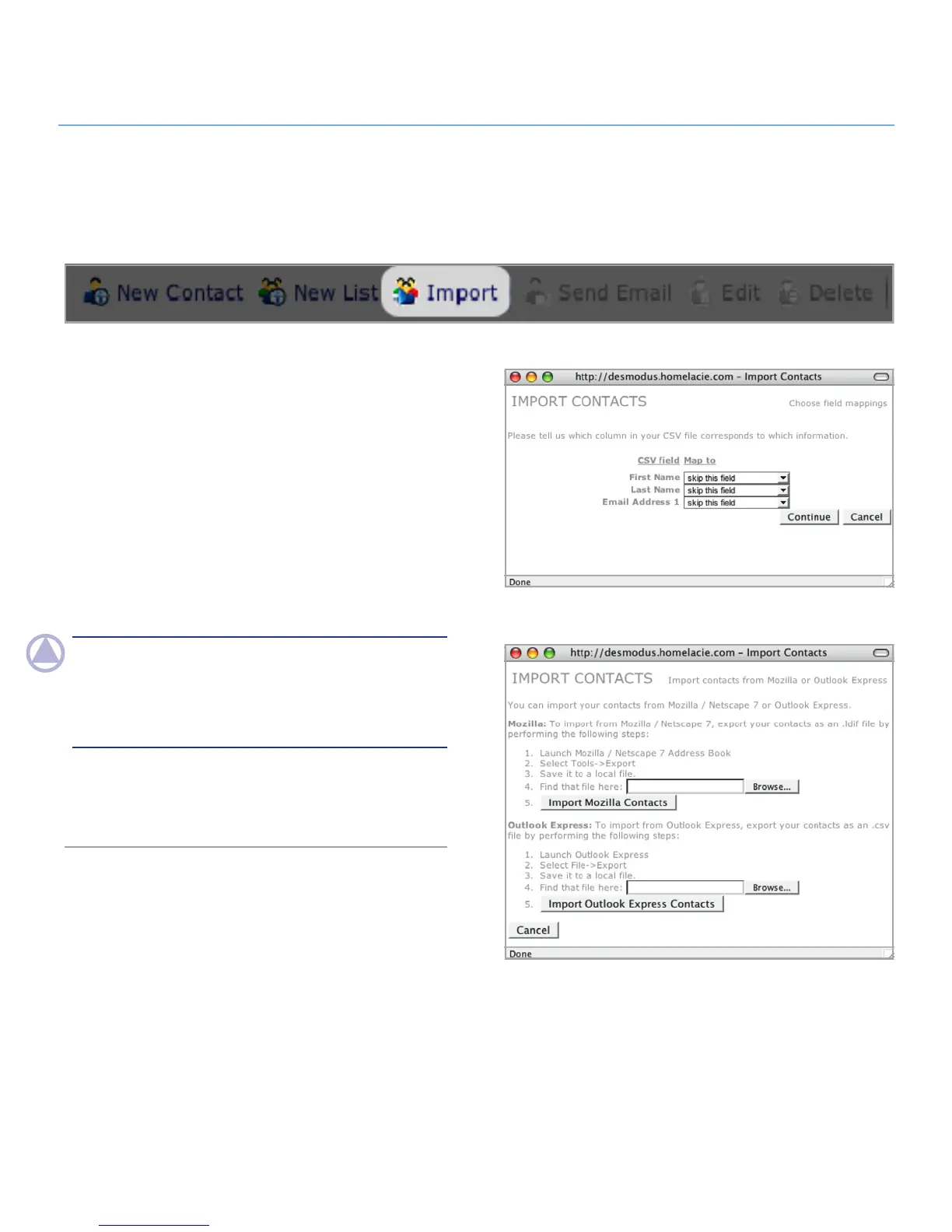
Click the 1. Import button in the action bar.
Follow the instructions in the Import Contacts window for ex-
2.
porting the proper type of file.
Click
3. Browse… to locate the file on your computer.
Click
4. Import Mozilla Contacts or Import Outlook Express
Contacts.
Match the columns of your exported file to the corresponding
5.
contact details fields (Fig. 5.4-B, .csv shown). Click Con-
tinue.
NOTe: You can simplify the matching process by removing un-
necessary fields from your exported .csv file by opening the file
in a spreadsheet program such as Microsoft Excel and deleting
empty columns. In the .csv file used for Fig. 5.4-B, all columns
but First Name, Last Name and Email address 1 were deleted.
MyContacts will import contacts from Windows .csv files export-
ed from any email program. Mac users, be sure to save your file
as a Windows .csv file.
Figure 5.4-A
Figure 5.4-B



 To Next Page