LaCie Internet Space • DESIGN BY NEIL POULTON Settings
User Manual page 46
General Settings8.1.
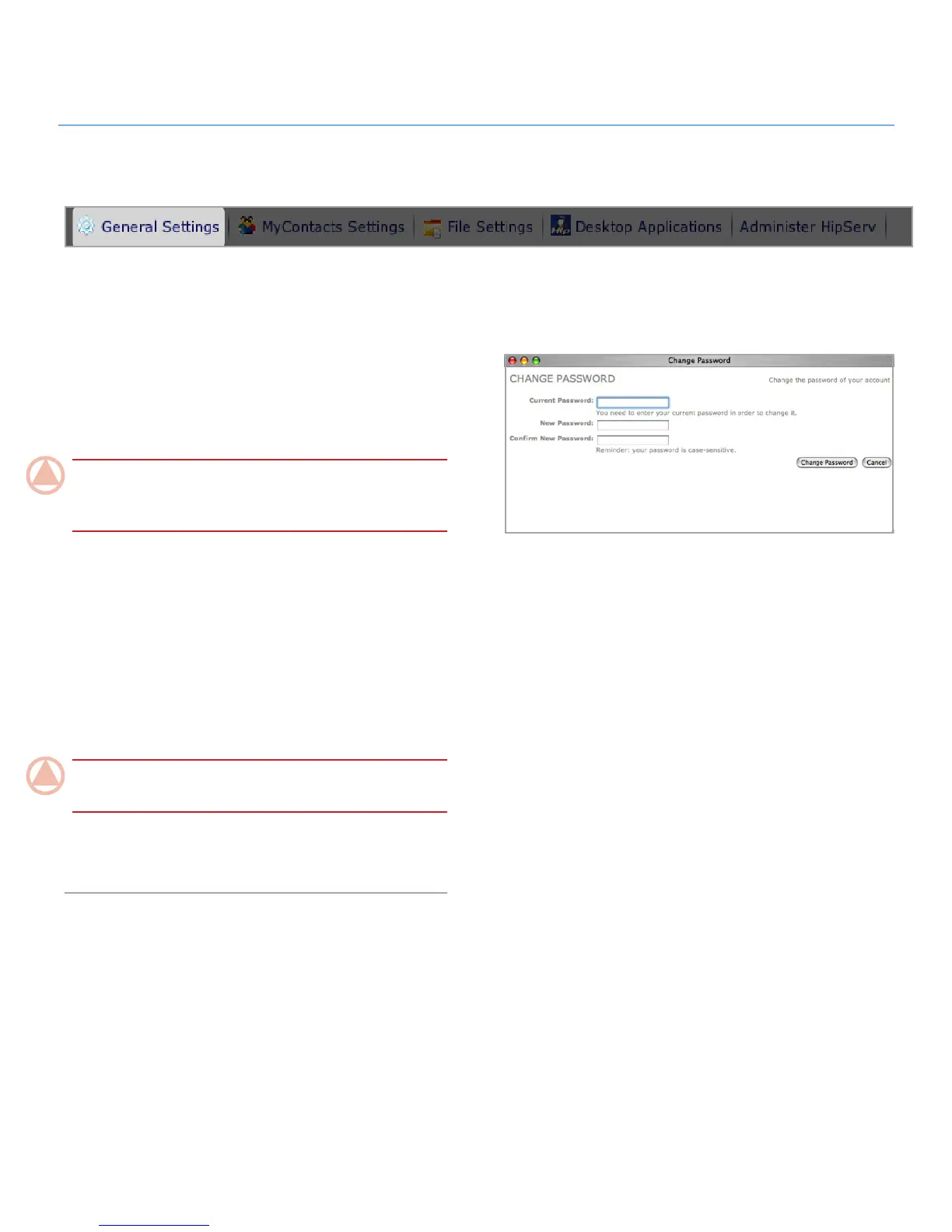
In General Settings you can change your display name, pass-
word and language. You can make all of the changes at the
same time and save them with one click of the Save Changes
button.
To change your display name:
Click in the Display Name field.
1.
Enter a new name.2.
ImpOrTANT INfO: Your user name and display name can
be different if you choose, but you must enter your user name
when signing into the Ethernet disk.
To change your password:
Click the
1. Change Password button. The Change Password
window opens (Fig. 8.1).
Enter your current password in the Current Password Field.
2.
Enter your new password in the New Password and Confirm 3.
New Password fields.
Click the
4. Change Password button.
ImpOrTANT INfO: New passwords must be at least 5 char-
acters long.
To change your language, select a language from the Language
menu.When you’re done, click Save Changes.
Figure 8.1



 To Next Page