LaCie Internet Space • DESIGN BY NEIL POULTON Administration
User Manual page 49
Adding and Managing Users9.1.
In the Account Access section of administration you can add
new users, delete users or modify the accounts of existing users.
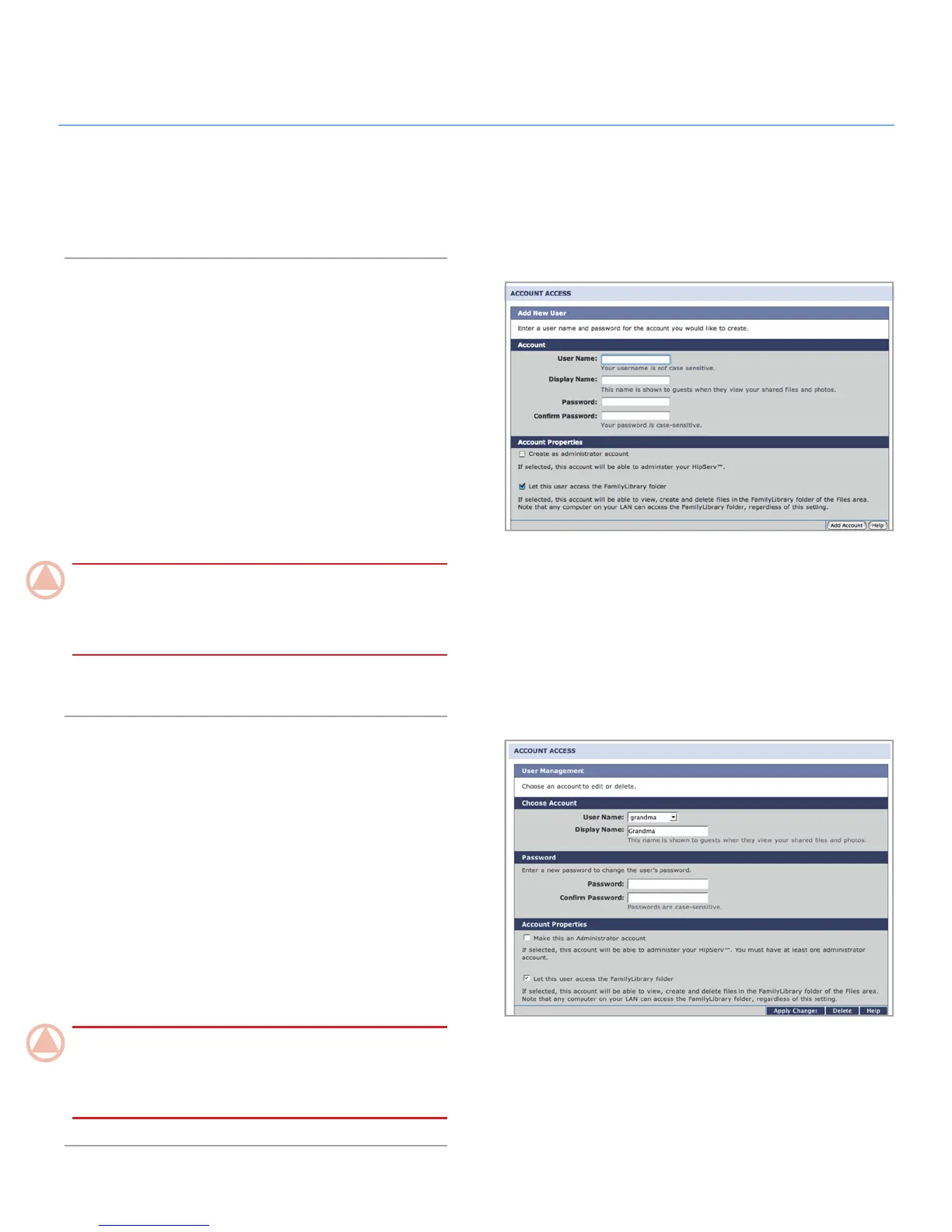
Adding Users9.1.1.
To add a user account:
Click the
1. Add New User link on the administration page.
Enter a user name, display name and password in the ap-
2.
propriate fields.
Mark the box beside “Create as administrator account” to
3.
give the user administrative privileges.
Mark the box beside “Let this user access the FamilyLibrary
4.
folder” to give the user access to the FamilyLibrary from the
browser interface.
ImpOrTANT INfO: Marking this box does not prevent the
user from accessing the FamilyLibrary folder from a computer
on your local area network. The user’s access to the folder is
only blocked in the browser interface.
Click
5. Add Account to create the account.
User Management9.1.2.
In the User Management page of Account Access you can
change users’ display names and passwords, change users’ ac-
cess privileges or delete user accounts.
To get started, choose an account to modify or delete from the
User Name menu under Choose Account.
To change a password, just enter a new password in the “Pass-
word” and “Confirm Password” fields. The new password must
be entered exactly the same in both fields.
To change the user’s access privileges, select or deselect the
boxes under Account Properties.
ImpOrTANT INfO: At least one user must be an adminis-
trator. Administrators cannot remove their own administrative
privileges, but they can remove the privileges of other admin-
istrators.
Figure 9.1.1
Figure 9.1.2



 To Next Page